Using Cloud Container Instances to Start Fine-tuning
LLaMA Factory is an open-source, low-code fine-tuning framework that incorporates widely used fine-tuning techniques. This section describes how to deploy LLaMA Factory on Cloud Container Instances of the Alaya NeW platform and perform LoRA-based supervised fine-tuning (SFT) on the llama3-8b-instruct model.
Prerequisites
- You have obtained your Alaya NeW company account and password. If you need assistance or have not registered yet, you can complete the registration by following the instructions in User Registration.
- Your company account has sufficient balance to use the Cloud Container Instance service. For the latest promotional details and pricing information, please Contact US.
Operation Steps
Step 1: Create a Cloud Container Instance
-
Sign in to the Alaya NeW platform using your company account. Choose "Product" > "Computing" > "Cloud Container Instance" to open the Cloud Container Instance page.
-
Choose [Create Cloud Container Instance] to open the instance creation page. Configure the instance name, description, AIDC, and other parameters. In this example, configure the parameters as follows:
-
Resource Type: Select "Cloud Container Instance – GPU H800A (1 GPU)". -
For other parameters, refer to the table below.
Configuration Item Description Requirements Required Instance Name A unique identifier used to distinguish this Cloud Container Instance. Must start with a letter; supports letters, digits, hyphens (-), and underscores (_); length 4–20 characters. Yes Instance Description A brief text description of the container’s purpose, usage, or configuration. None - AIDC The data center used to support cloud container instance service. Select an available data center (for example, Beijing Region 3 or Beijing Region 5). Yes Payment Method The method for using data center resources. Select the supported payment method. Currently, Pay-As-You-Go is used. Yes Resource Configuration Detailed compute resource specifications, including resource type, GPU, compute resource, and disk configuration. Select resources that meet your requirements. Yes Storage Configuration Optional NAS storage that can be mounted to the Cloud Container Instance Choose whether to mount NAS storage. 否 Image You can choose from public images (including base images and application images) or private images, depending on your needs. - Yes Other Setting Supports configuring environment variables (key–value pairs), and enabling auto-shutdown and auto-release for the Cloud Container Instance. 放。 - No
-
-
After configuring the instance parameters, choose "Create Now". In the confirmation dialog box, review the configured parameters and choose "Confirm" to complete the creation of the Cloud Container Instance.
You can view the created instances on the [Computing / Cloud Container Instance] page. When the instance status is "Running", the instance has been created successfully and is ready for use.
Step 2: Download and Install LLaMA Factory
-
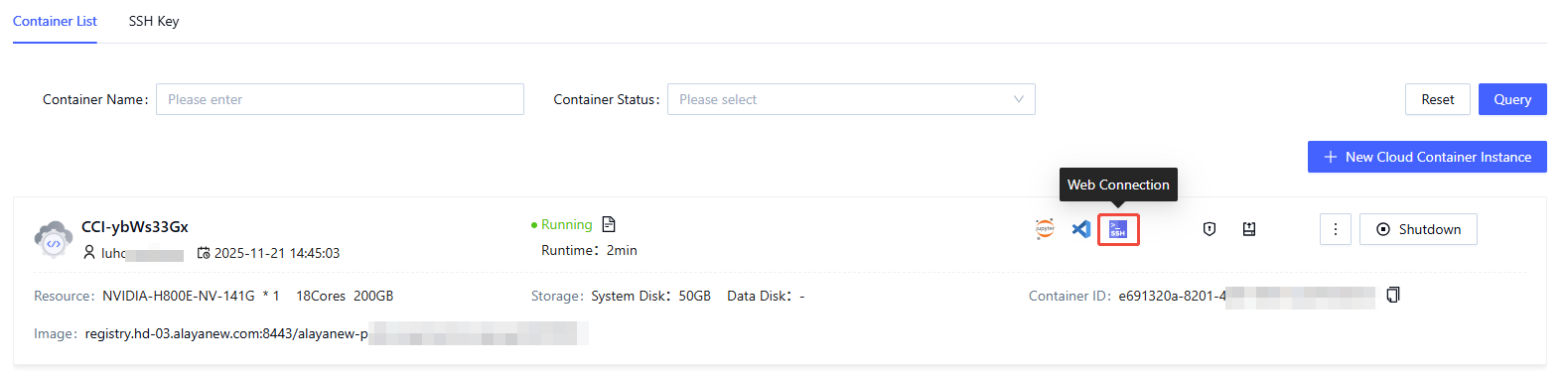
In the "Container List" tab of the "Cloud Container Instance" page, locate the target instance and click the Web Connection icon.
-
Run the following commands to install LLaMA-Factory and its dependencies:
git clone --depth 1 https://github.com/hiyouga/LLaMA-Factory.git
cd LLaMA-Factory
pip install -e ".[torch,metrics]" -
After installation, run the following command:
llamafactory-cli versionIf you see the following output, the installation was successful:

Step 3: Start the LLaMA Factory WebUI
-
In the "Container List" tab of the "Cloud Container Instance" page, locate the target instance and click the Web Connection icon.
tipYou can also use SSH to connect locally.

-
Run the following command to start the LLaMA Factory WebUI:
cd /app
GRADIO_SERVER_PORT=9001  llamafactory-cli webui
After the service starts successfully, the interface is displayed as follows:

-
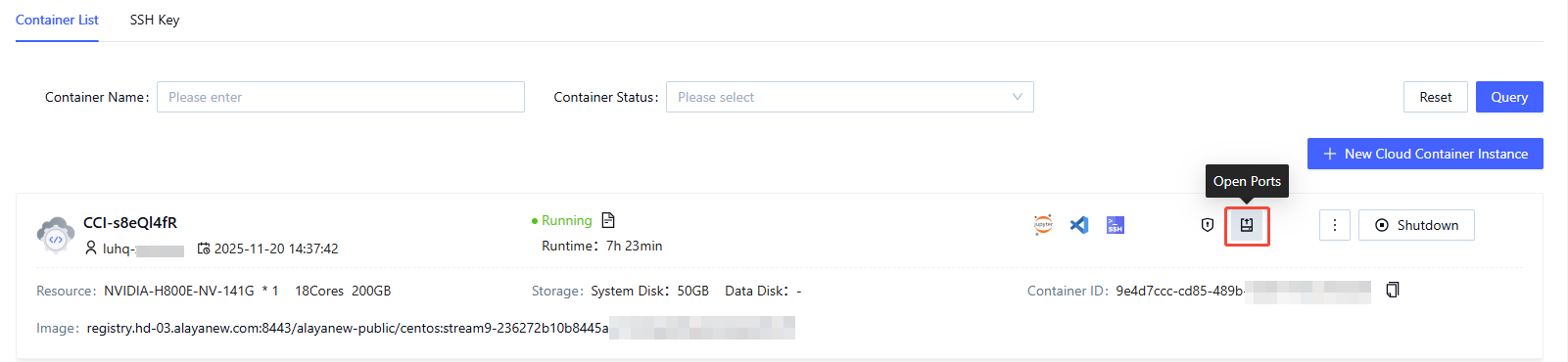
Locate the external port mapped to port 9001.
a. In the "Container List" tab of the "Cloud Container Instance" page, locate the target instance and click the Open Port icon.
b. In the pop-up dialog, copy the address corresponding to port 9001.
-
Paste the address into your browser to access the LLaMA Factory WebUI and begin graphical operations.
