
Expose container web services and APIs to the public internet — use the default 9001/9002 ports or configure custom ports
After deploying a web service, model inference service, or other application in a Cloud Container Instance (CCI), you can expose it via opened ports for external access. This guide walks through opening ports on a CCI so external networks can reach applications running inside the instance.
Prerequisites
- A CCI has been provisioned and is in the Running state. If not, see Quick start — Enable CCI.
- The application service is running inside the CCI and listening on the corresponding port (e.g. 9001, 9002).
Step 1: Open the CCI page
- Sign in to the Alaya NeW console
- In the left navigation, click Compute > Cloud Container Instance
- In the top-right of the page, select the region in which your instance lives (note: different instances may be in different zones)
Step 2: Open the port-configuration entry
- Click Cloud Container Instance to open the container list page
- In the container list tab, locate the target instance
- Click the Open Ports icon on the right of the instance row
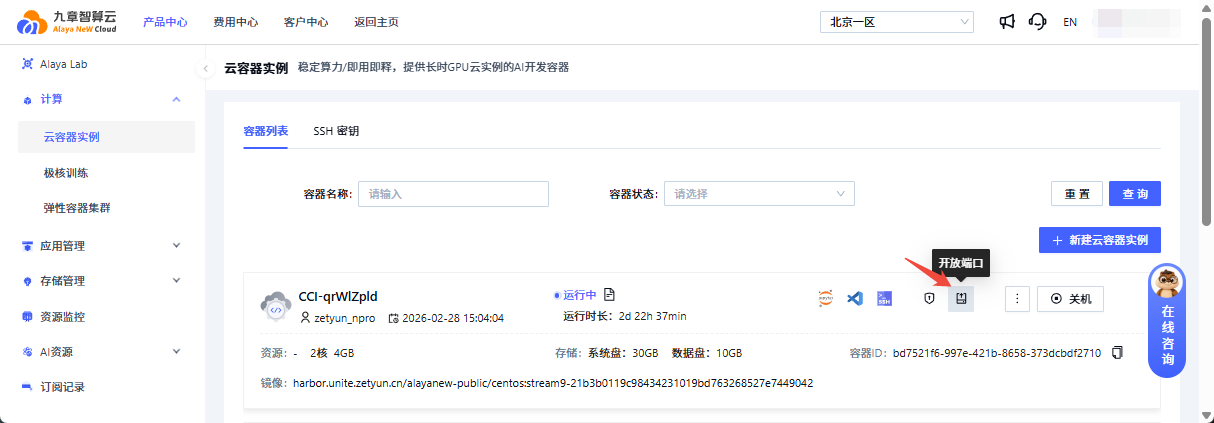
Step 3: Configure opened ports
In the configuration dialog that opens:
- The system has pre-opened ports 9001 / 9002 for the application to serve external traffic.
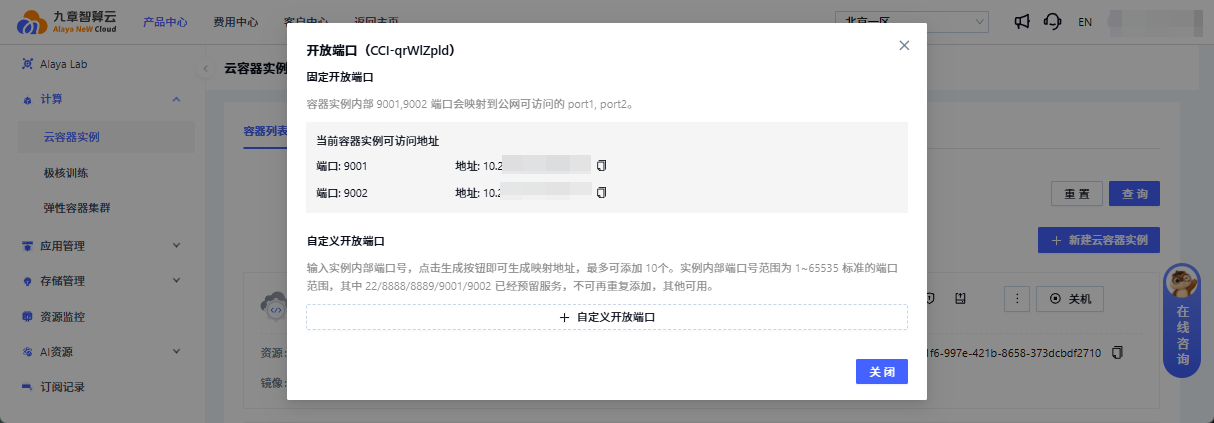
If your application listens on a port outside the default set, you can add custom ports in the "Custom opened ports" section of the dialog:
- Click + Custom opened port
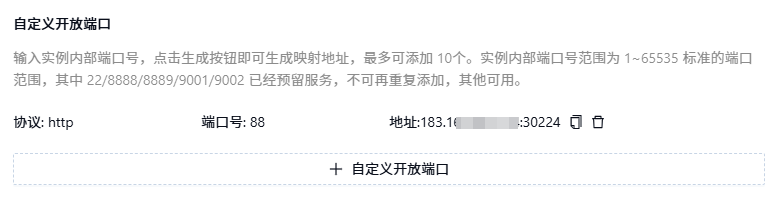
- Pick the protocol type and enter the port number (range: 1–65535)
- Click Generate; the system automatically allocates a public access address
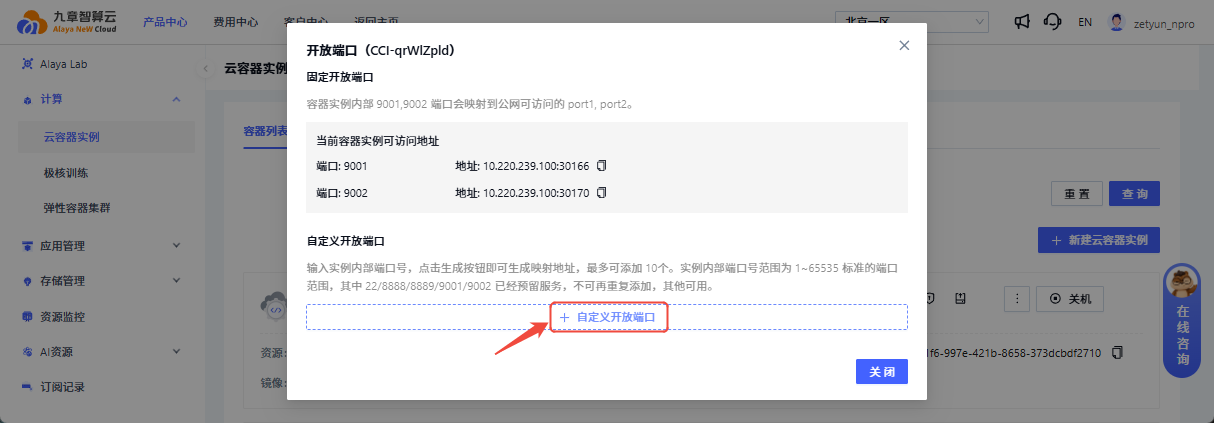
Notes
- A single instance can have at most 10 custom ports.
- 22, 8888, 9001, and 9002 are reserved system ports and cannot be reconfigured.
Step 4: Access the application from outside
Copy the generated public access address and open it in your browser or client to reach the application running in the CCI.
Verification example (HTTP service)
In the CCI Web-CLI, run:
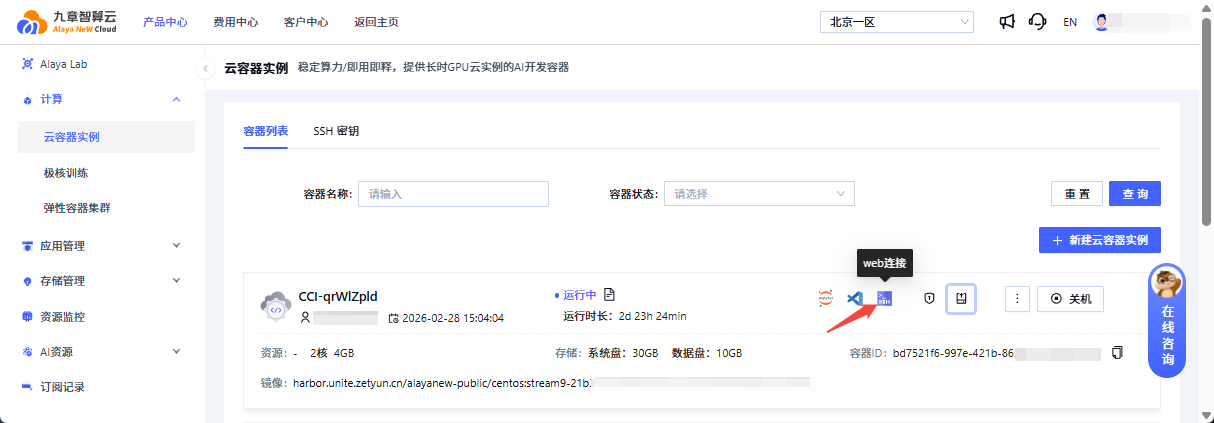
python3 -m http.server 9001After hitting Enter, the following message confirms that the service has started successfully:
Serving HTTP on 0.0.0.0 port 9001 (http://0.0.0.0:9001/) ...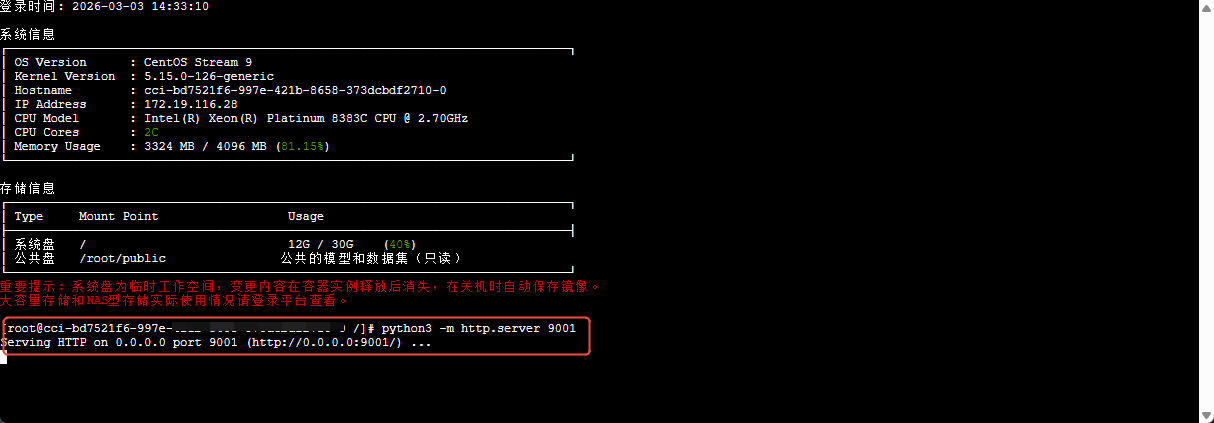
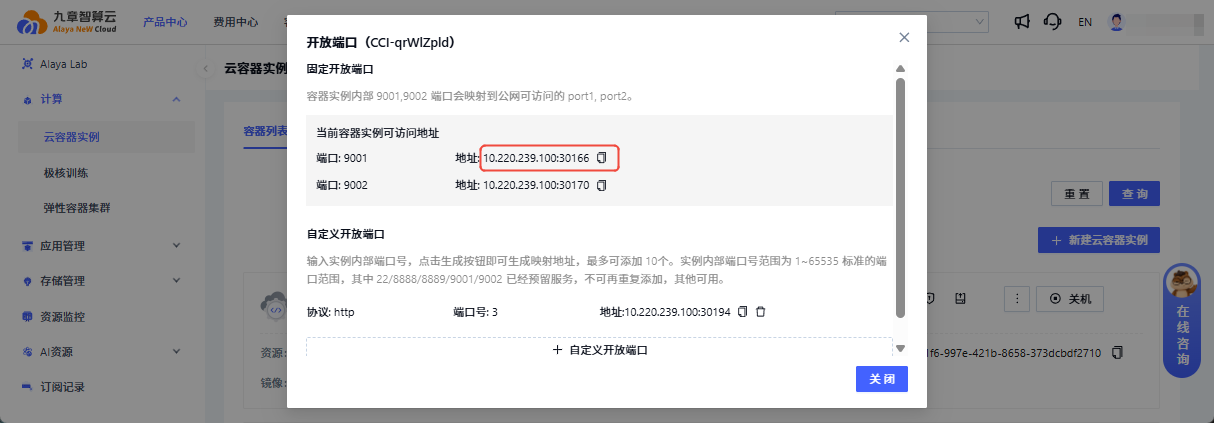
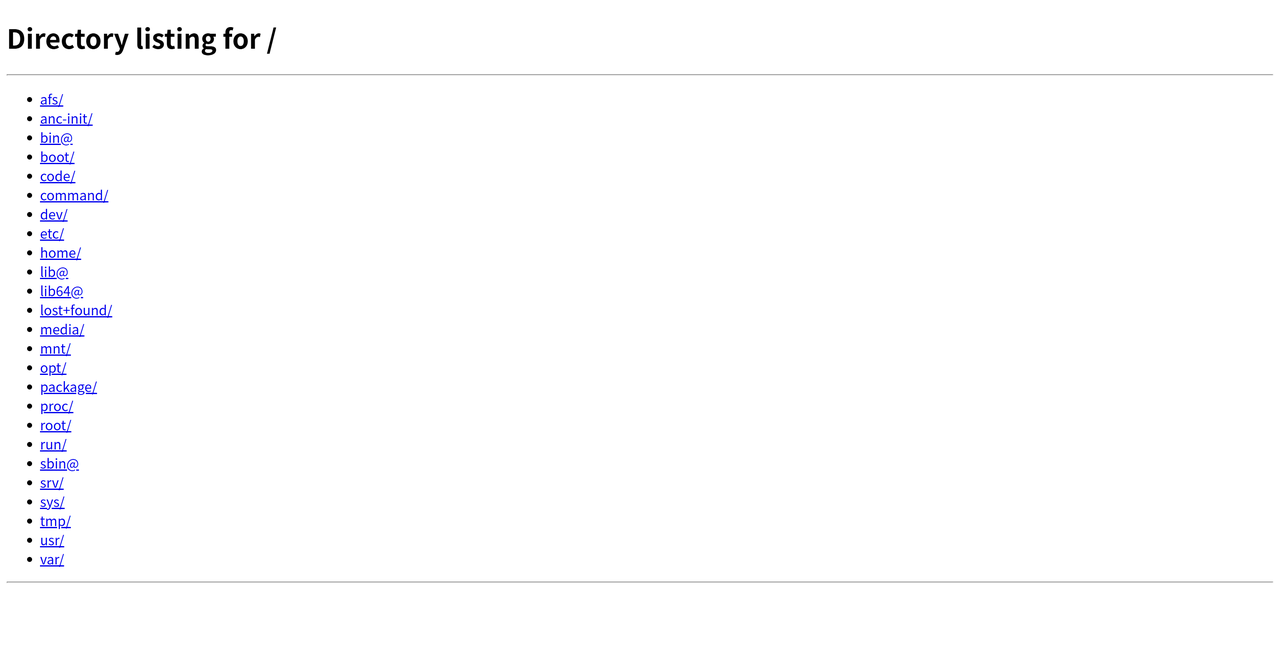
Open the public address corresponding to port 9001 in a browser to verify that the service is reachable.
Next
Last updated on