
Stand up a Serverless GPU container — pick spec, image, and storage, then launch in seconds
Once you have an Alaya NeW enterprise account with sufficient balance, follow the steps below to provision a Cloud Container Instance (CCI).
Prerequisites
- An Alaya NeW enterprise account and password. If you have not registered, see Sign up.
- Sufficient account balance. For current promotions and pricing details, contact us.
Steps
-
Sign in to the Alaya NeW platform with your enterprise account, then go to Products → Compute → Cloud Container Instance to open the CCI page.
-
Click
New Containerto open the CCI provisioning page and configure the instance name, description, region, and other parameters.Parameter Description Requirements Example Required Instance name Identifier for the CCI; uniquely identifies it in the system Must start with a letter; supports letters, digits, hyphen (-), underscore (_); 4–20 characters Jrqsl-01 Yes Instance description A short description of the instance's function, purpose, and configuration — — No Region The data center that hosts the CCI service Pick an available data center, e.g. Beijing Zone 3, Beijing Zone 5 Beijing Zone 3 Yes Billing mode The billing method for data-center resources Currently supports pay-as-you-go Pay-as-you-go Yes Resource spec The resource specification for the data center, including resource type, GPU model, compute resources, disk configuration Pick the resources that meet your needs — Yes Storage configuration NAS storage volumes that can be mounted into the CCI Pick NAS storage as needed — No Image Public images (base and application images) and private images are supported Pick the image type that fits Public image Yes Other Configure environment-variable keys and values, plus auto-shutdown and auto-release — — No Private images require the main account to enable the image-registry service first; sub-accounts need authorization from the main account.
-
Once the parameters are configured, click
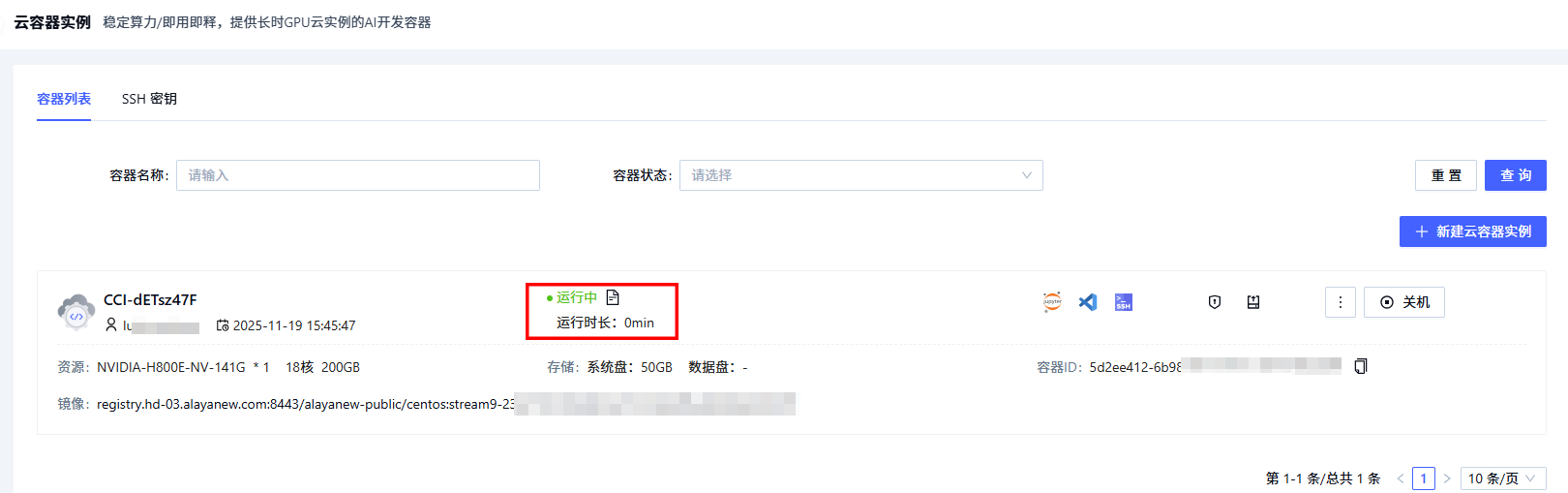
Enable Now, confirm the parameters in the dialog, and clickOKto complete provisioning.You can view the new CCI on the Compute / Cloud Container Instance page. When the status reads "Running", provisioning has succeeded and the instance is ready to use.
Next steps
Last updated on
Sign up
Register and activate an Alaya NeW enterprise account — fill in the form, set the password from your email link, and complete activation
Enable Virtual Kubernetes Service (VKS)
Provision a shared or dedicated VKS cluster — configure compute, storage, and options to host training and inference workloads