
Inspect, resize, share, view billing, and edit the in-instance mount path
This page walks through volume permissions and the day-to-day operations on NAS volumes.
Permissions
- Master account: provisions, views, modifies, deletes every volume in the enterprise; can resize and manage sub-account access.
- Sub-account: cannot provision NAS volumes; only sees volumes after the master account shares them.
Only the master account can provision storage.
Inspect volumes
Go to Product Center → Storage Management → NAS Storage.
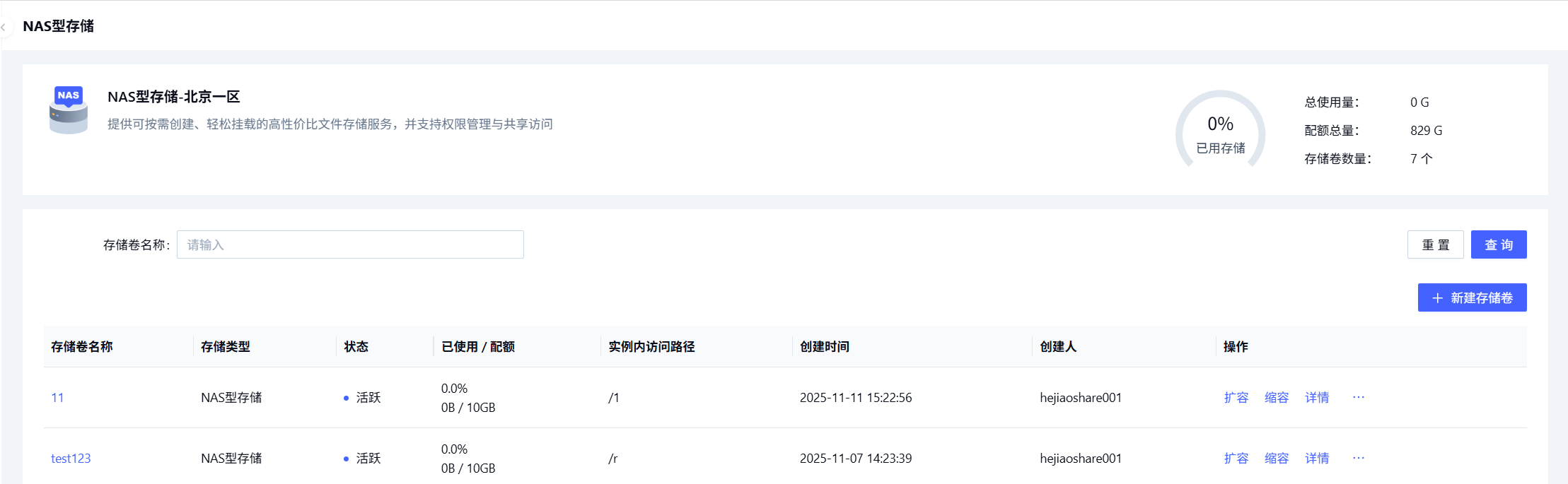
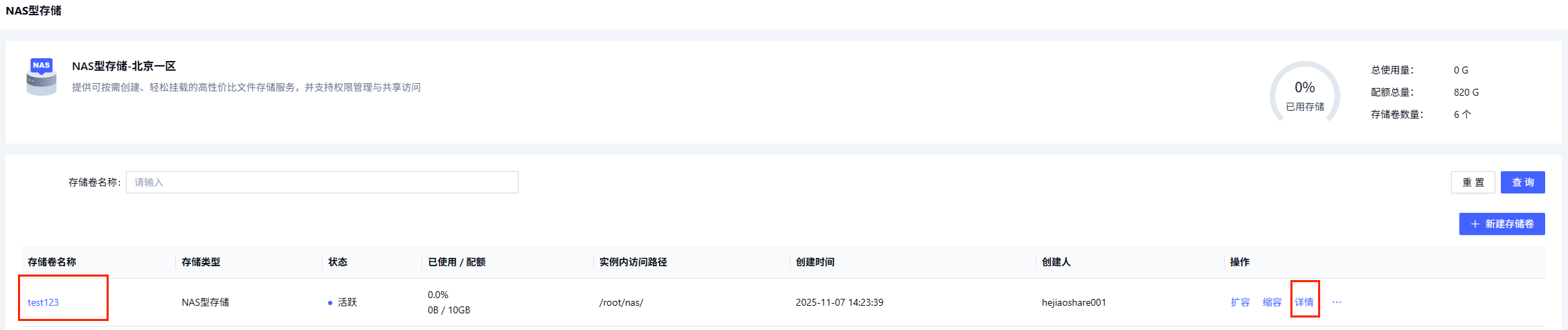
The page shows:
- Monitor panel: total usage vs. total quota, total quota, total volume count.
- Volume list: name, type, status, used / quota, mount path, creator, creation time.
- Status:
Active: provisioned, can be deleted.Provisioning: other actions are disabled; only delete is available. If stuck for too long, delete and re-create.
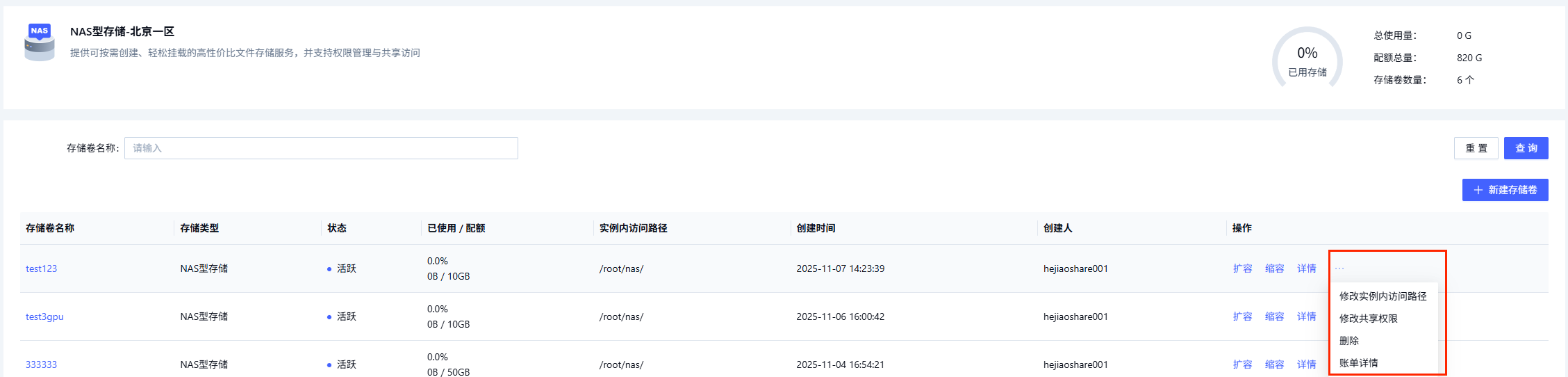
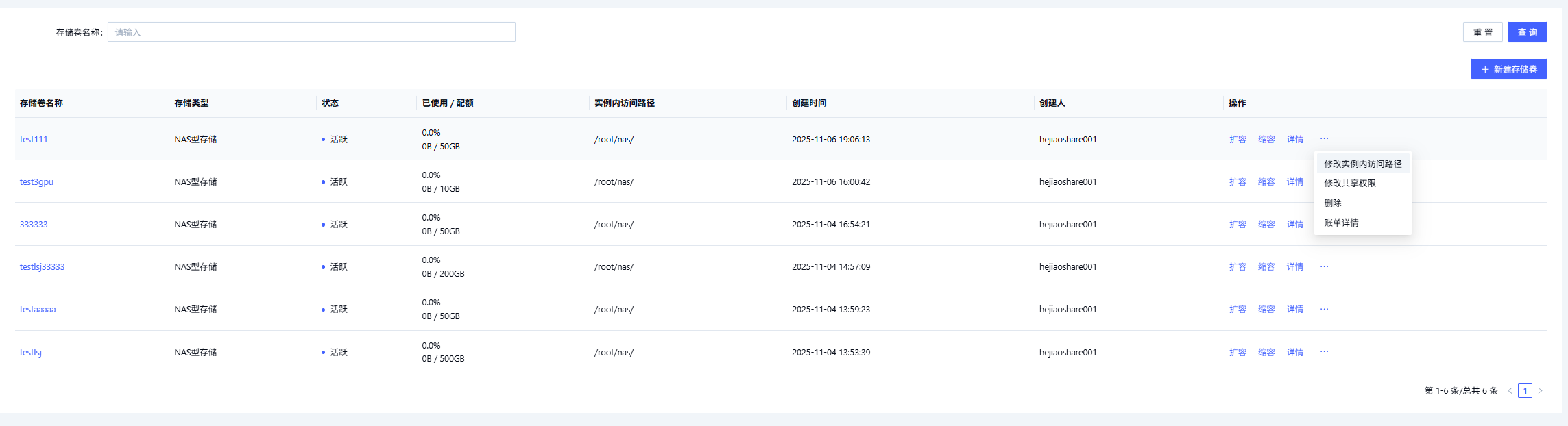
- Actions: detail, new, expand, shrink; hover the
…for more (delete, modify share permissions, view billing detail, edit mount path).
Expand
Click Expand, enter the new total quota (must exceed the current quota), confirm.
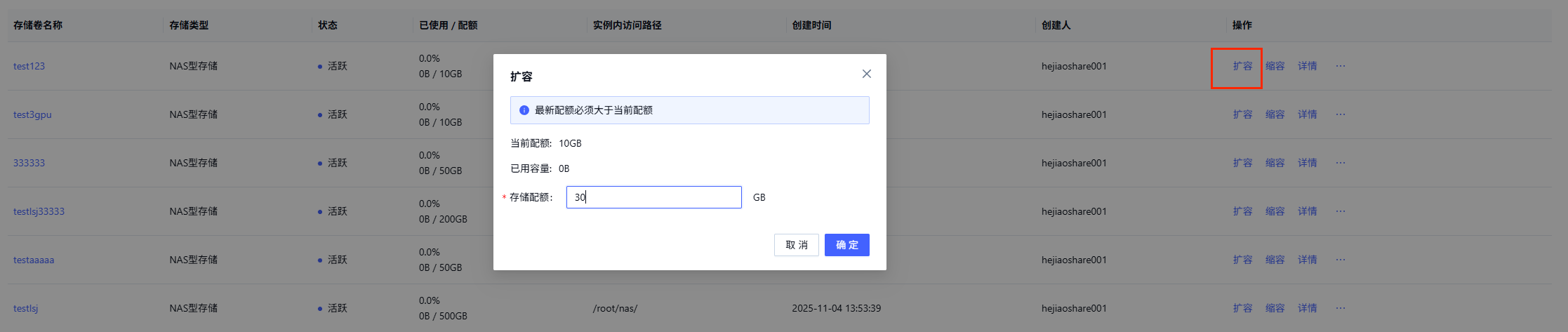
Maximum total capacity after expansion is 4096GB.
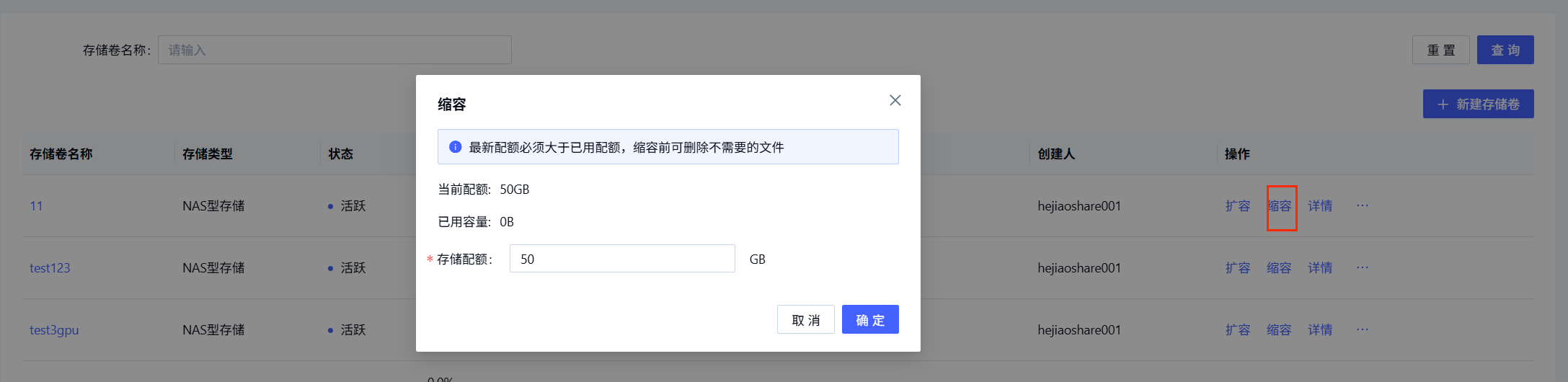
Shrink
Click Shrink, enter the new total quota (between used and current), confirm.
Detail
Click the volume name or Action → Detail to open the volume detail page.
The detail page contains:
-
Basics: settings from provisioning, plus volume ID, creation time.
-
Expand / Shrink: in-page actions.

-
Mounted on: products currently using the volume; click
Opento jump to that product's list page.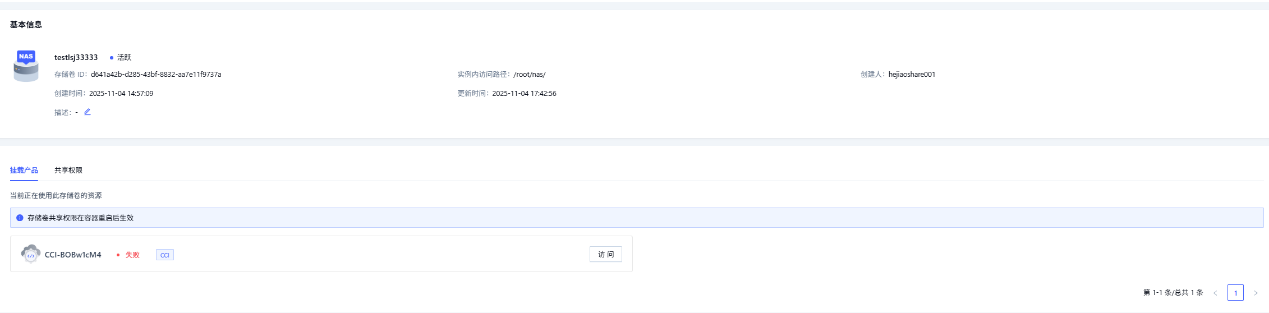
-
Share permissions: view and modify access for sub-accounts.

Delete
Action … → click Delete.
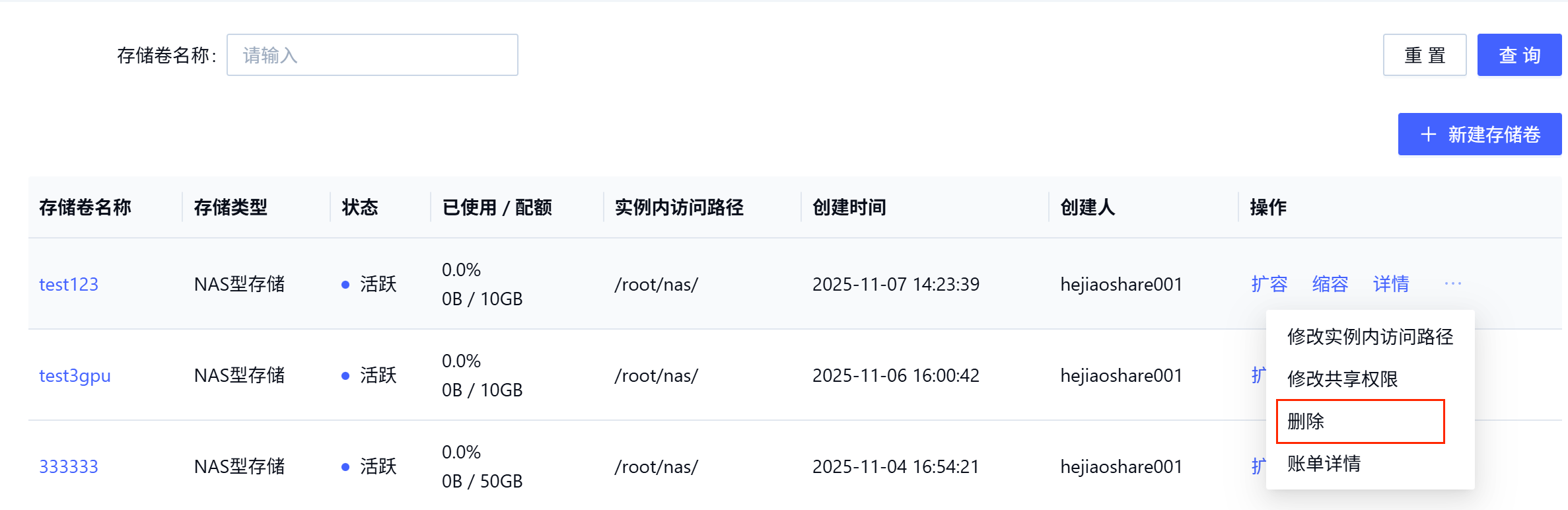
Deletion stops billing and erases the volume's data.
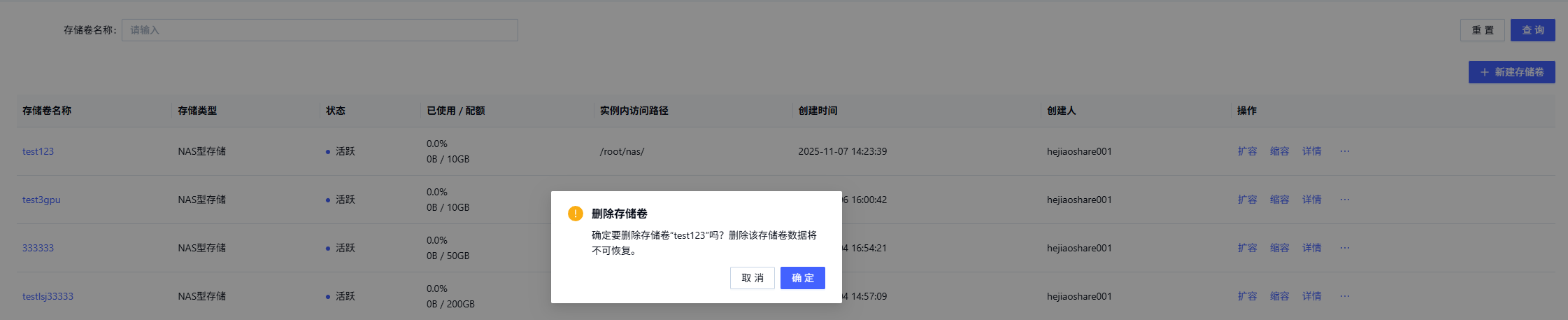
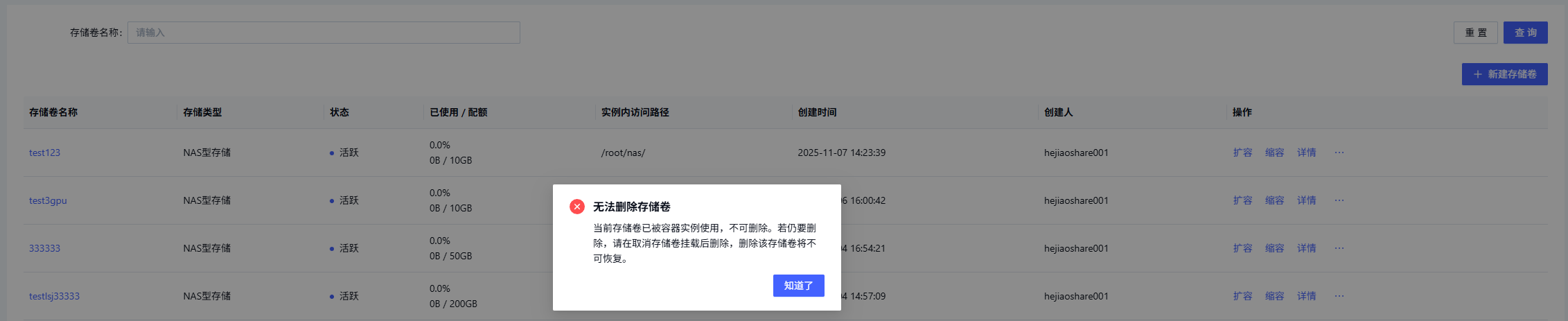
If the volume is currently mounted by an instance, you must restart the CCI to detach it before deletion. See Mount NAS in CCI.
Modify share permissions
Three states: read-only, read-write, unshare (default).
Edit either from the list page or the detail page.
From the list page
-
Action
…→Modify share permissions.
-
In the dialog, check the target accounts, pick a permission, click
Confirm.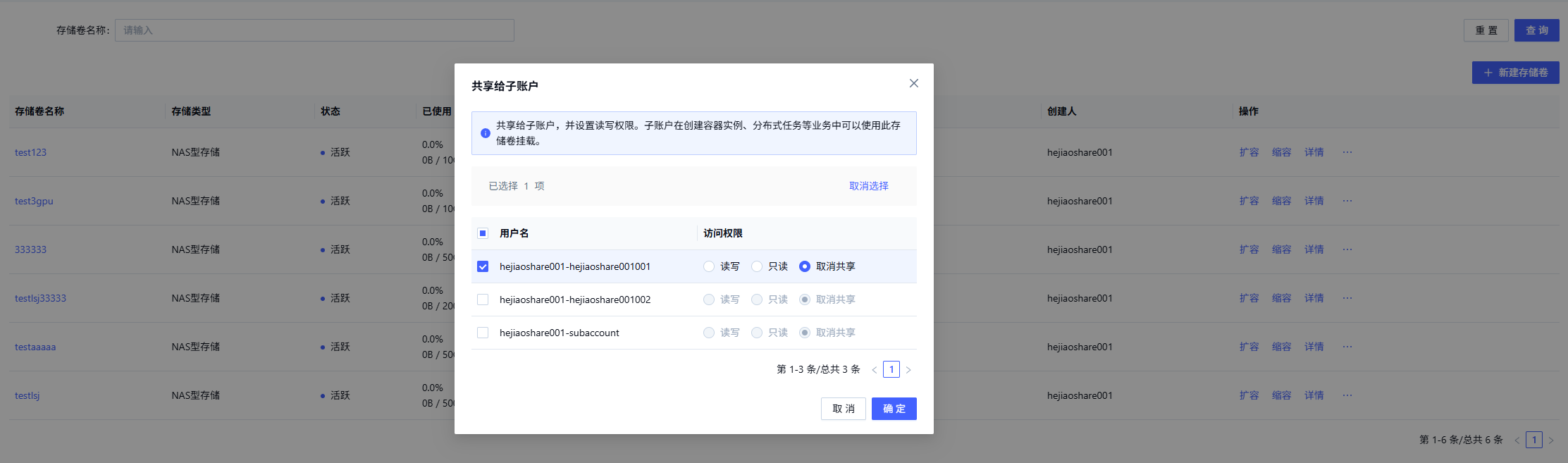
From the detail page
-
Open the volume detail page, switch to the
Share permissionstab. -
Check the target accounts, pick a permission, click
Save.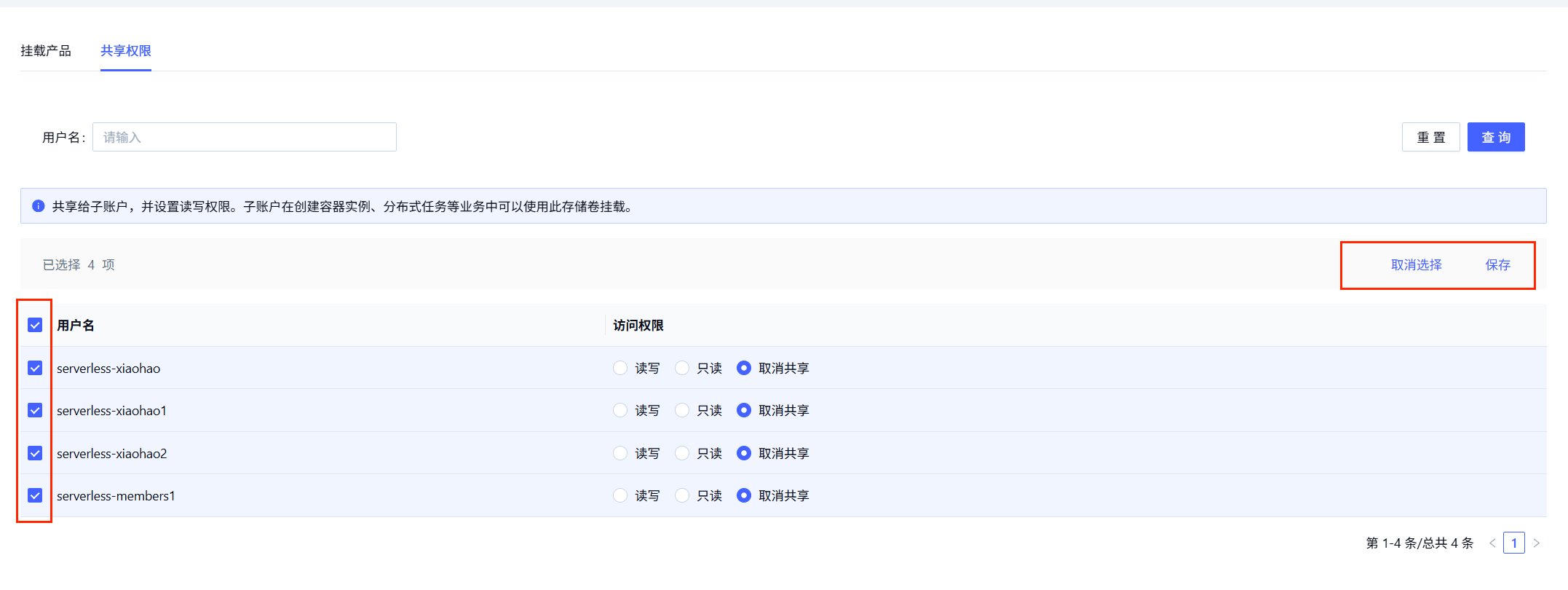
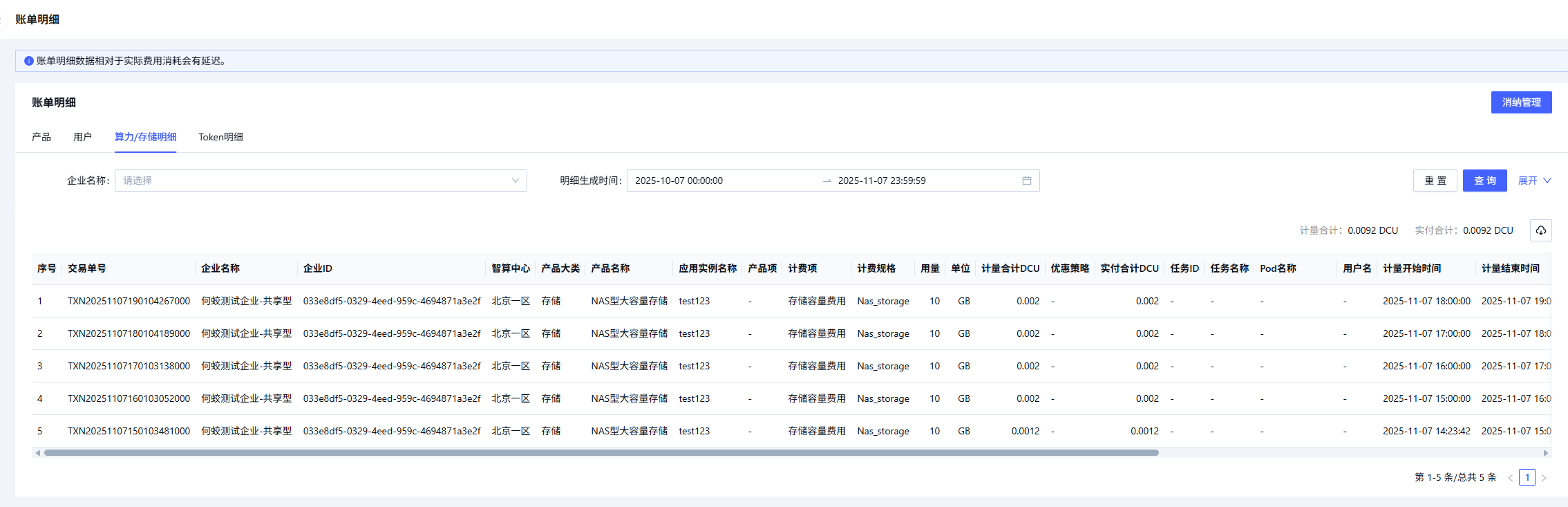
Billing detail
Available from both the list page and the detail page.
From the list page
Click Billing detail on the top right.

From the detail page
Action column → Billing detail.

Edit mount path
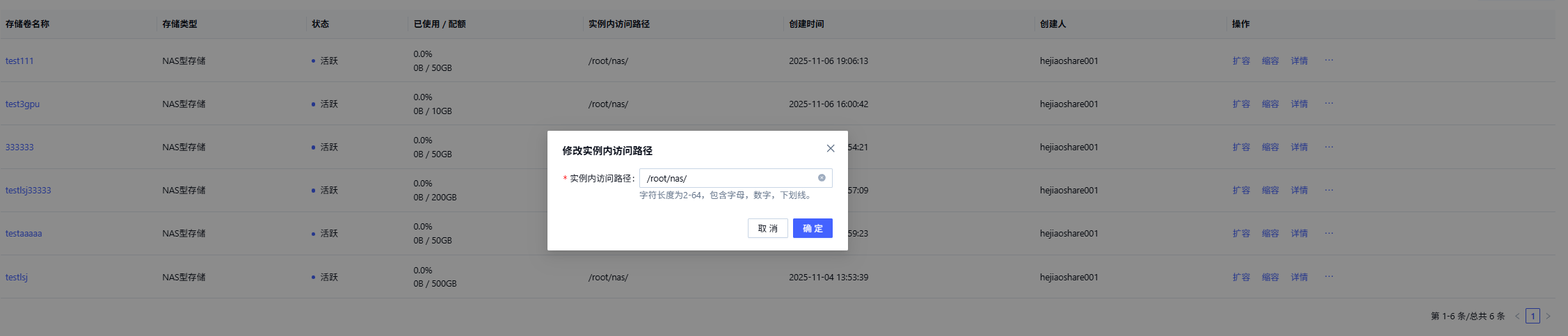
Action … → Modify mount path.
In the dialog, edit the path and click Confirm.
Within the same data center, mount paths must be unique across the enterprise's NAS volumes.
Last updated on