
Add, modify, delete a mounted NAS volume; billing implications when releasing a CCI
This page covers mounting a NAS volume in a Cloud Container Instance (CCI).
Prerequisites
- Alaya NeW enterprise account; if not registered, see account registration.
- A NAS volume provisioned by the master account; see Provision a NAS volume.
- Sub-accounts need the master account to share the volume first; see Manage NAS volumes (
Modify share permissions). - The CCI and the volume must live in the same data center.
Add a volume
-
Go to Product Center → Compute → Cloud Container Instance.
-
Click New CCI, scroll to the
Storageblock, and click Add to mount one or more existing volumes. Other CCI fields are documented at Create CCI.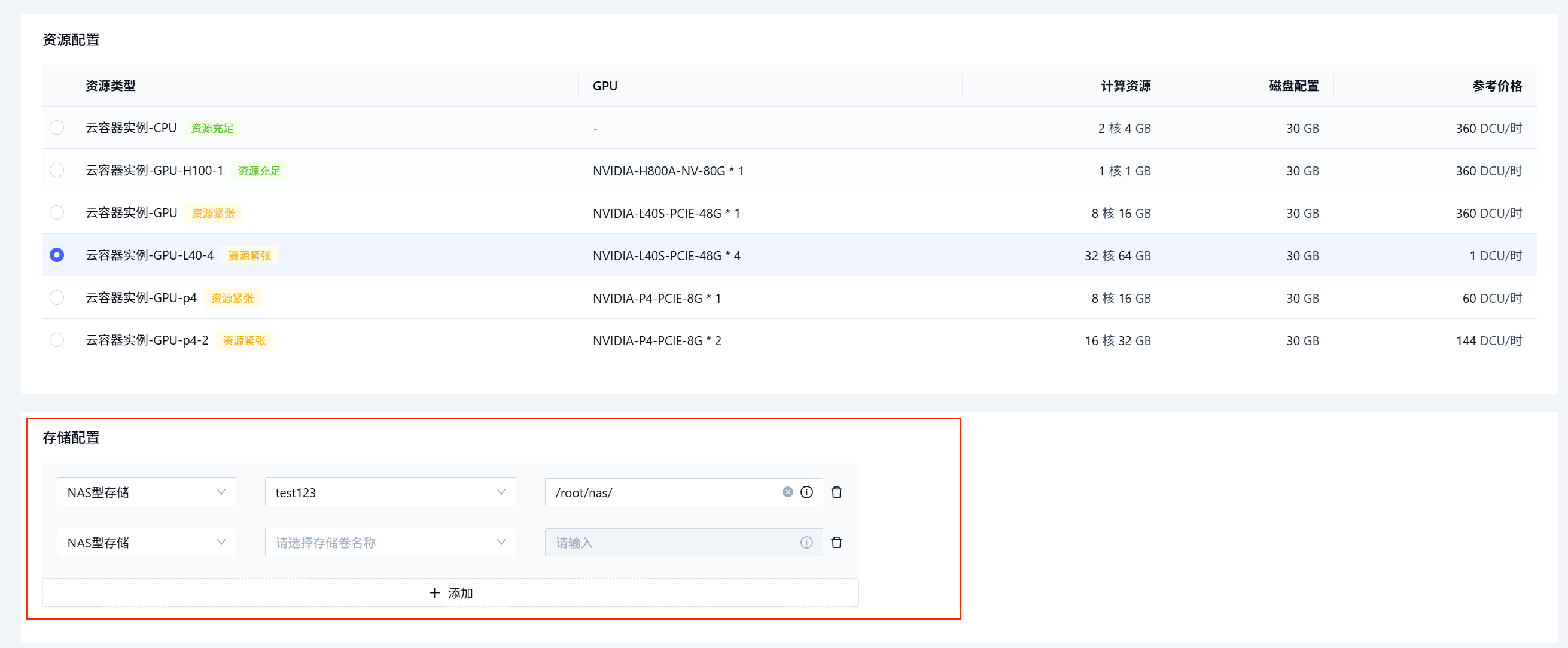
Click Clear to re-pick the volume.
-
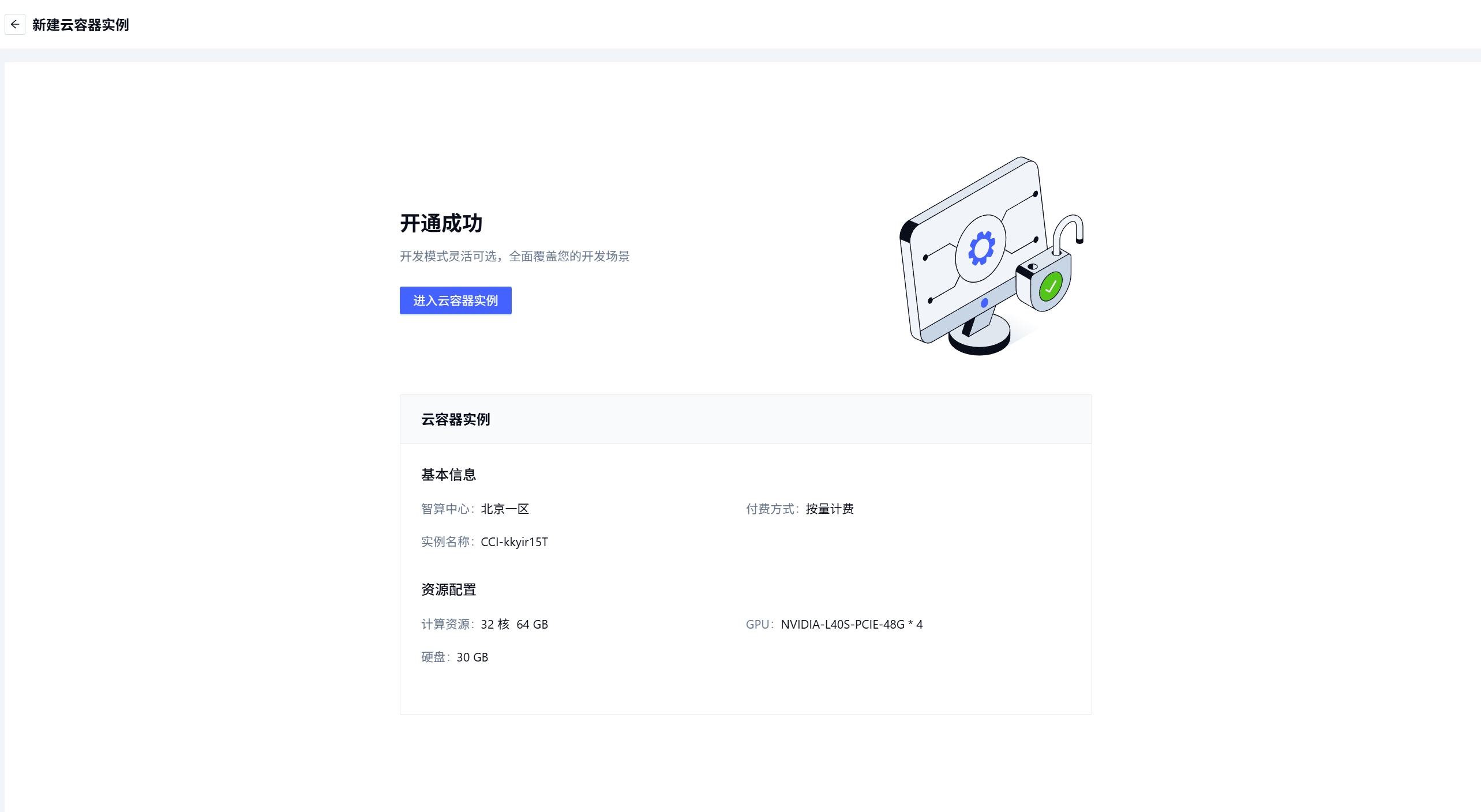
Click Activate, then jump to the CCI list to verify.
-
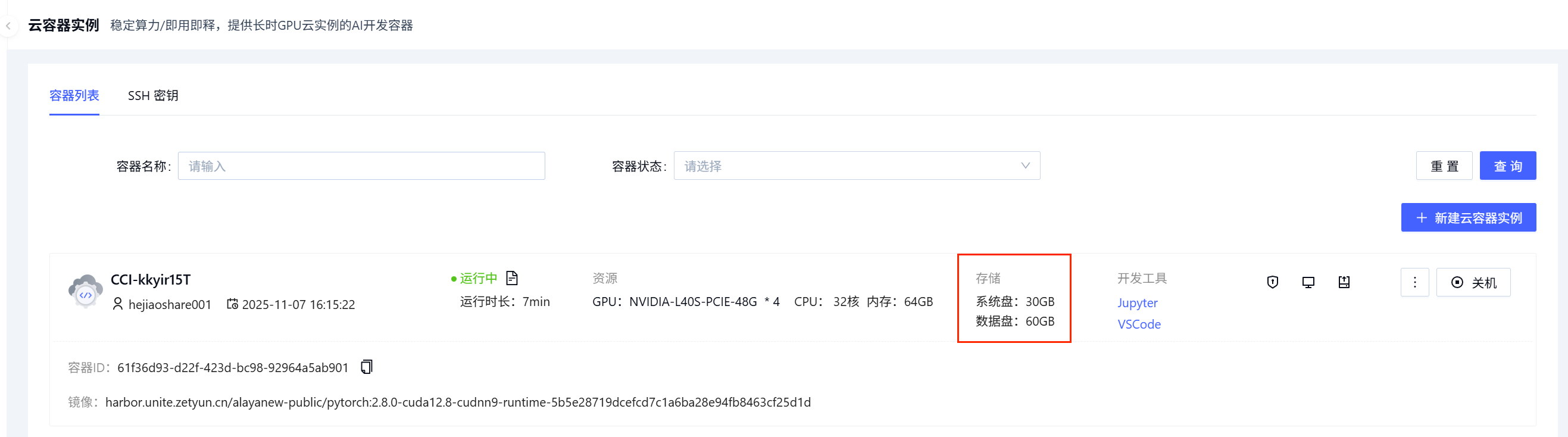
Volume mounted: the data-disk column shows the total mounted volume quota.
-
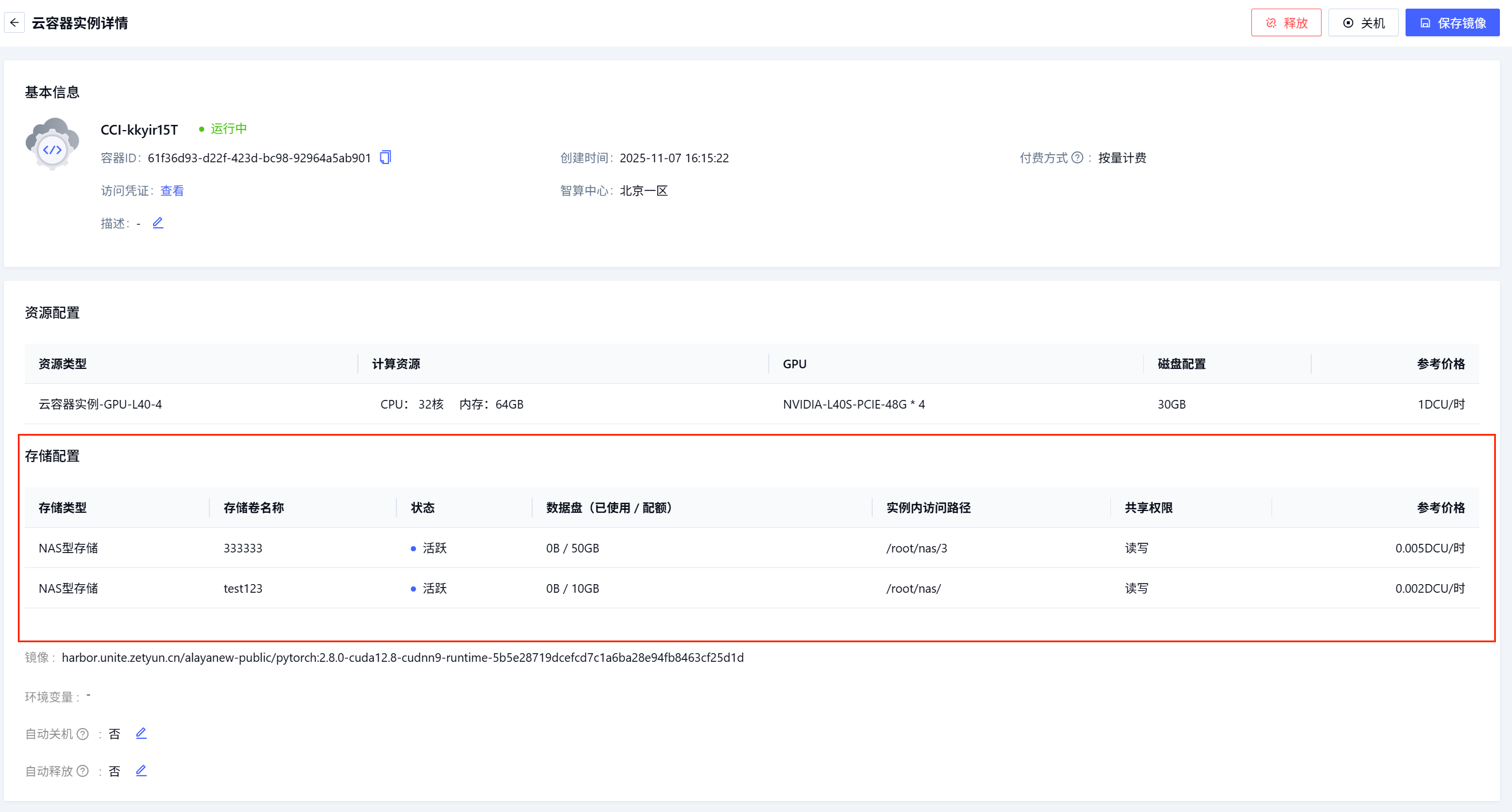
Inspect storage config: open the CCI detail page to see the mounted volume's basics and state.
-
Modify a volume
You must restart the CCI to modify its mounted volume.
-
Power off the CCI.

-
Click
Power on, the Reconfigure drawer appears on the right.
-
Switch to the
Storagetab, toggle Replace storage.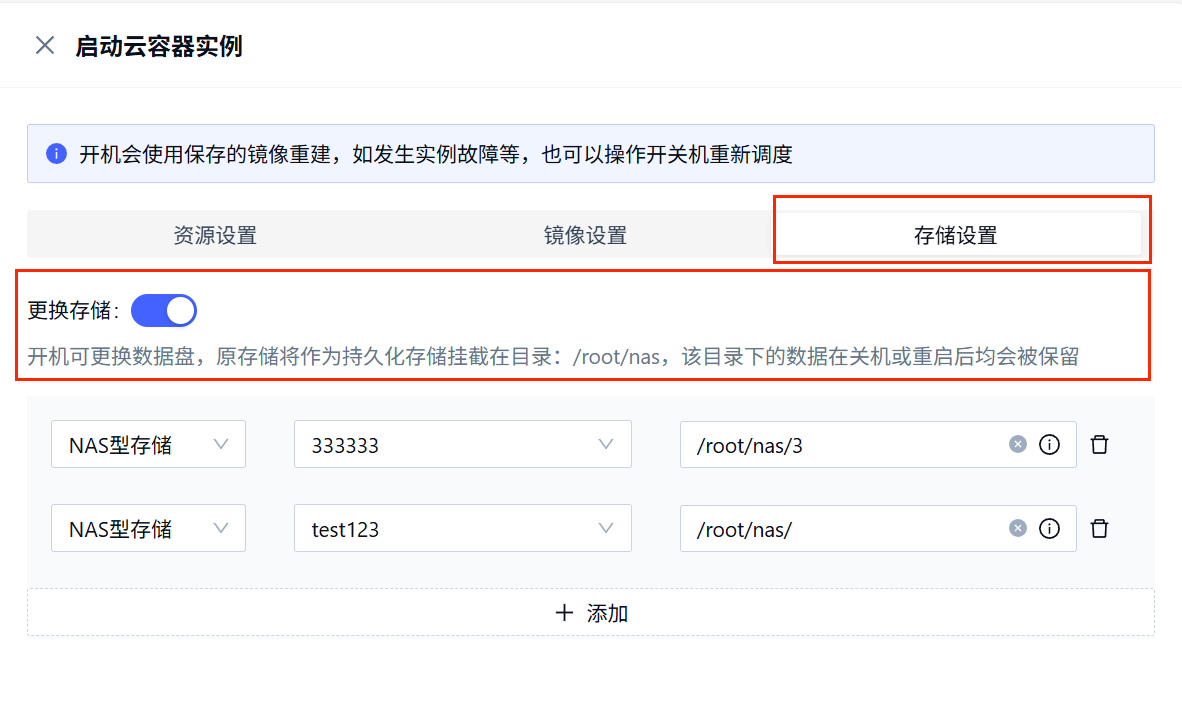
-
Edit the in-instance mount path and click
Confirm.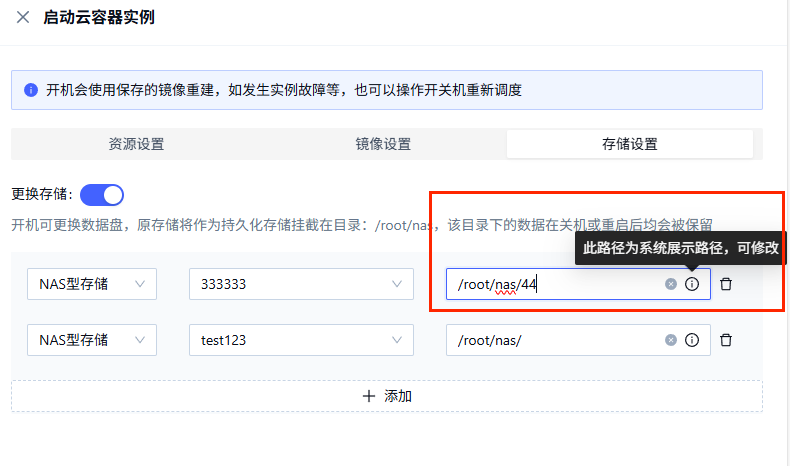
-
Pick a new volume, click
Confirm.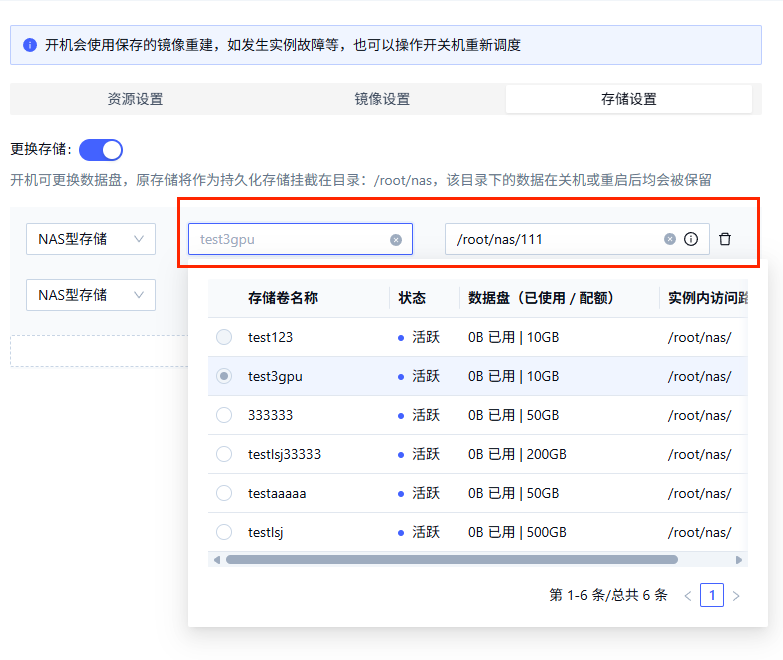
-
Click
Confirmto apply; the CCI restarts and the change takes effect.
Remove a volume
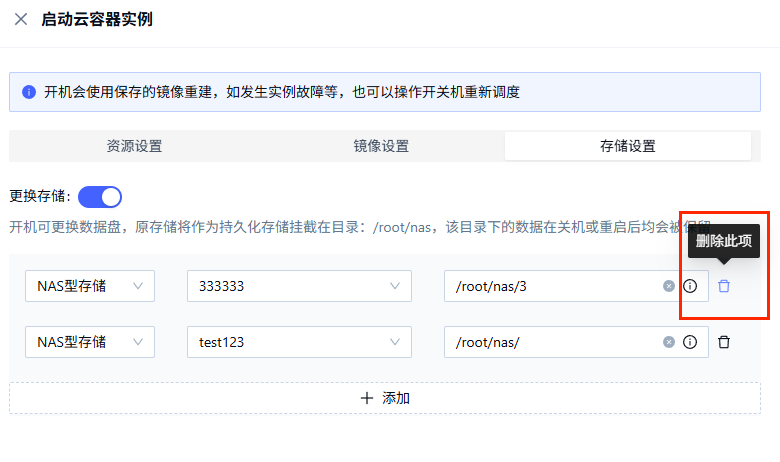
Click Delete to remove a mounted volume.
Release the CCI
-
In the CCI list, click Release on the right of the target instance.

-
Confirm to release.
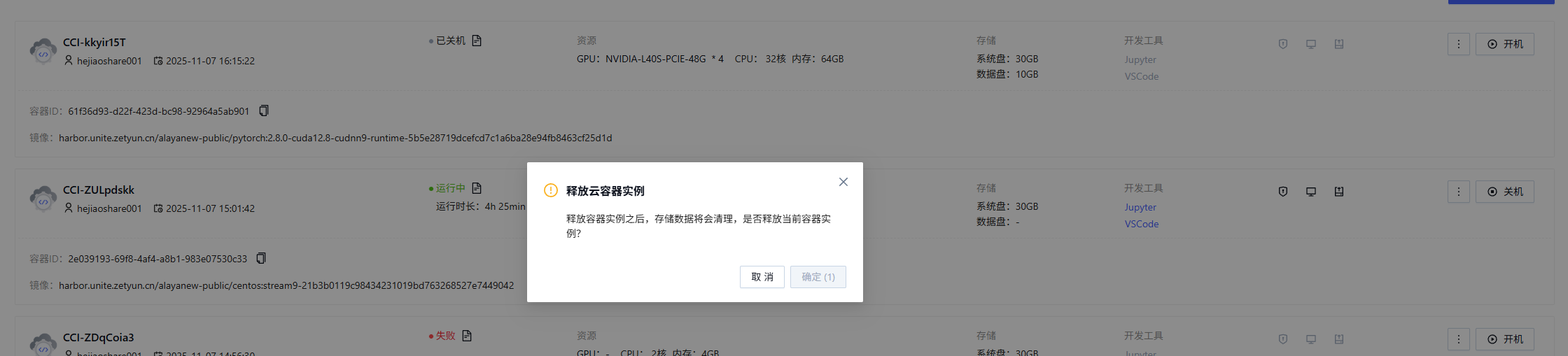
After releasing the CCI:
- The system disk data is deleted.
- The data disk (mounted NAS volumes) data is not deleted and will continue to bill.
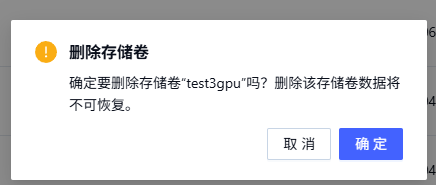
To stop billing on the volume, manually delete it from the NAS Storage page after releasing the CCI.
Last updated on