
From bot creation to event callbacks — full Lark / Feishu integration for Alaya NeW OpenClaw, covering both the AlayaNeW shortcut and the SSH installation paths
Prerequisite: OpenClaw must already be purchased and enabled on your Alaya NeW Cloud account. See Meet and enable OpenClaw for details.
Step-by-step Lark / Feishu integration
Set up the Lark / Feishu bot
Sign in to the developer console of the Lark / Feishu Open Platform.
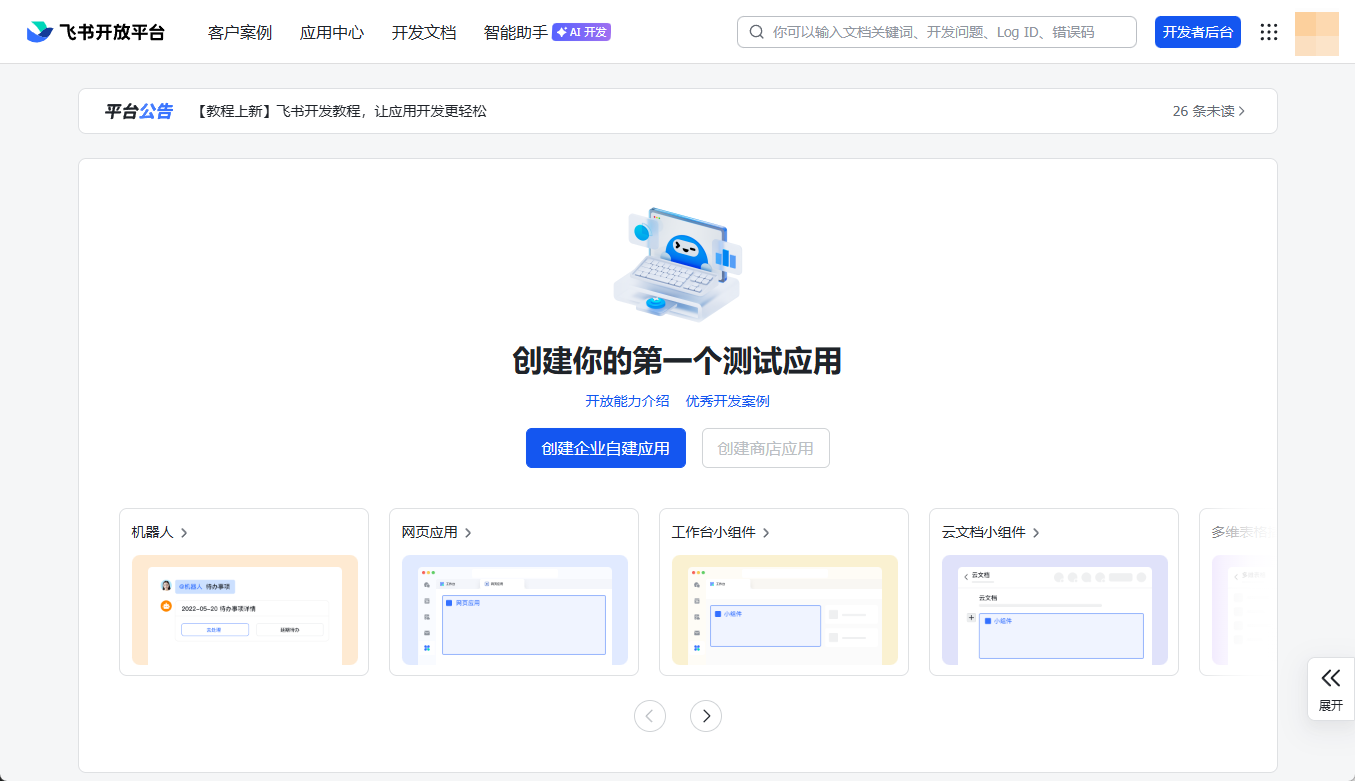
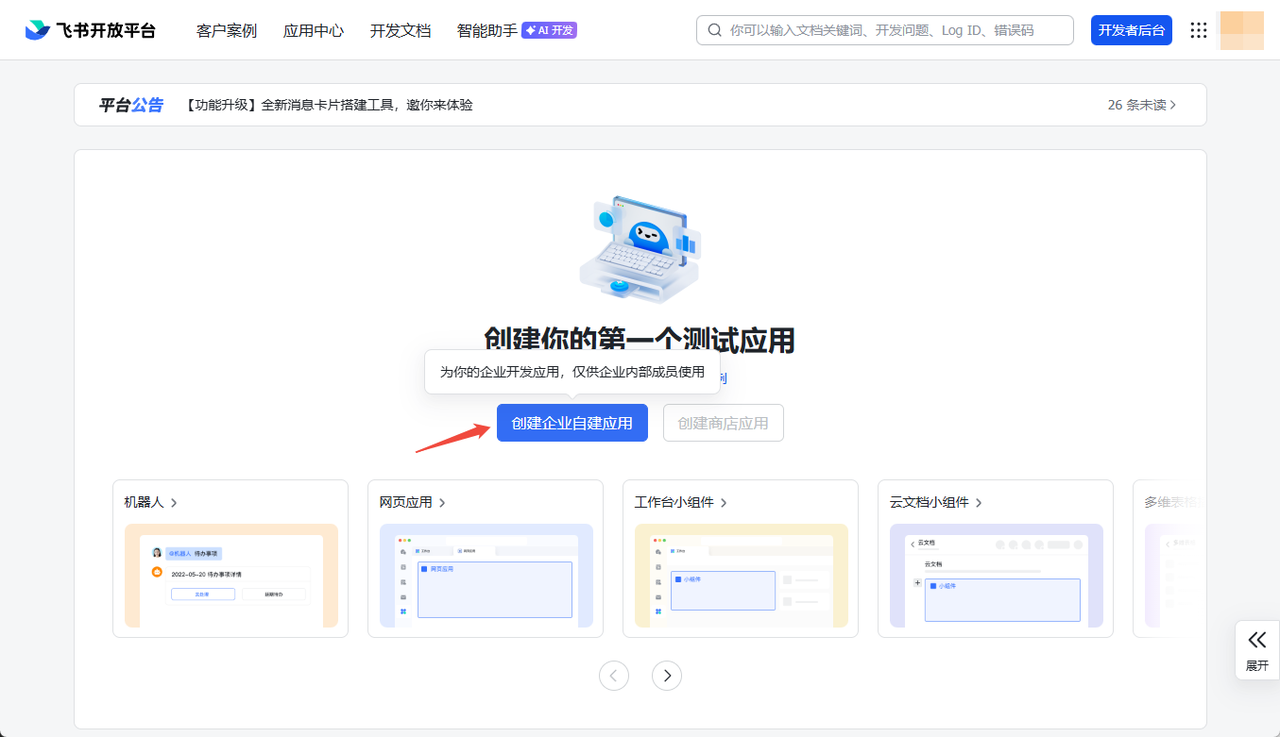
In the developer console, click Create Custom Enterprise App.
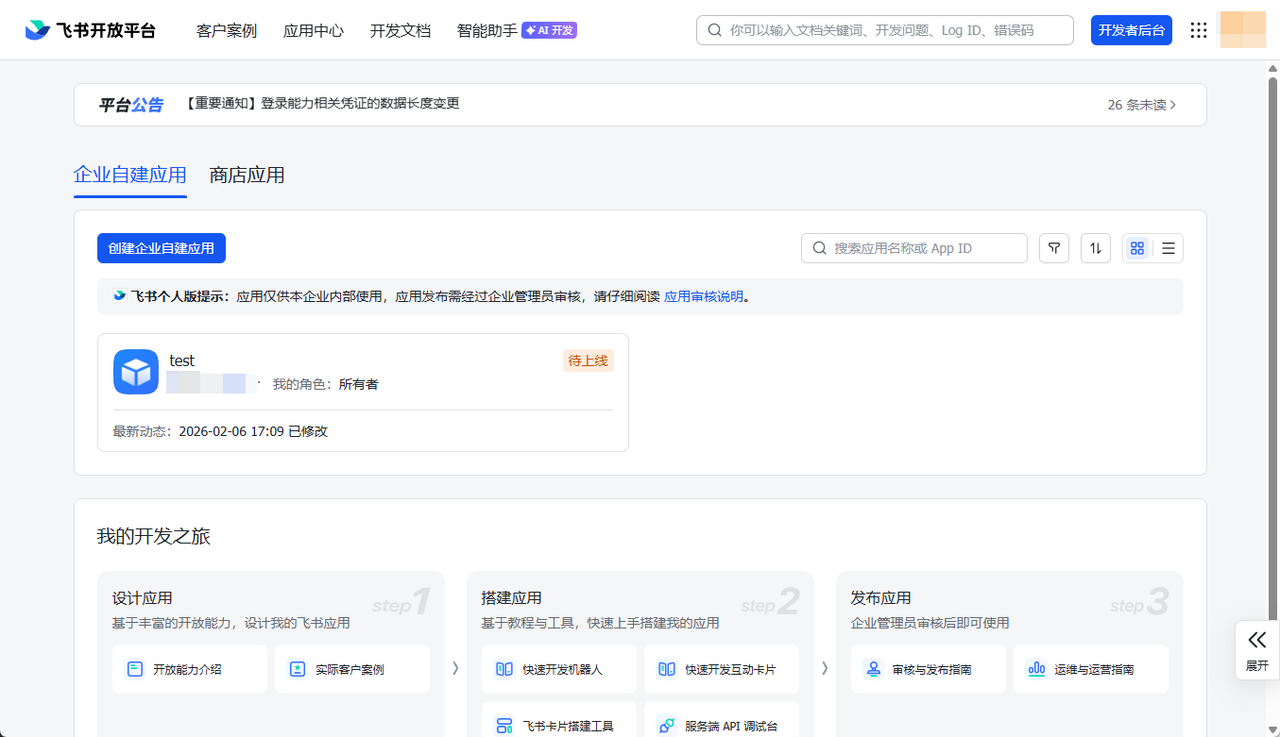
Fill in the app name, app description, and choose an app icon, then click Create.
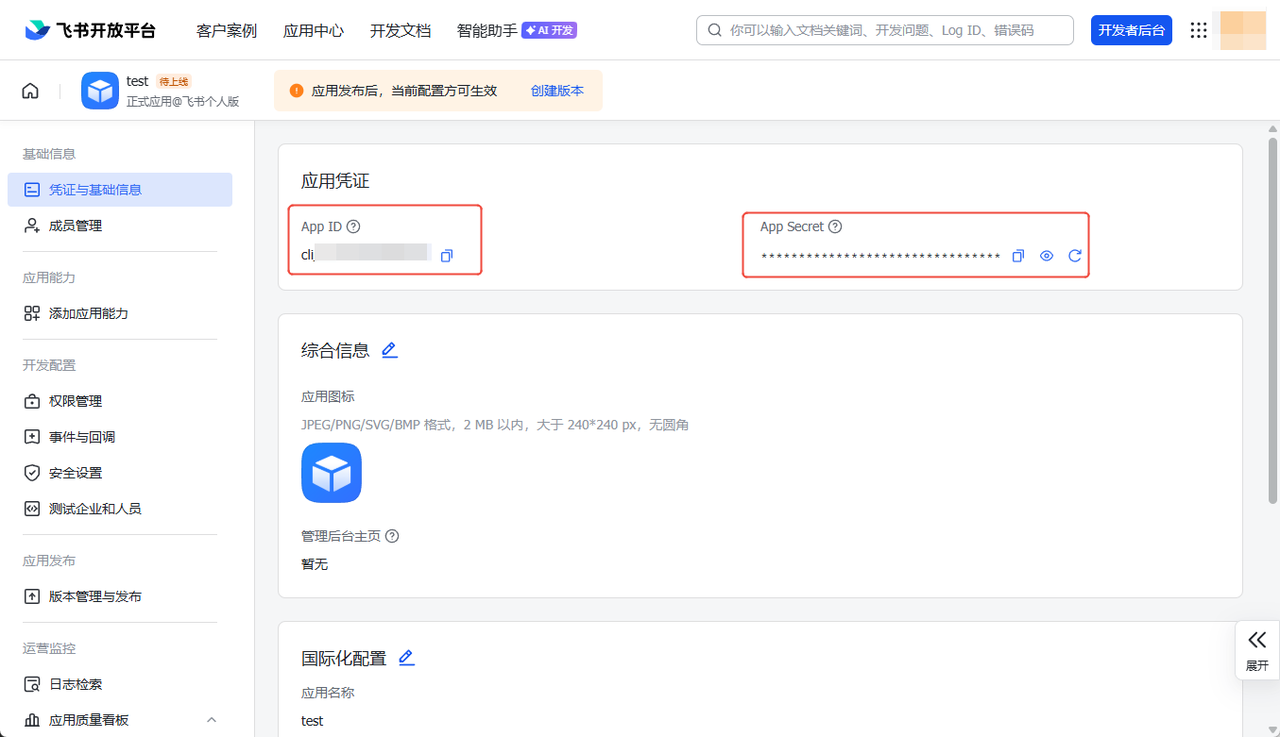
Get the app credentials. Once the app is created, on the Credentials & Basic Info page record the App ID and App Secret. These are the core credentials and are required when configuring OpenClaw, so keep them safe.
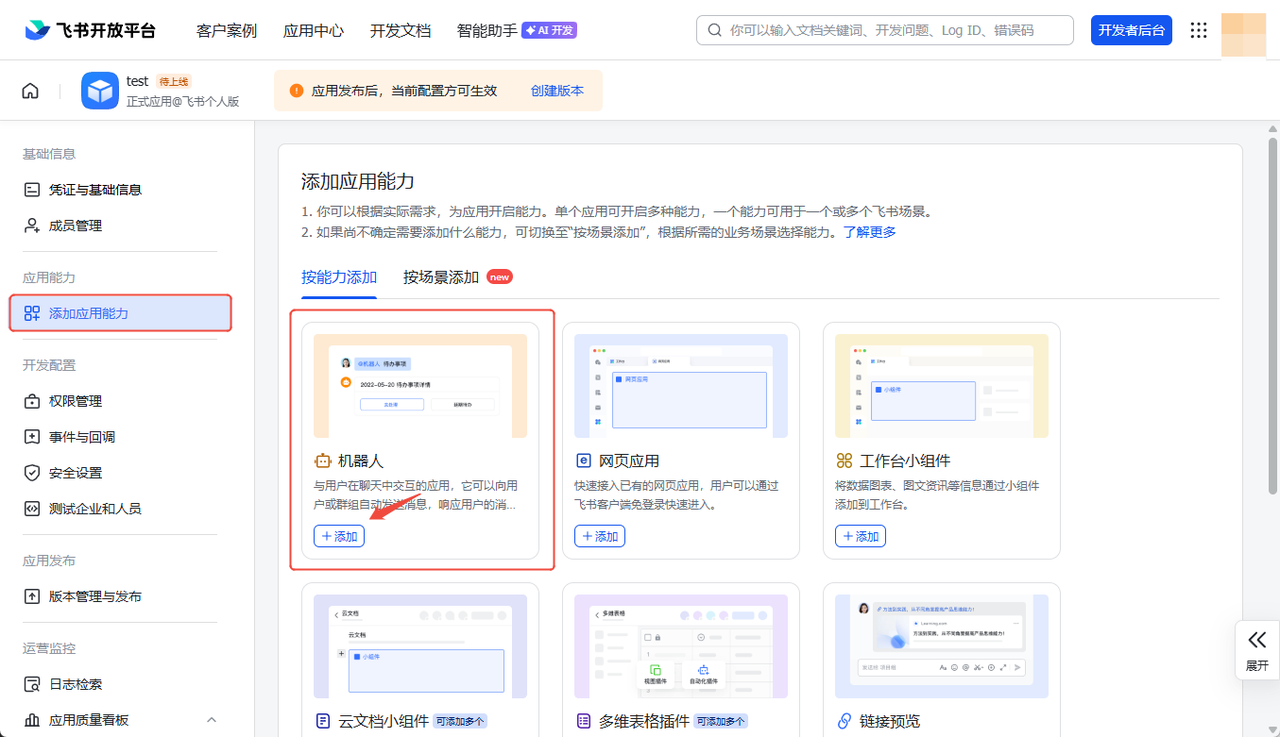
Add the "Bot" capability to the app. Under App Capabilities, find the Add App Capability list and enable the Bot capability so your app can receive and send messages.
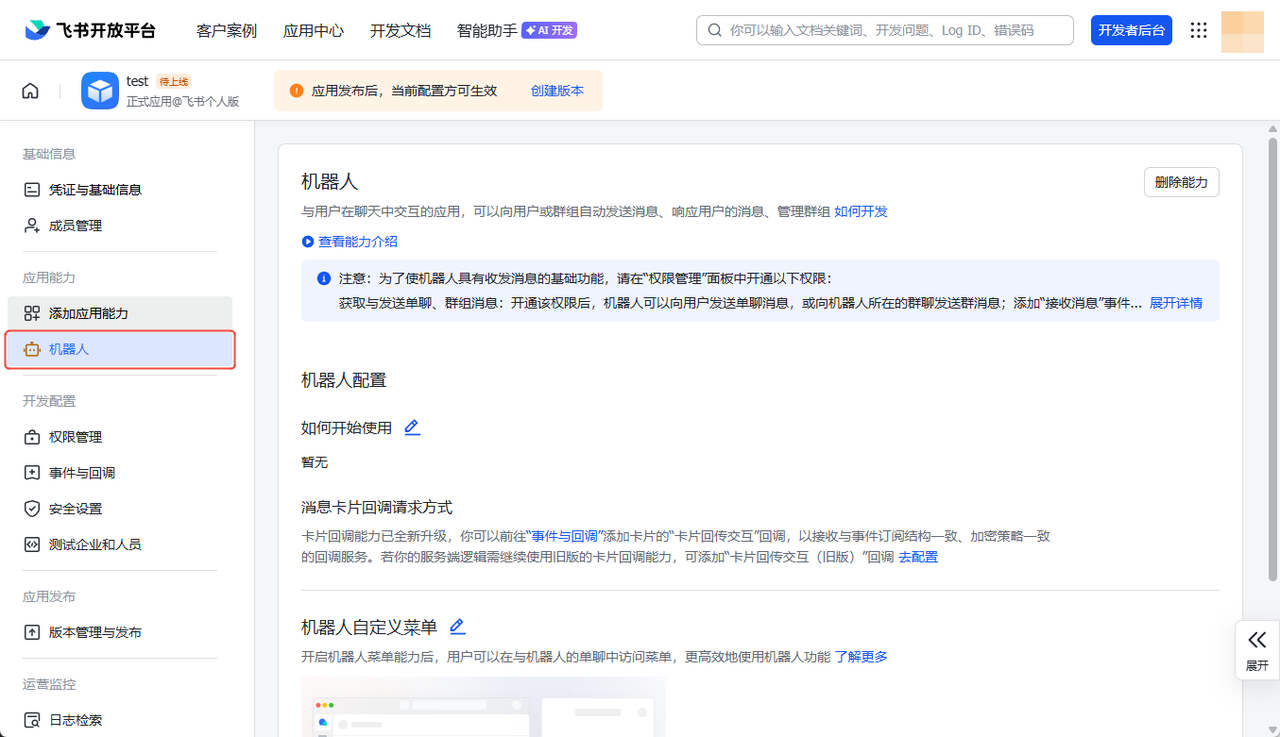
After the bot is added, a Bot section appears in the left sidebar.
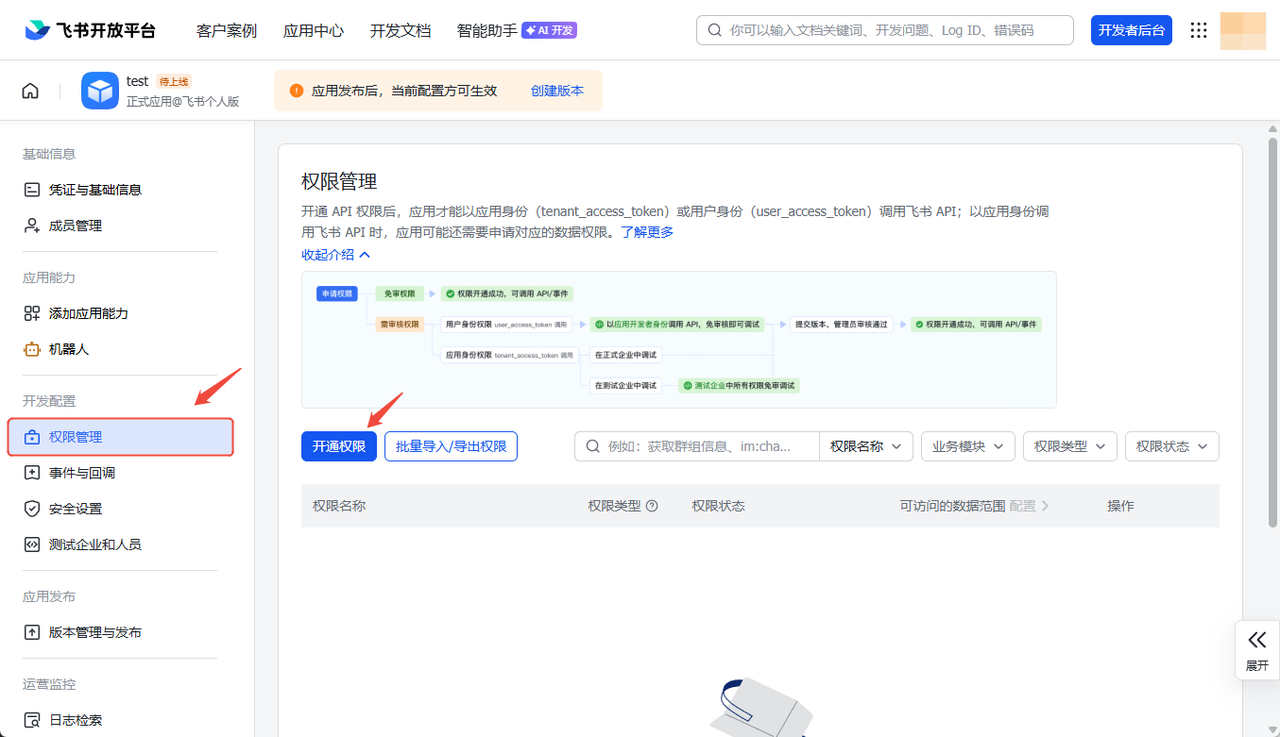
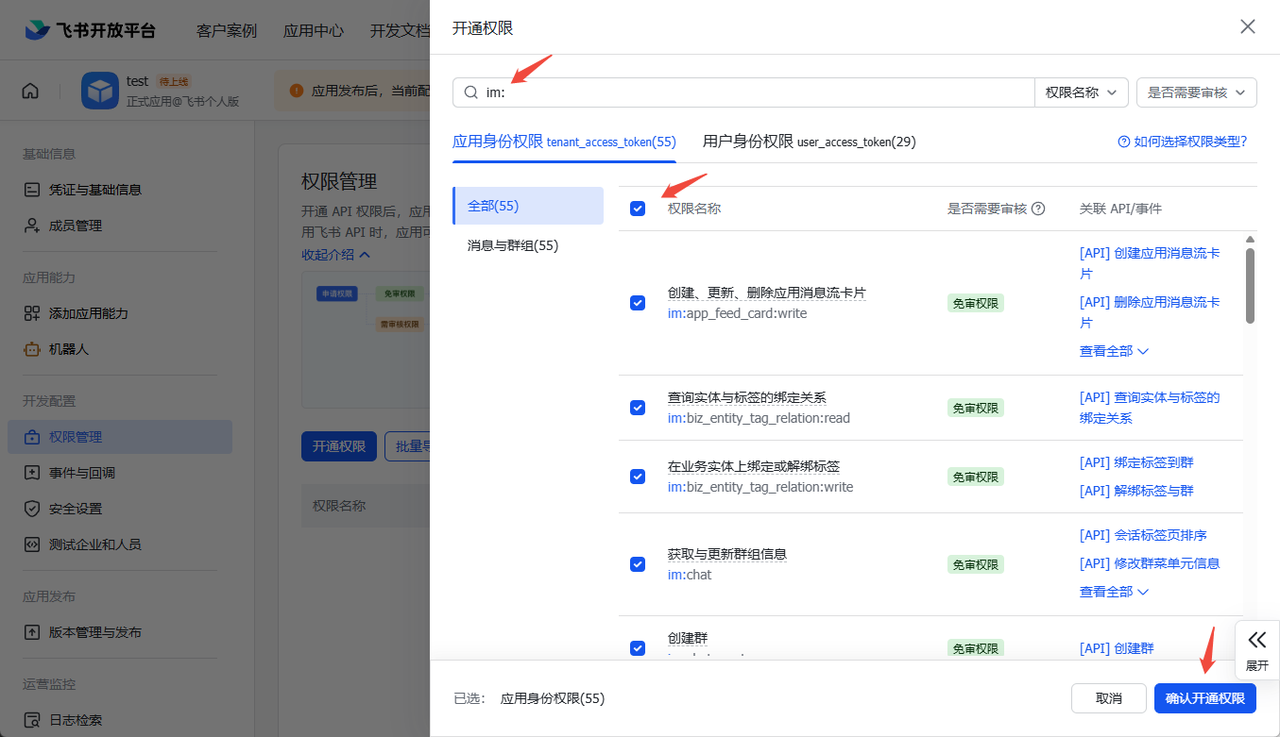
Configure the key permissions. Open the Permissions page, search for im:, and grant the bot the permissions it needs to function in conversations.
The colon must be an English colon.
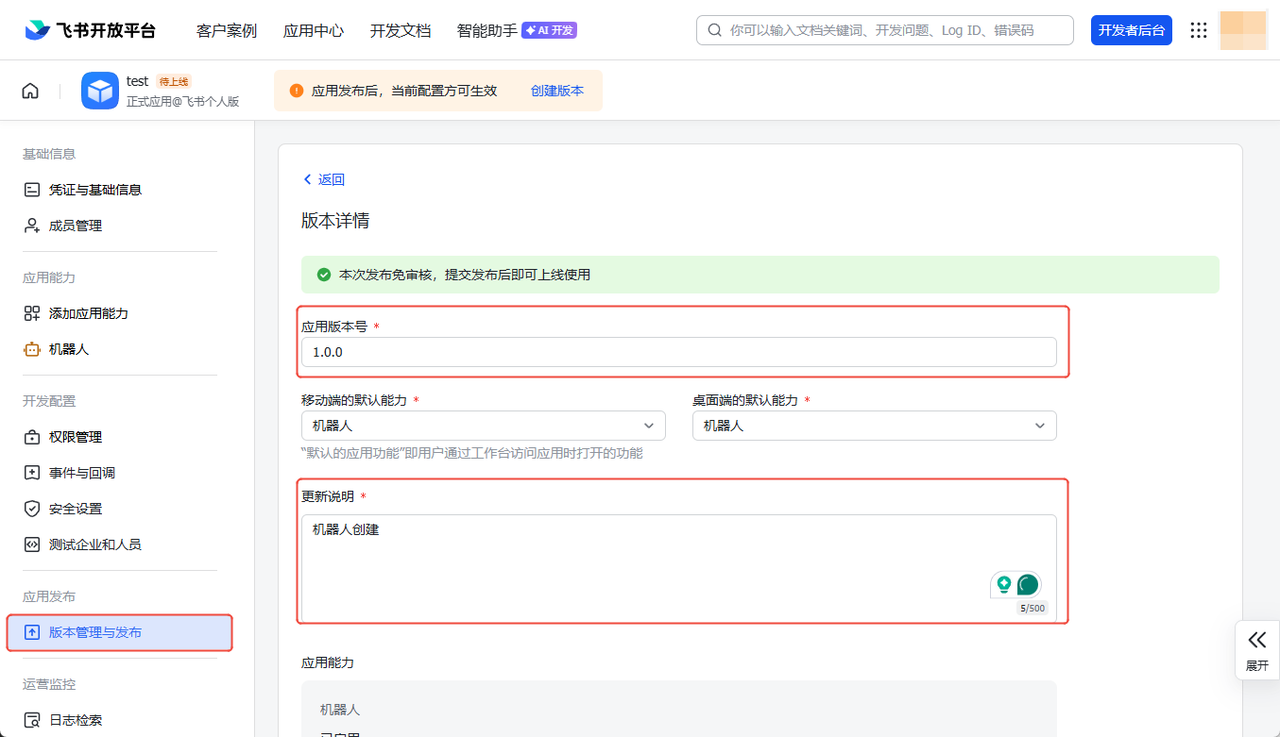
Release a version. Open the Version Management & Release page, fill in the version number and release notes, scroll down, and click Save.
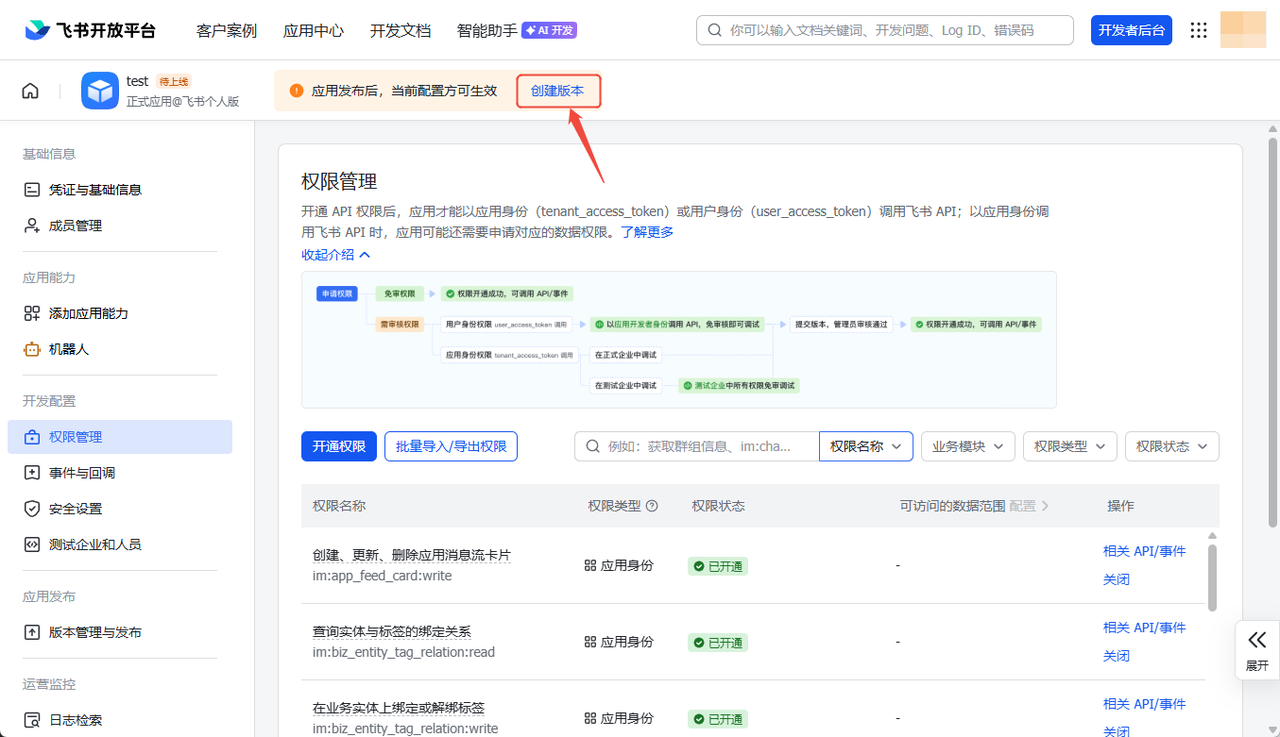
Click Create Version.
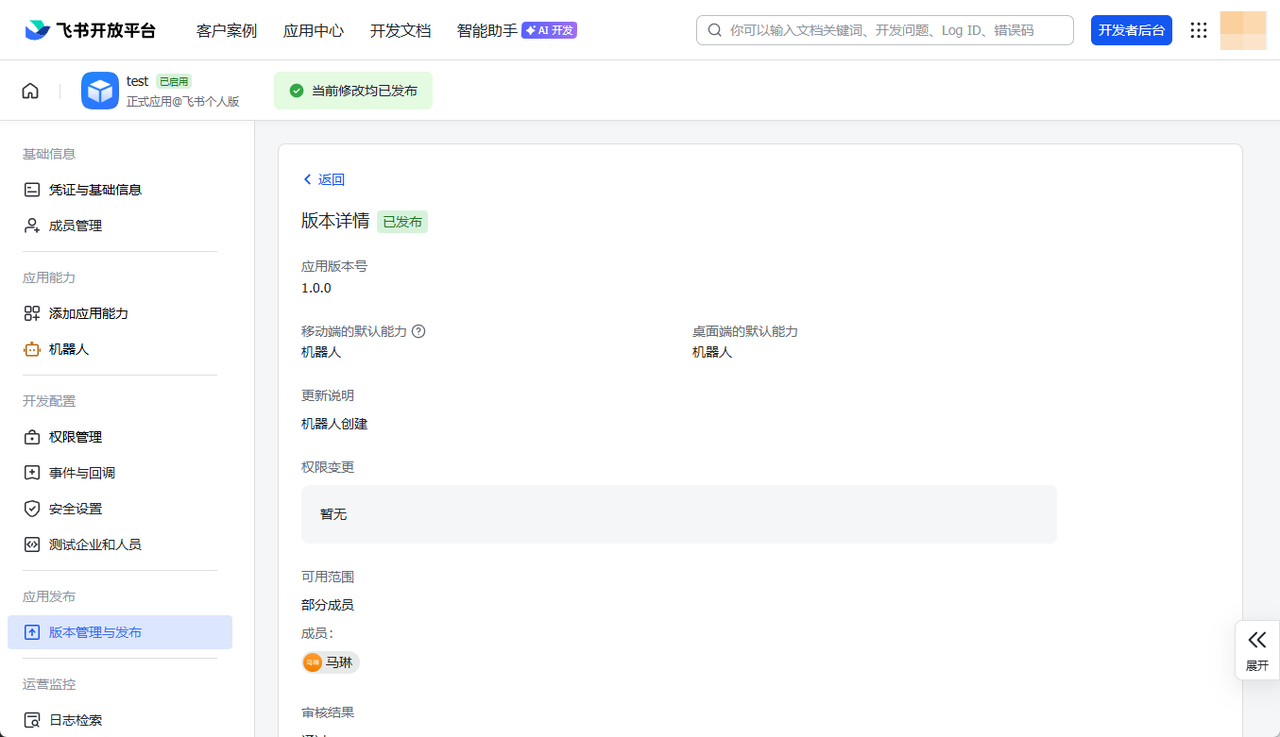
The app is now released.
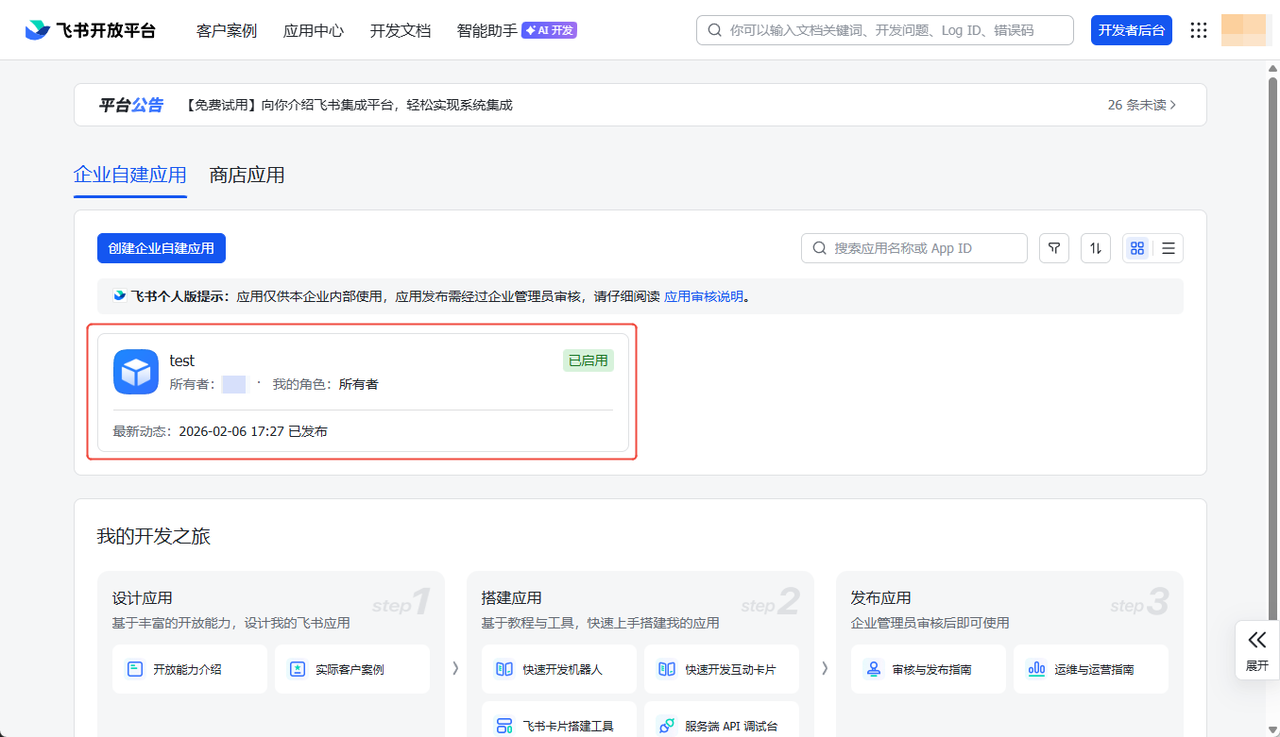
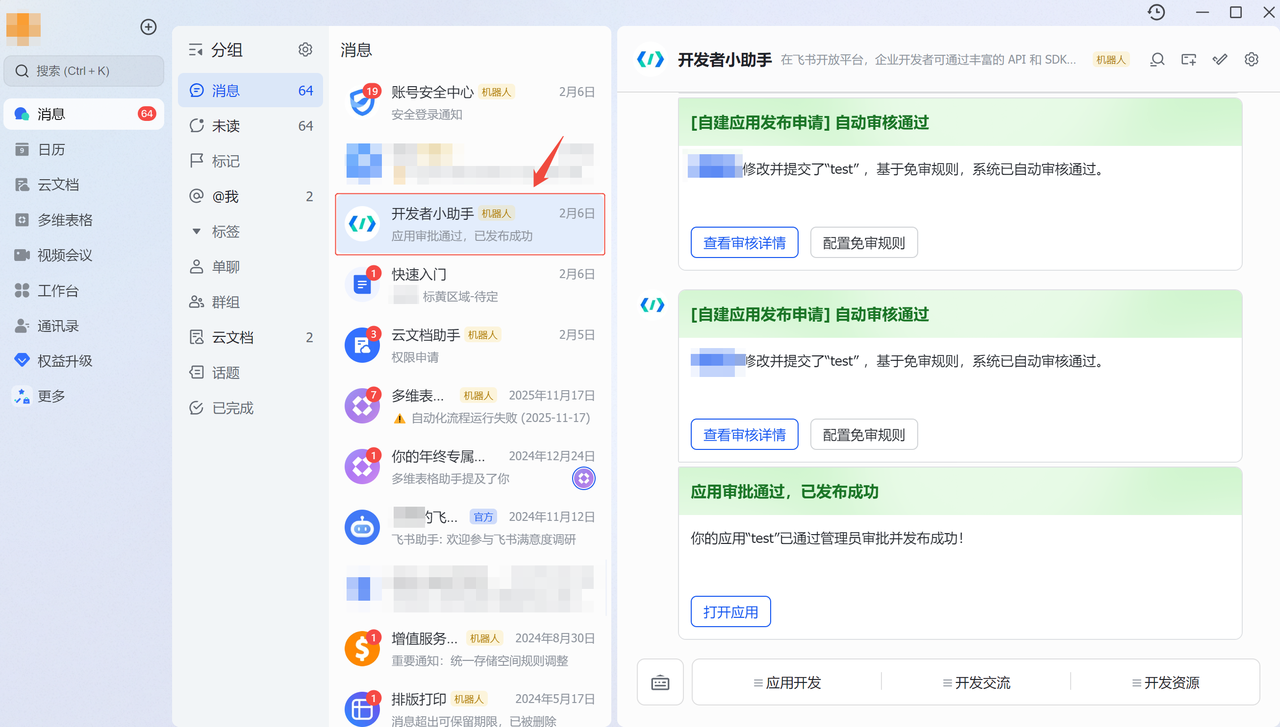
If the release requires review, sign in to the Lark / Feishu desktop client to review and approve the app's go-live.
Configure the Lark / Feishu plugin
Once the bot is configured, you have its App ID and App Secret. There are two ways to install the Lark / Feishu plugin:
- Path A: configure it directly inside the OpenClaw application on Alaya NeW (recommended).
- Path B: configure it through the SSH command line using the
openclaw configwizard.
Path A: AlayaNeW shortcut
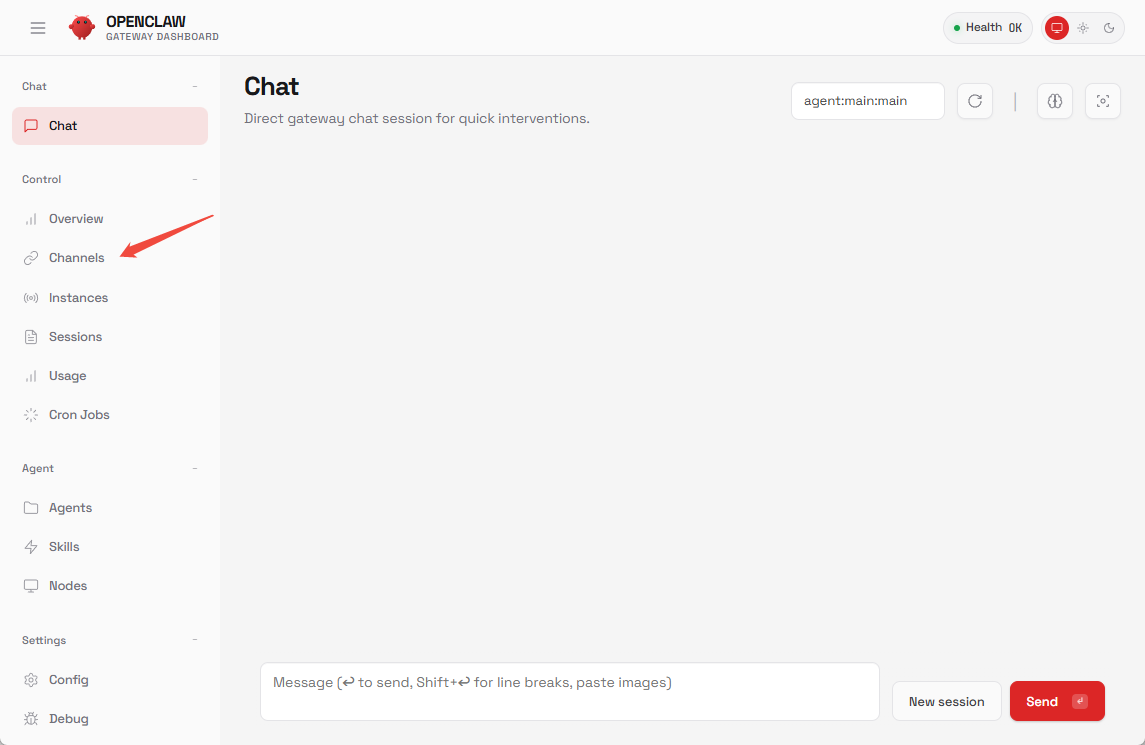
Go to Alaya NeW → Product Center → Application Management → OpenClaw, click Launch Assistant to open OpenClaw Chat, then click Channels.
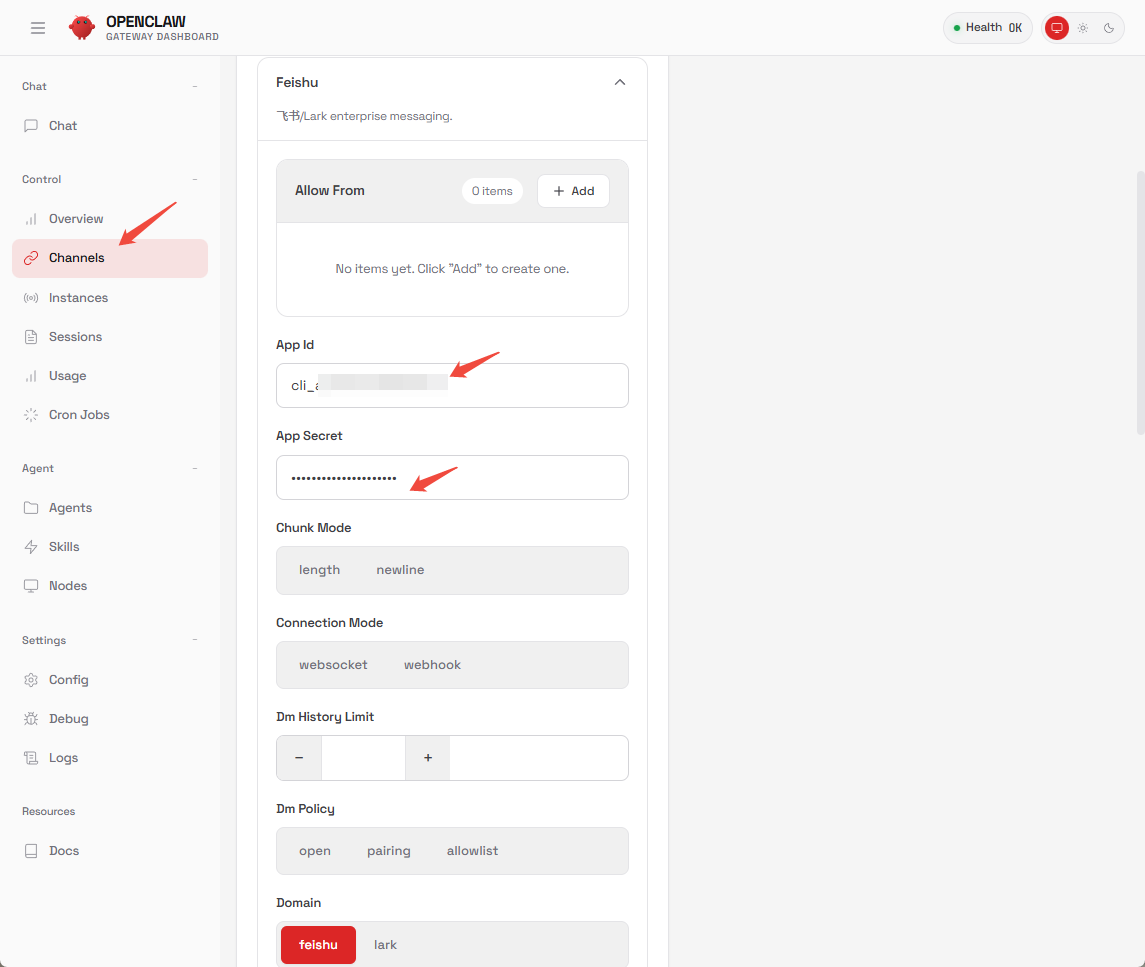
Fill in the bot's App Id and App Secret, leave the other settings unchanged, scroll down, and click save.
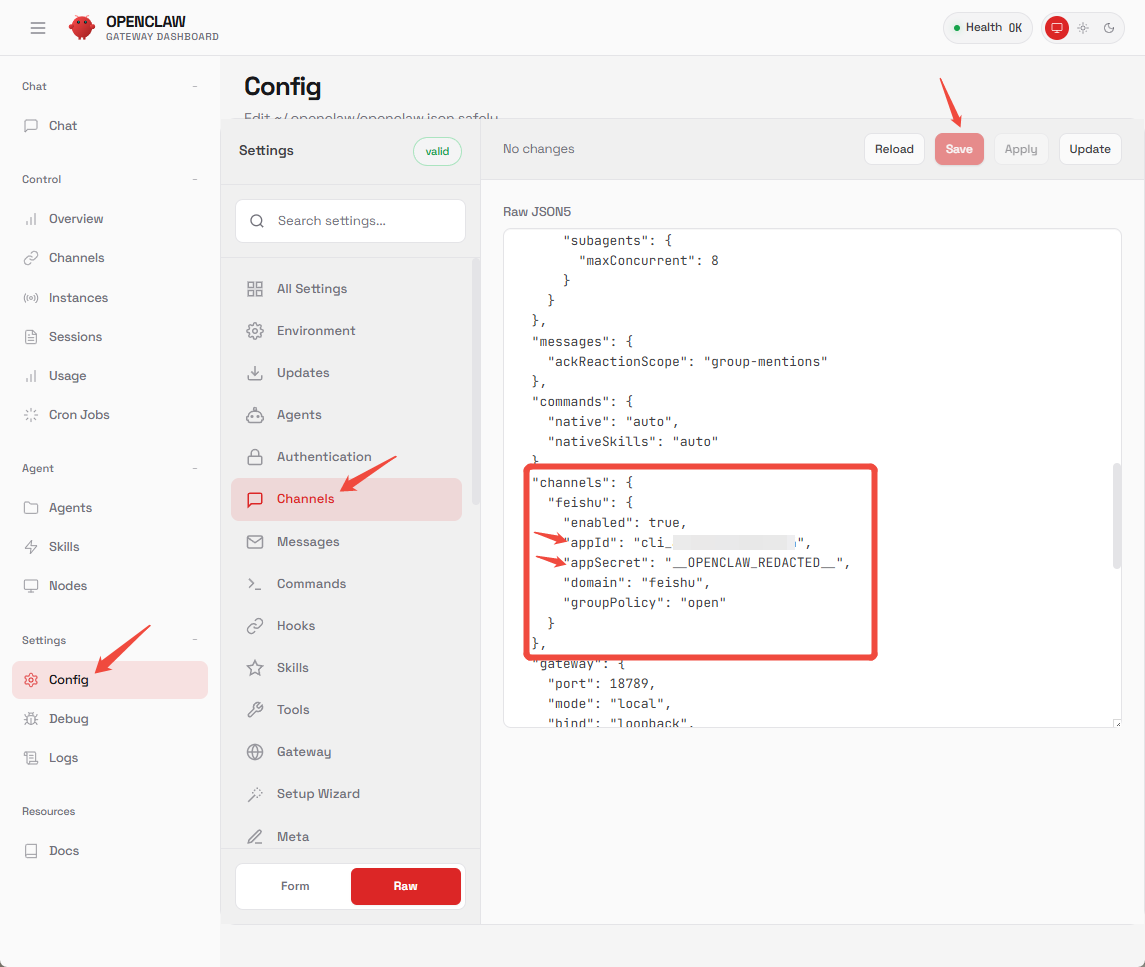
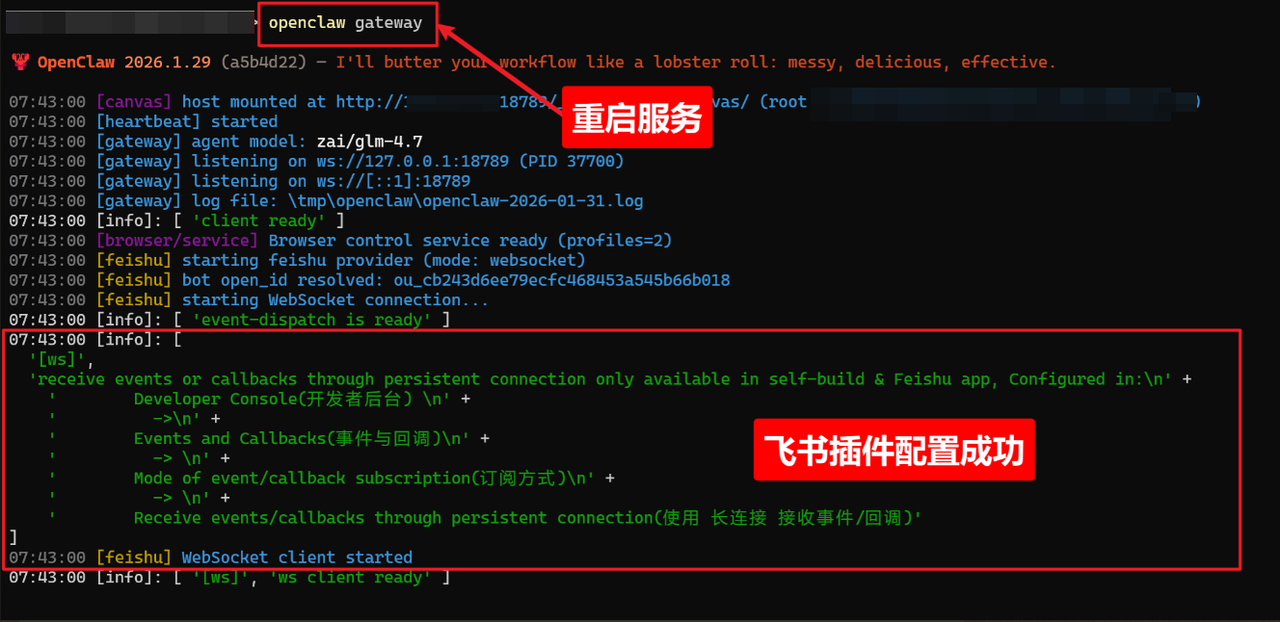
Run the following command over SSH so the bot configuration takes effect:
openclaw gateway restartYou can verify the configuration through the path below. If it has not taken effect, paste appId and appSecret here manually and click save.
Path B: install and configure the plugin over SSH
Open PowerShell (or a terminal), connect to your OpenClaw Cloud Container Instance (CCI), and run the following command to install the Lark / Feishu plugin:
openclaw plugins install @m1heng-clawd/feishu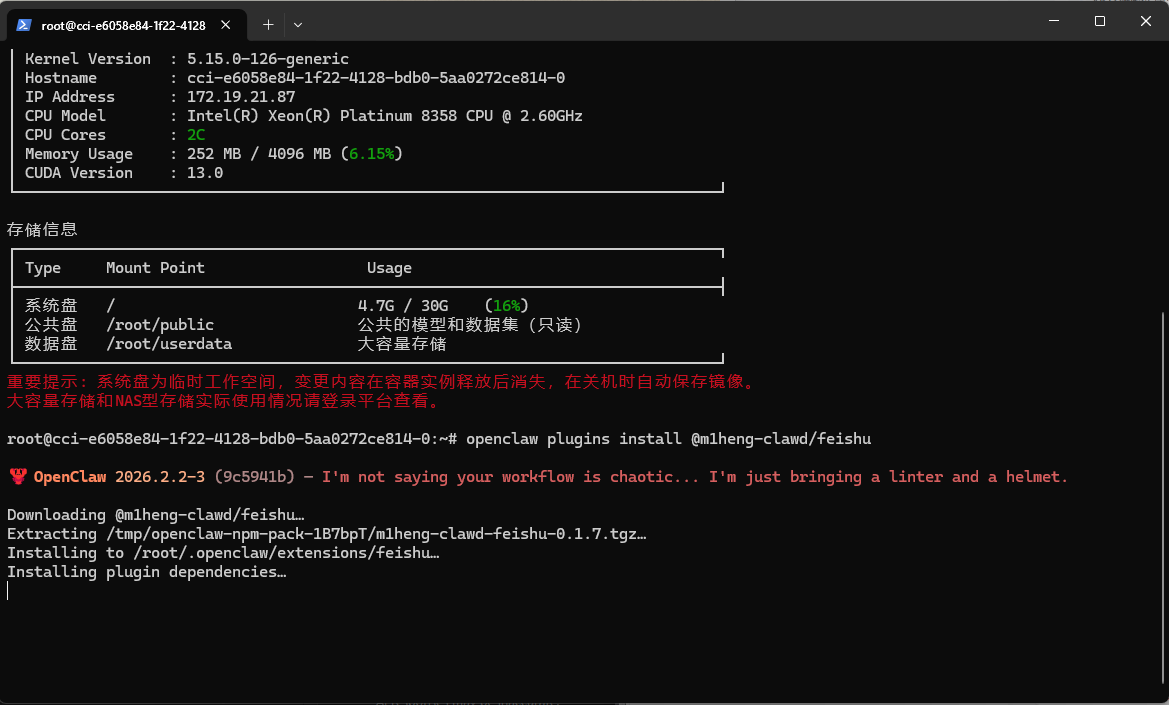
After installation succeeds, open a new command window and run the configuration command:
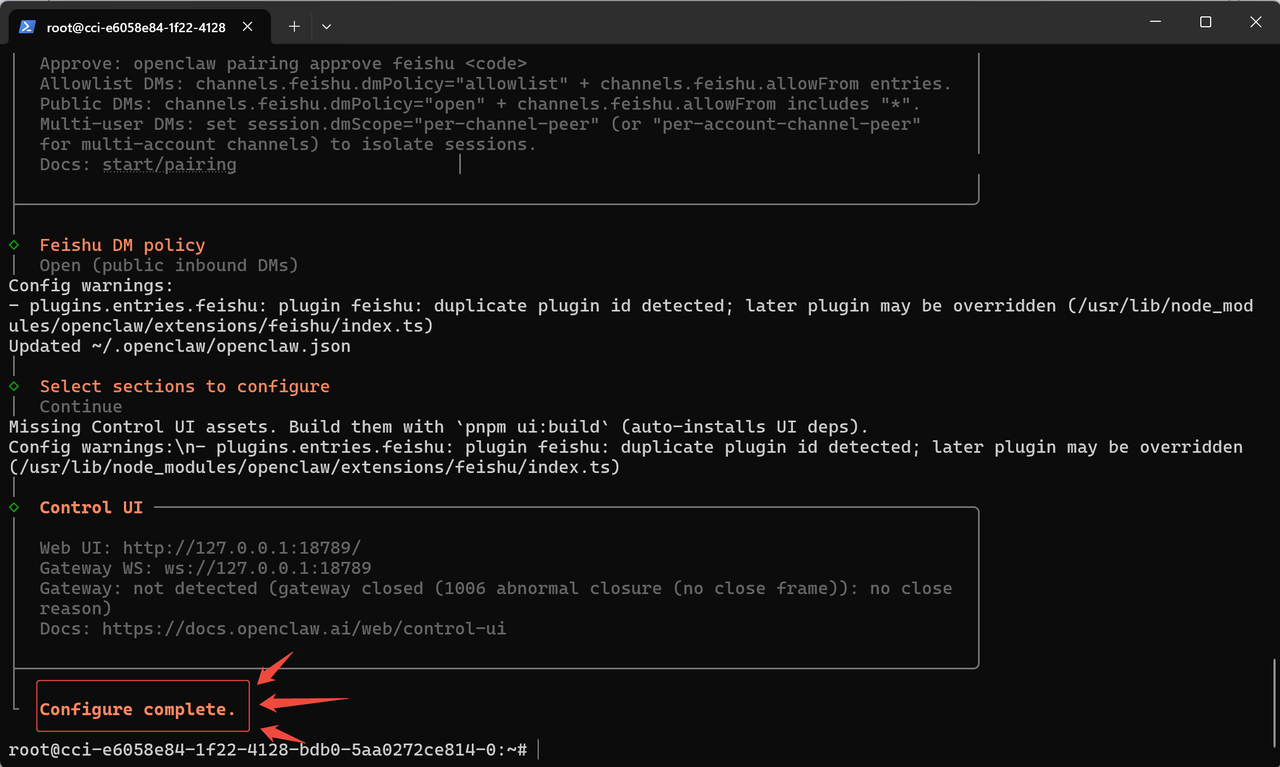
openclaw configPick Local (this machine).
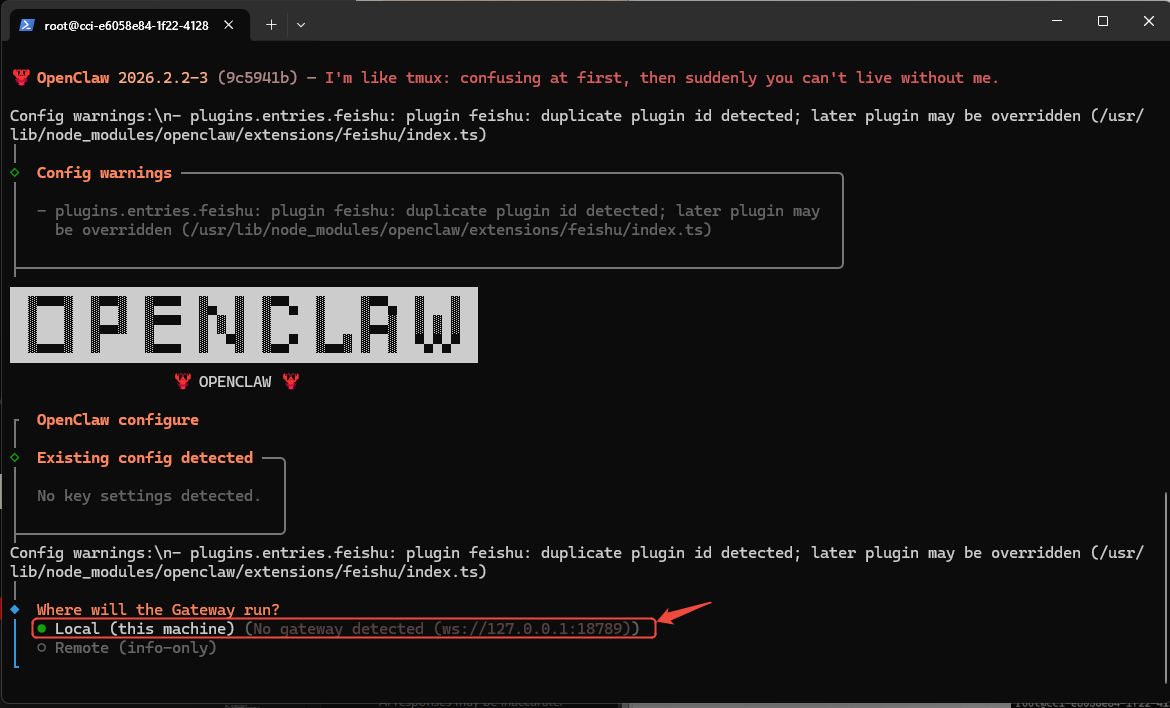
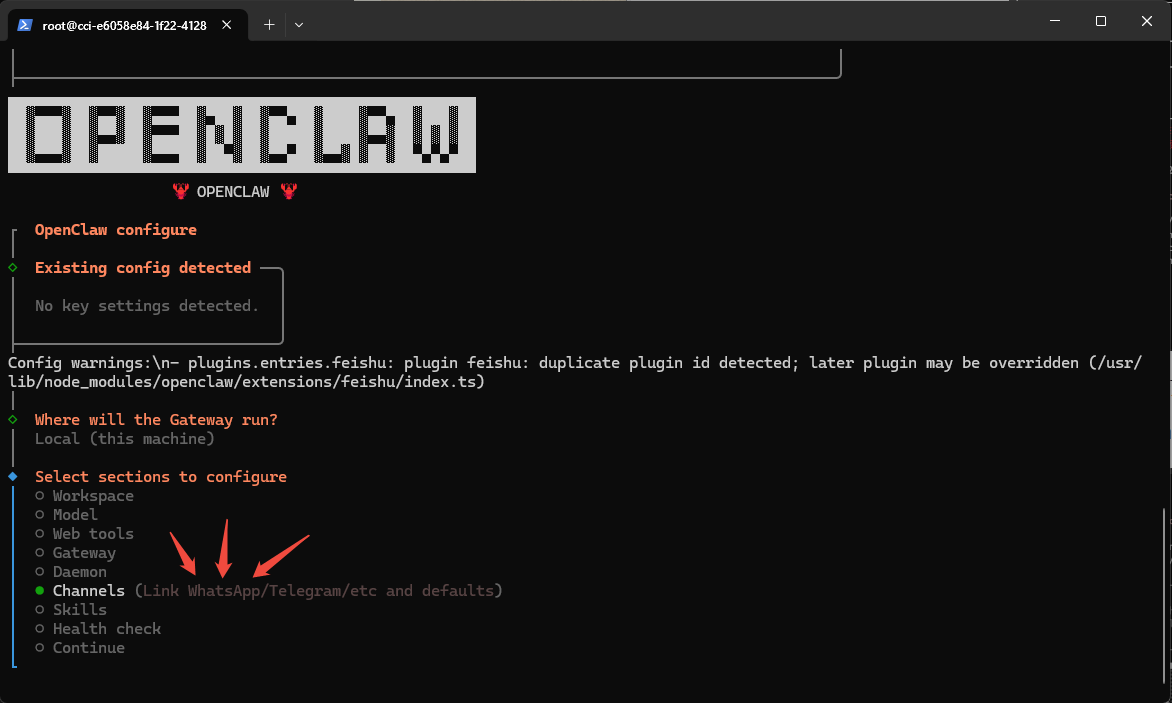
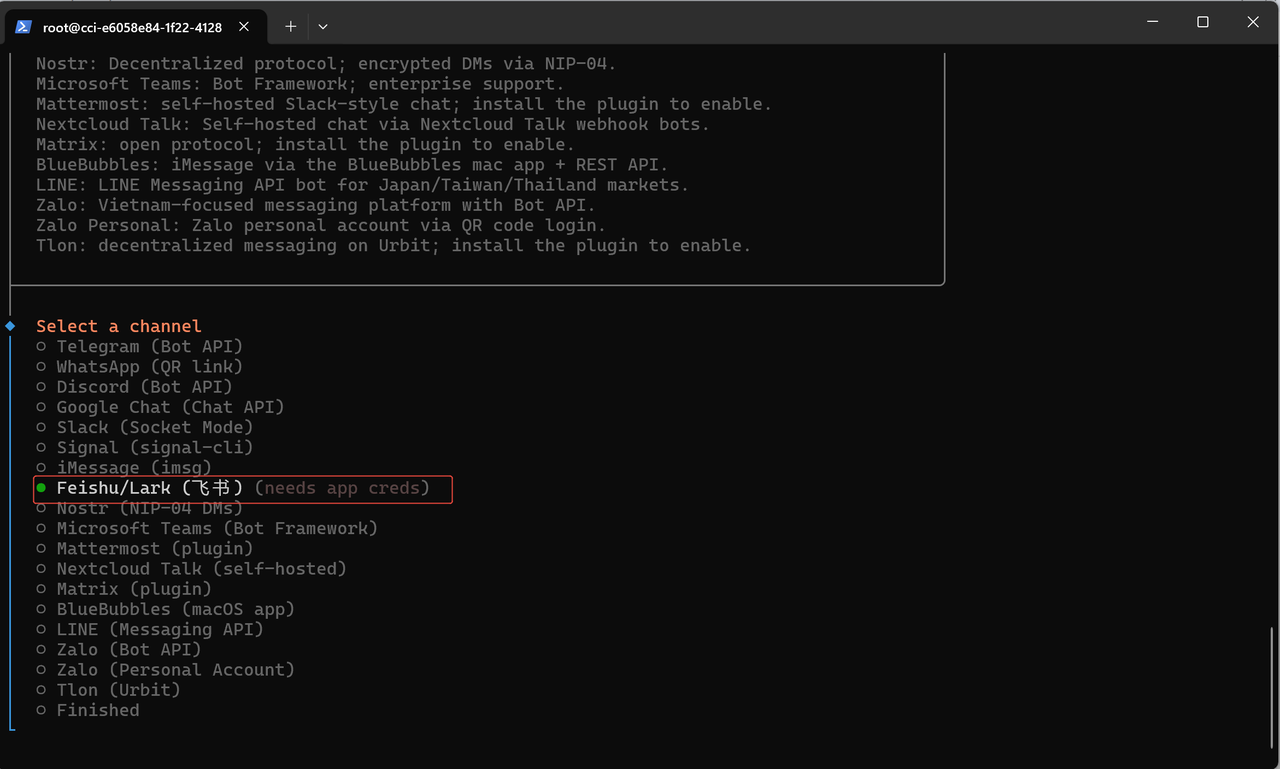
Pick the channel.
Pick the configuration link.
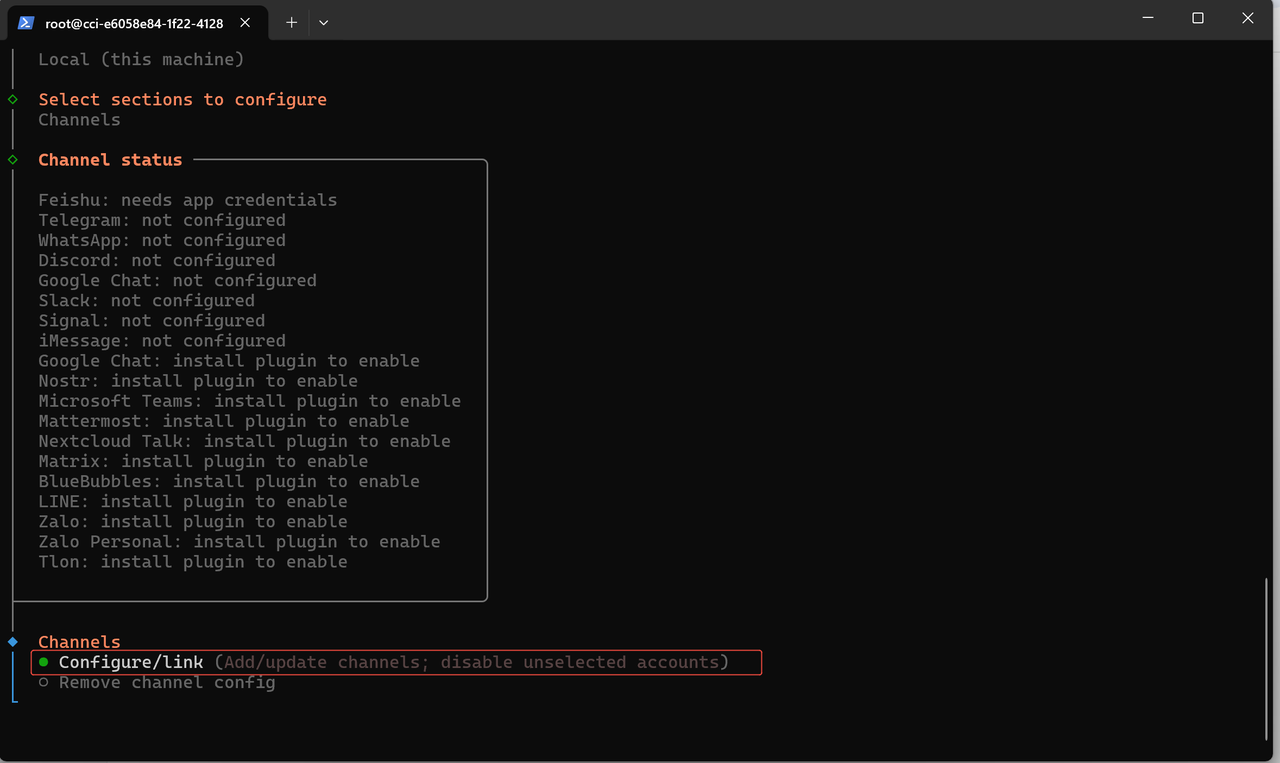
Pick Feishu / Lark, then enter the AppID and AppSecret of the Lark / Feishu app.
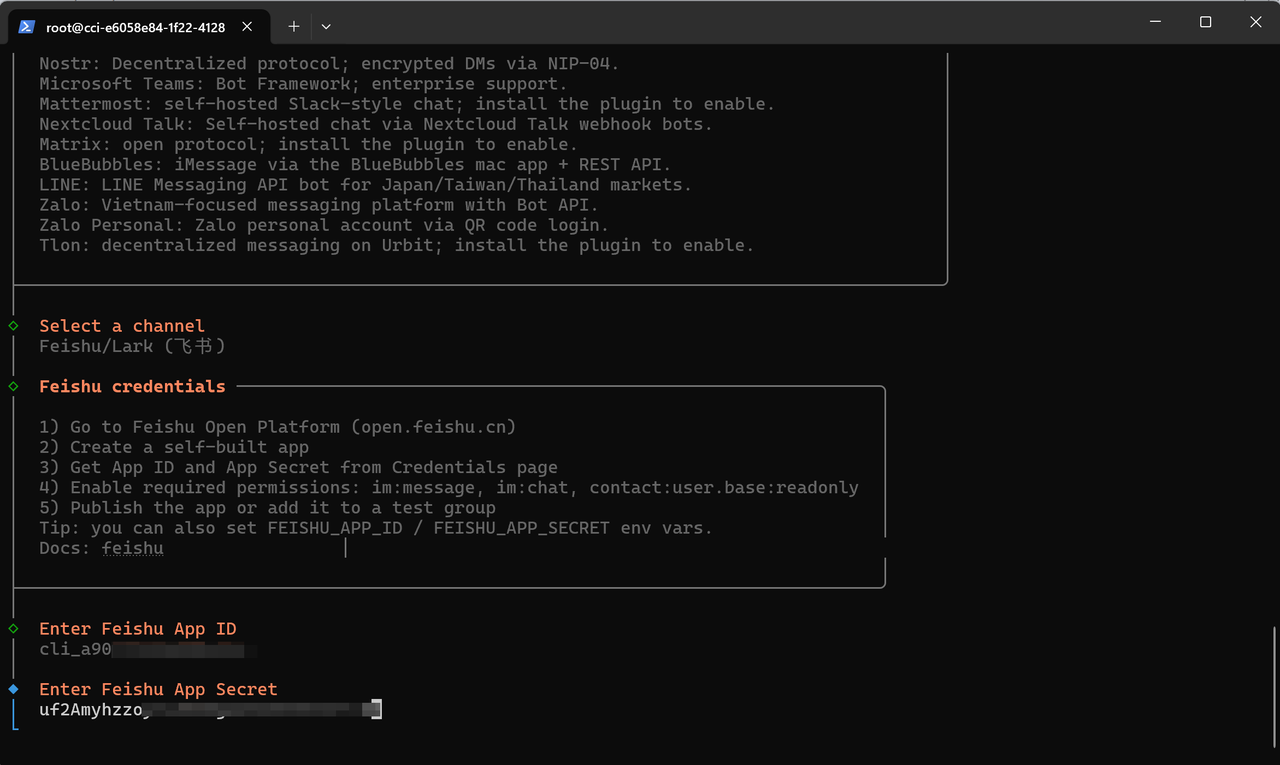
Pick China for the domain.
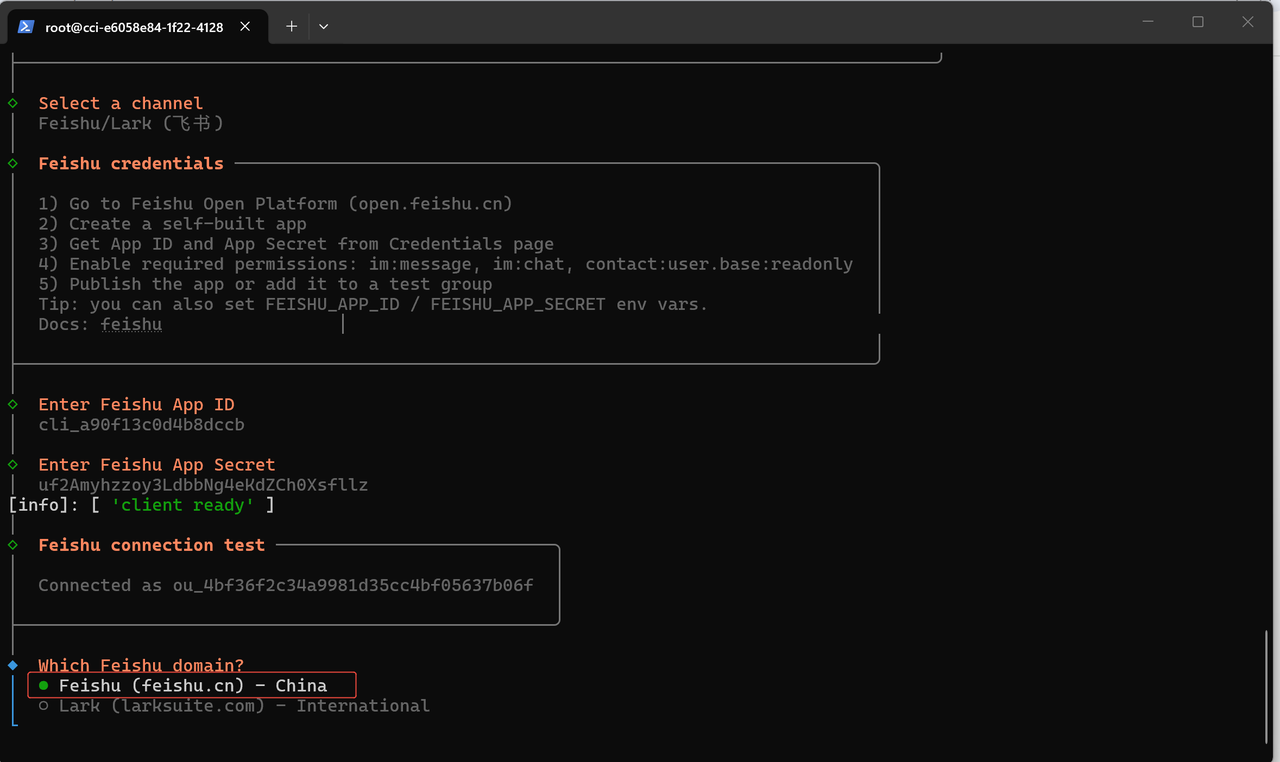
Confirm acceptance of group chats.
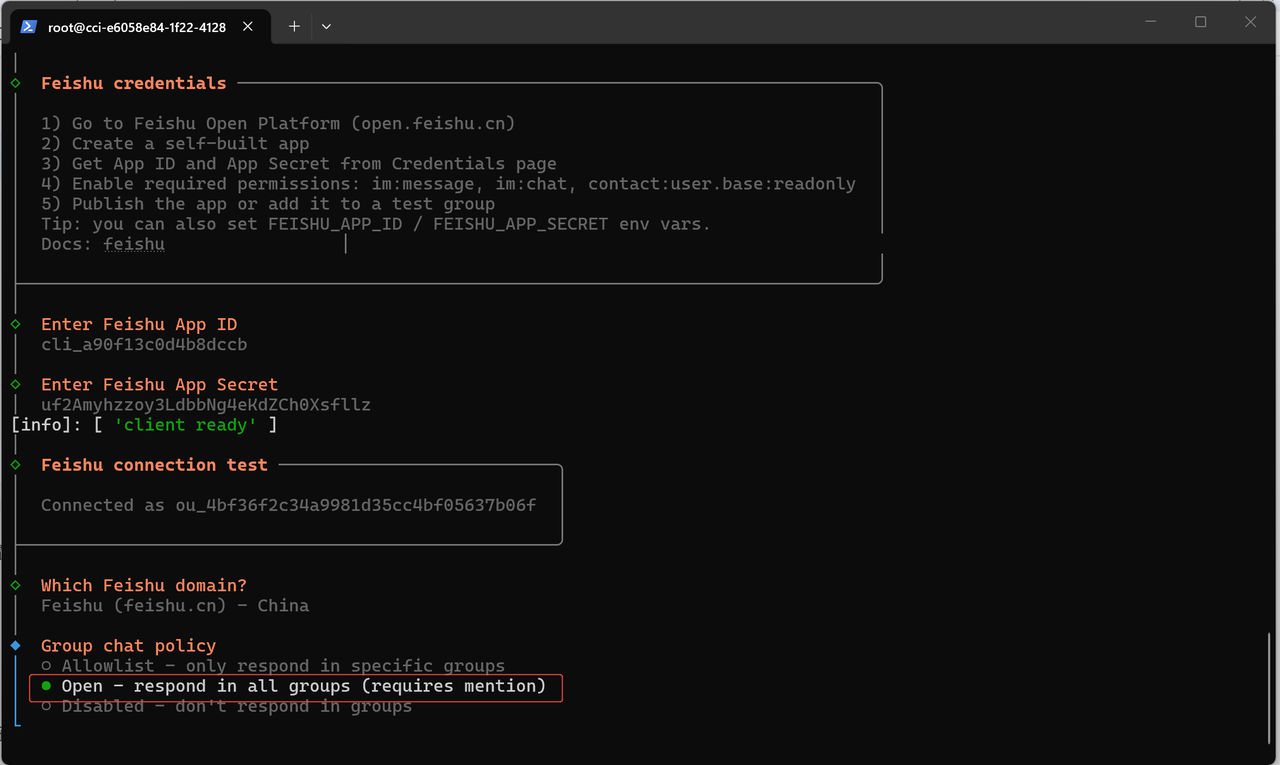
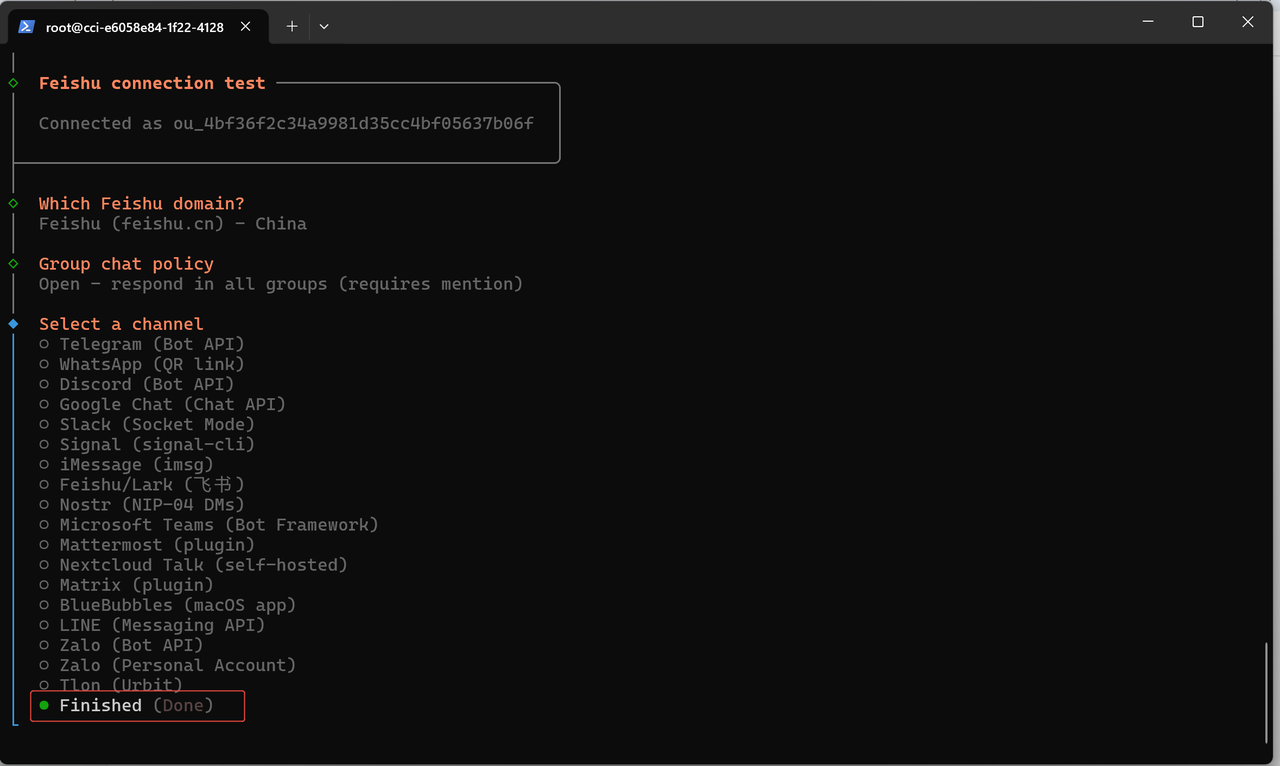
Pick Finished.
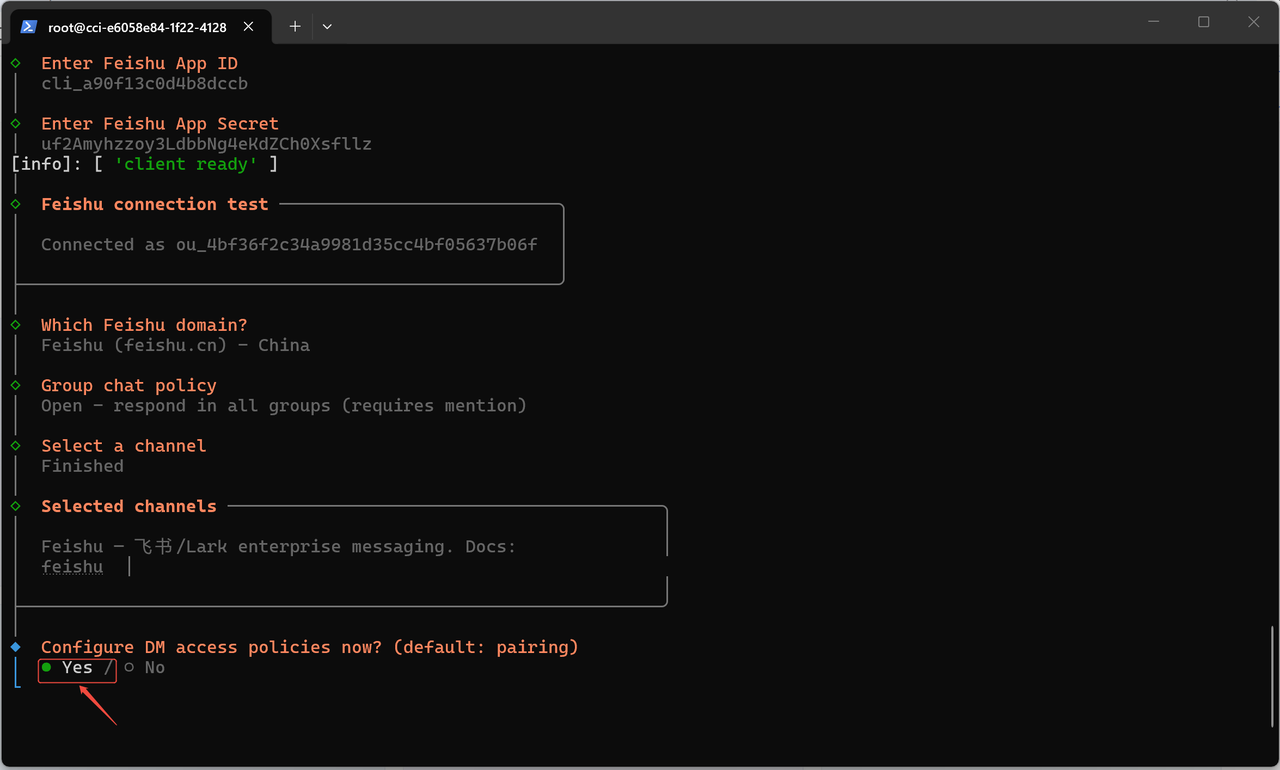
Pick yes.
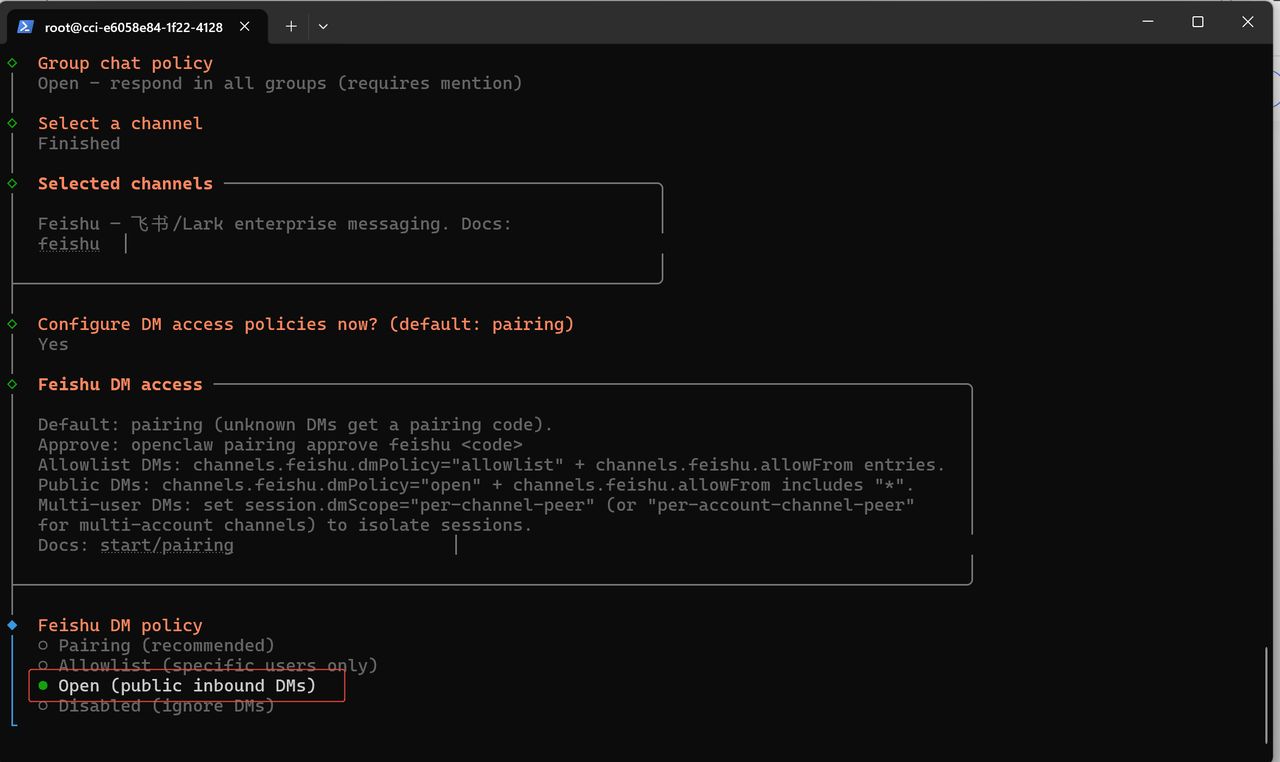
Pick open.
Continue, and the configuration is complete.
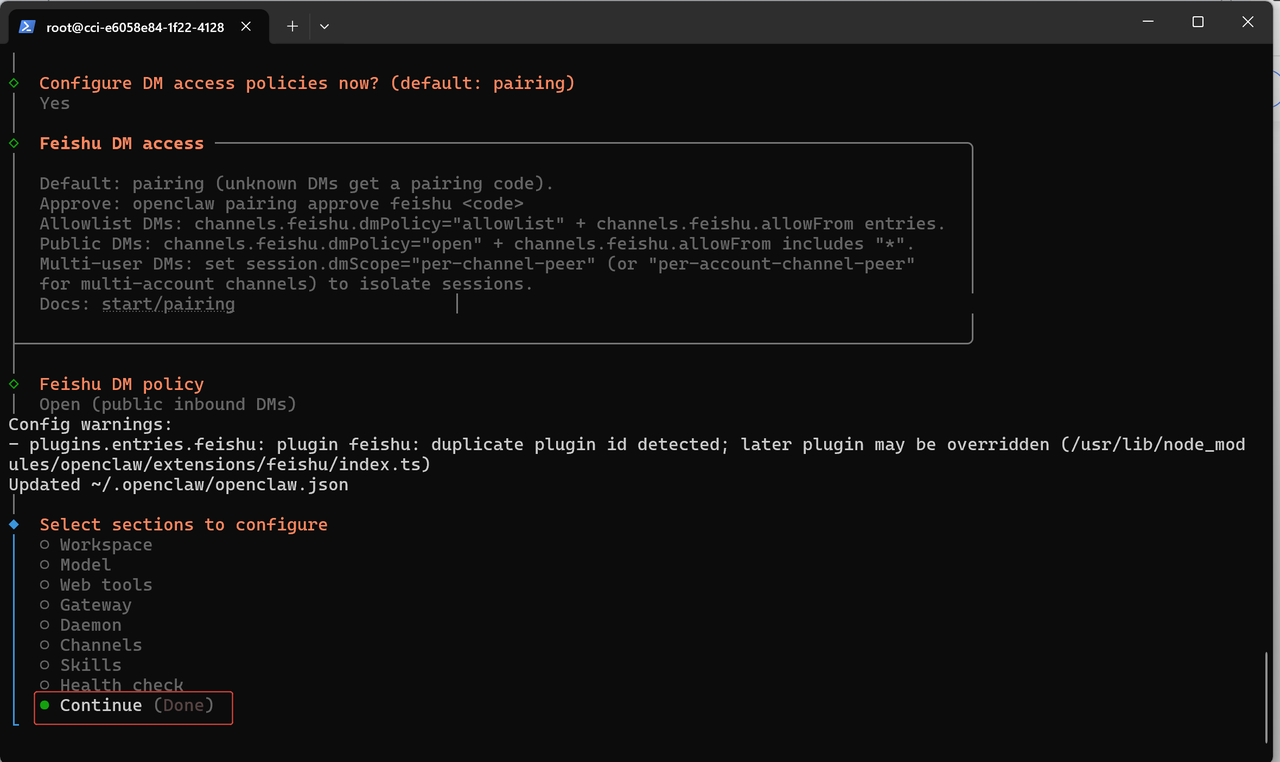
The Lark / Feishu plugin configuration takes effect after the service restarts.
Configure the event callback in the Lark / Feishu console
Return to the Lark / Feishu Open Platform developer console and open the app you just created.
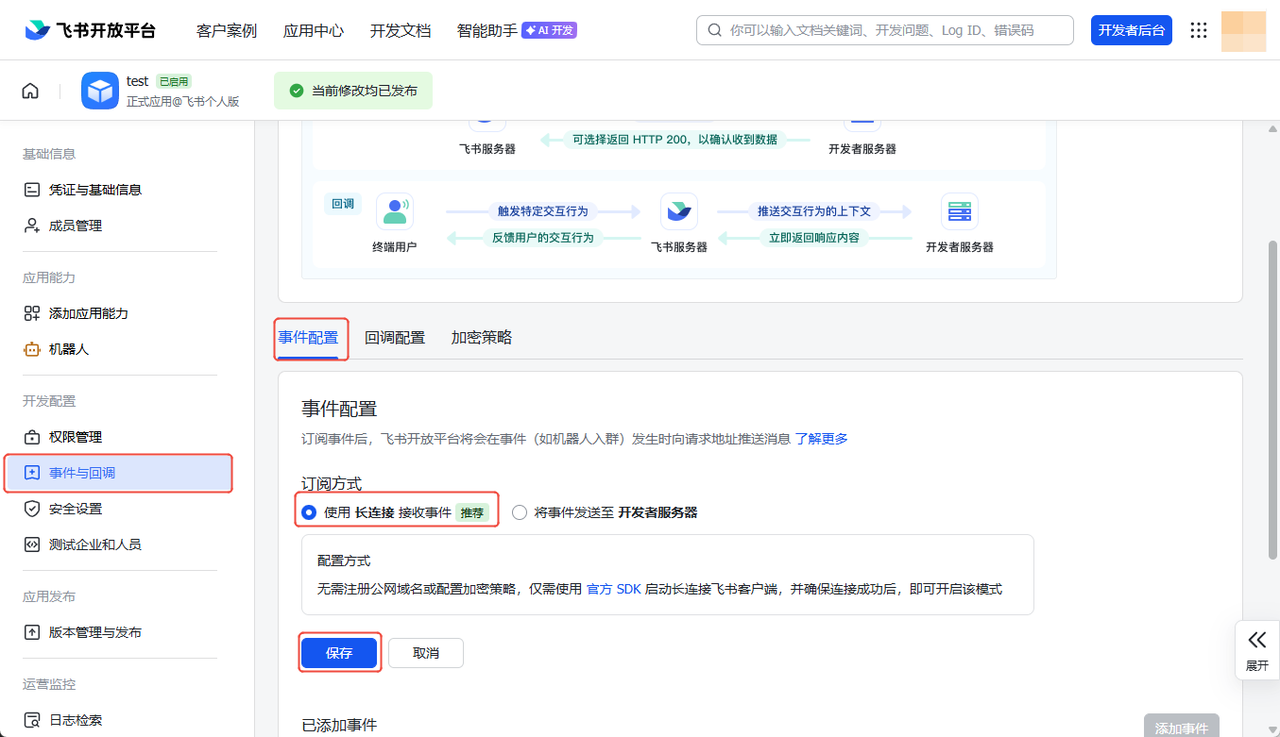
Find the Events & Callbacks module. Under Event Configuration, choose Receive events via long connection and click Save.
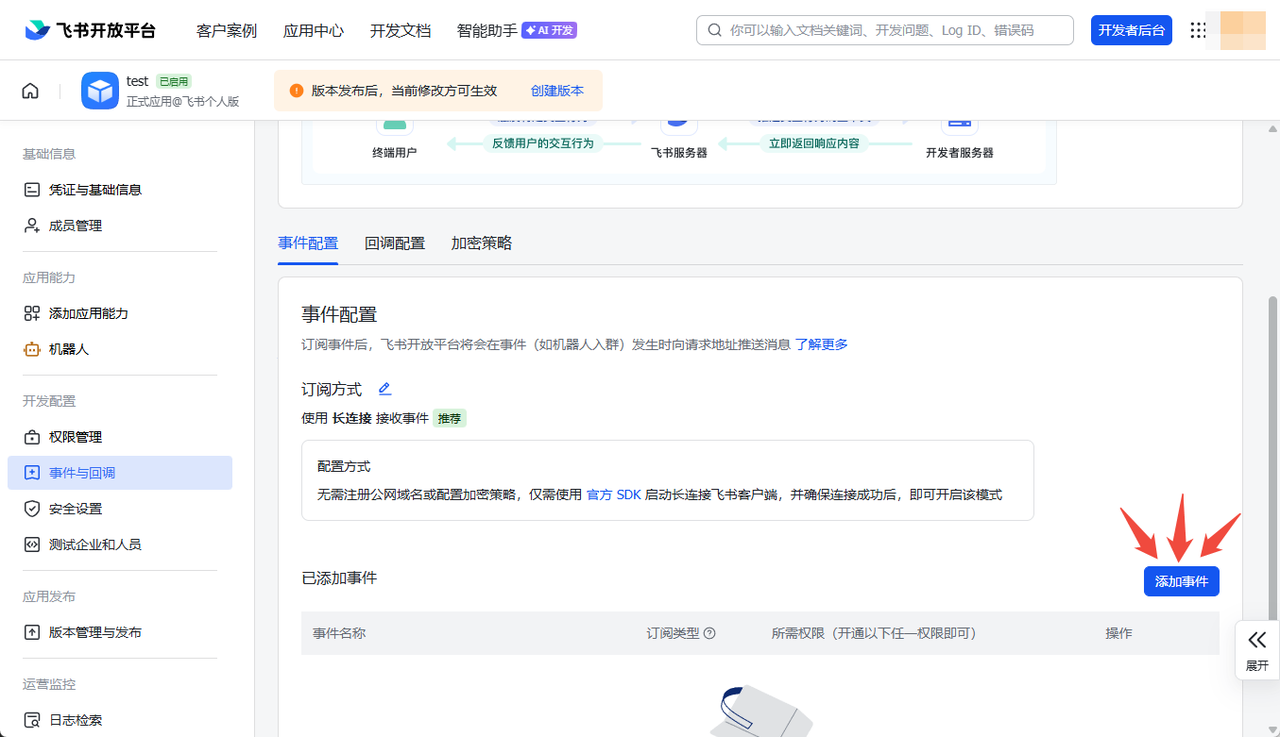
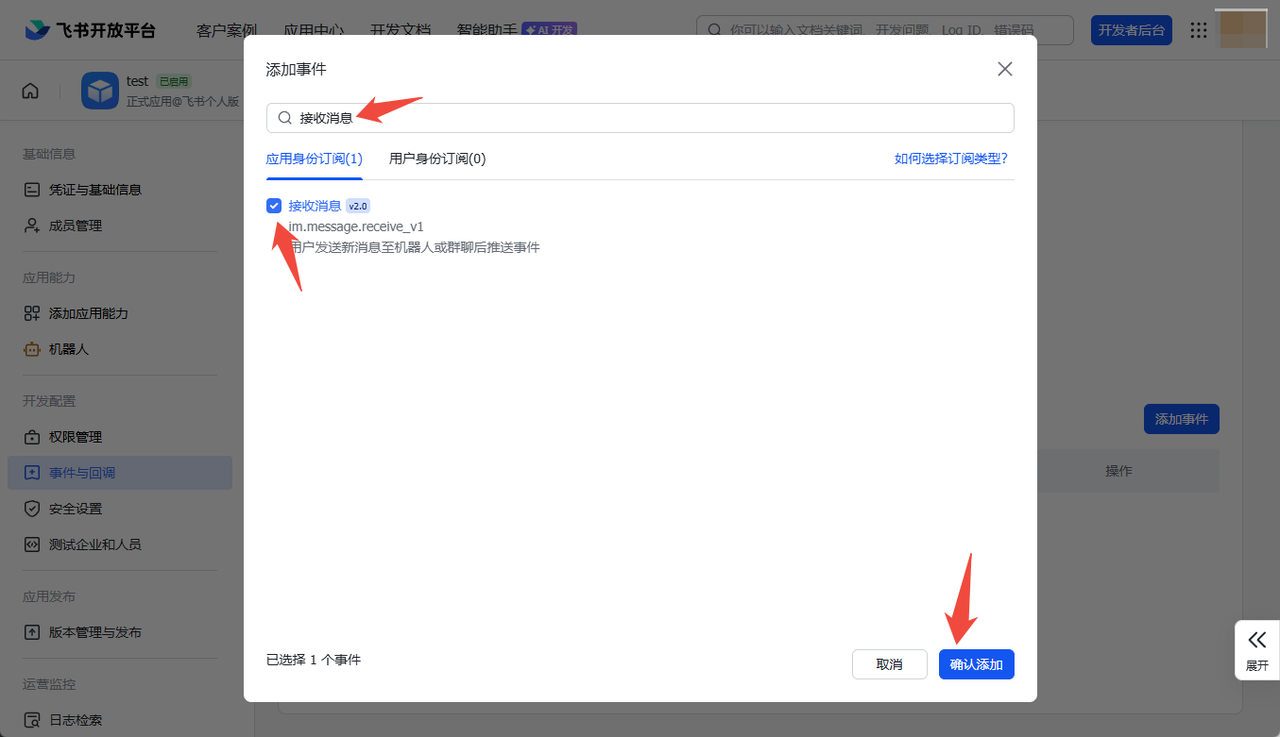
The Add Event button now becomes clickable. Click Add Event.
Search and select Receive Message Event (the core event that lets the bot receive Lark / Feishu messages).
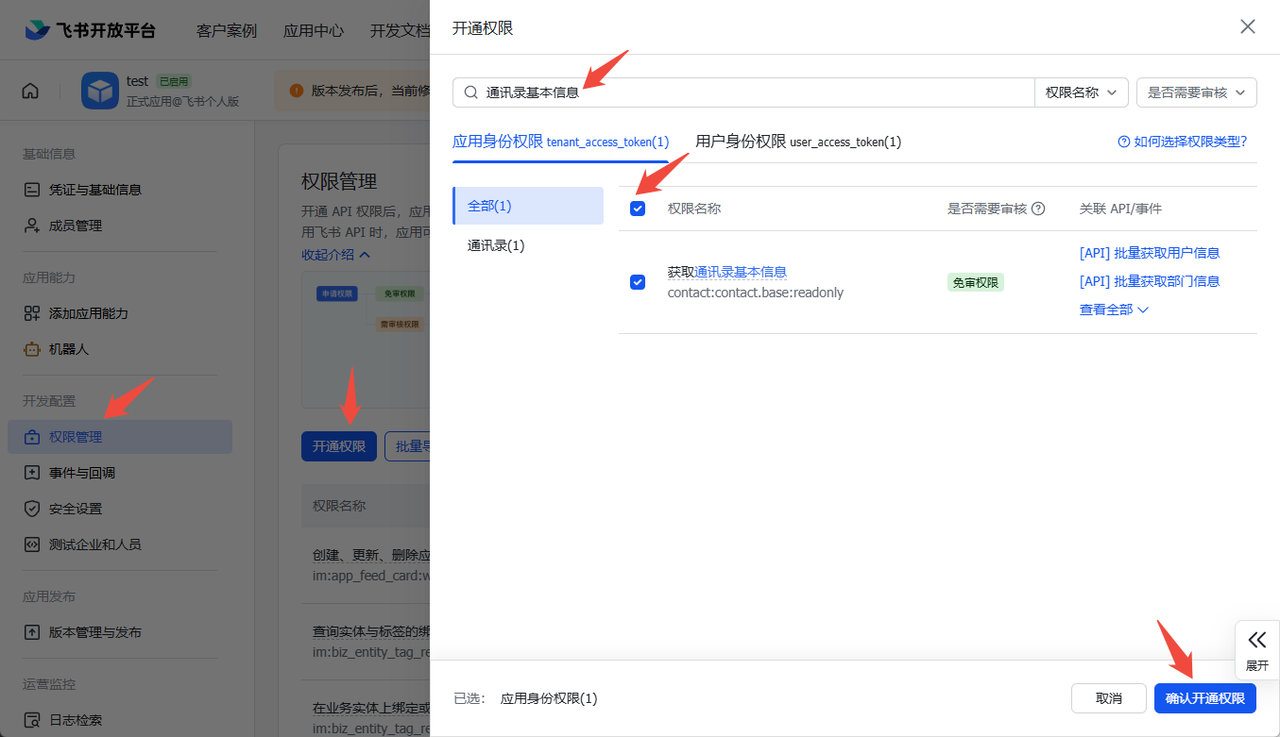
Open the Permissions page, click Grant Permission, search for and grant the Get Basic Contact Info permission.
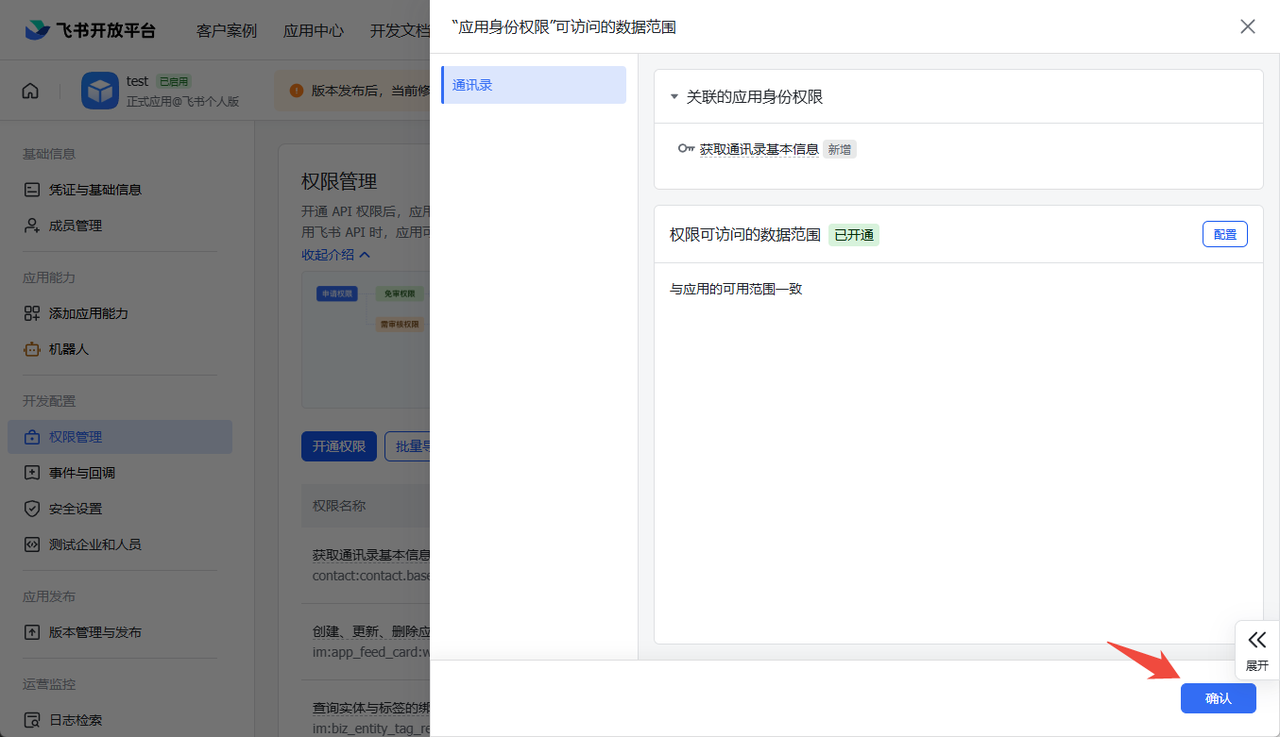
Once everything is configured, return to the Version Management & Release page, follow the same release flow as before, and click Save.
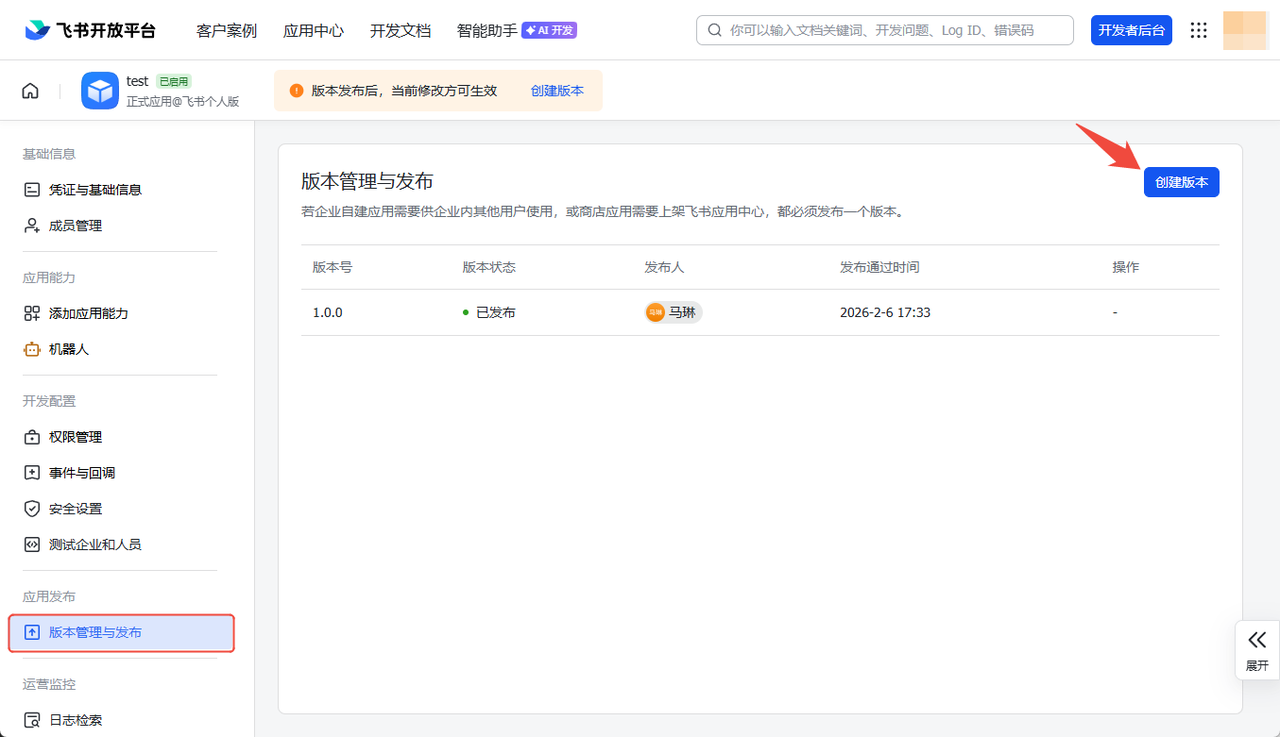
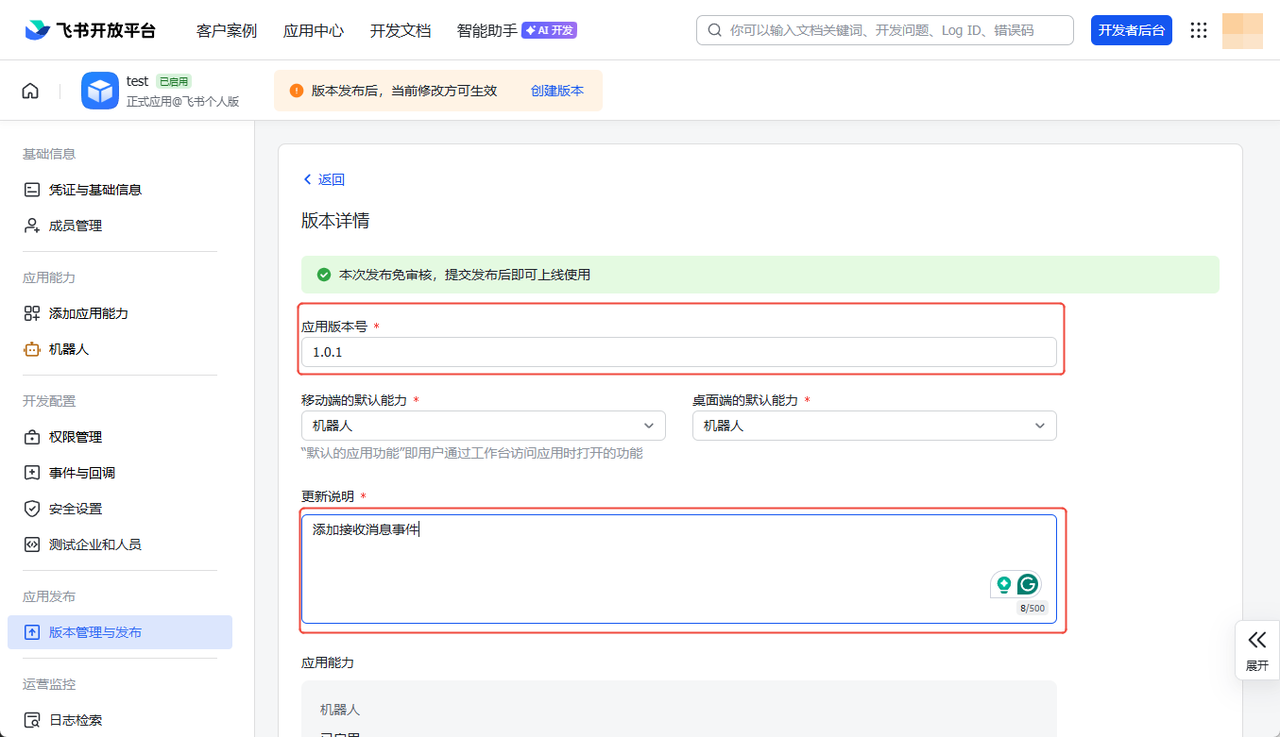
Use the same release flow as before and publish it directly as an online app. After release, return to the Lark / Feishu desktop client or mobile app, find the bot, and start chatting with the AI assistant.
Chat with the OpenClaw AI assistant in Lark / Feishu
Open the Lark / Feishu desktop client or mobile app and search for the bot you created.
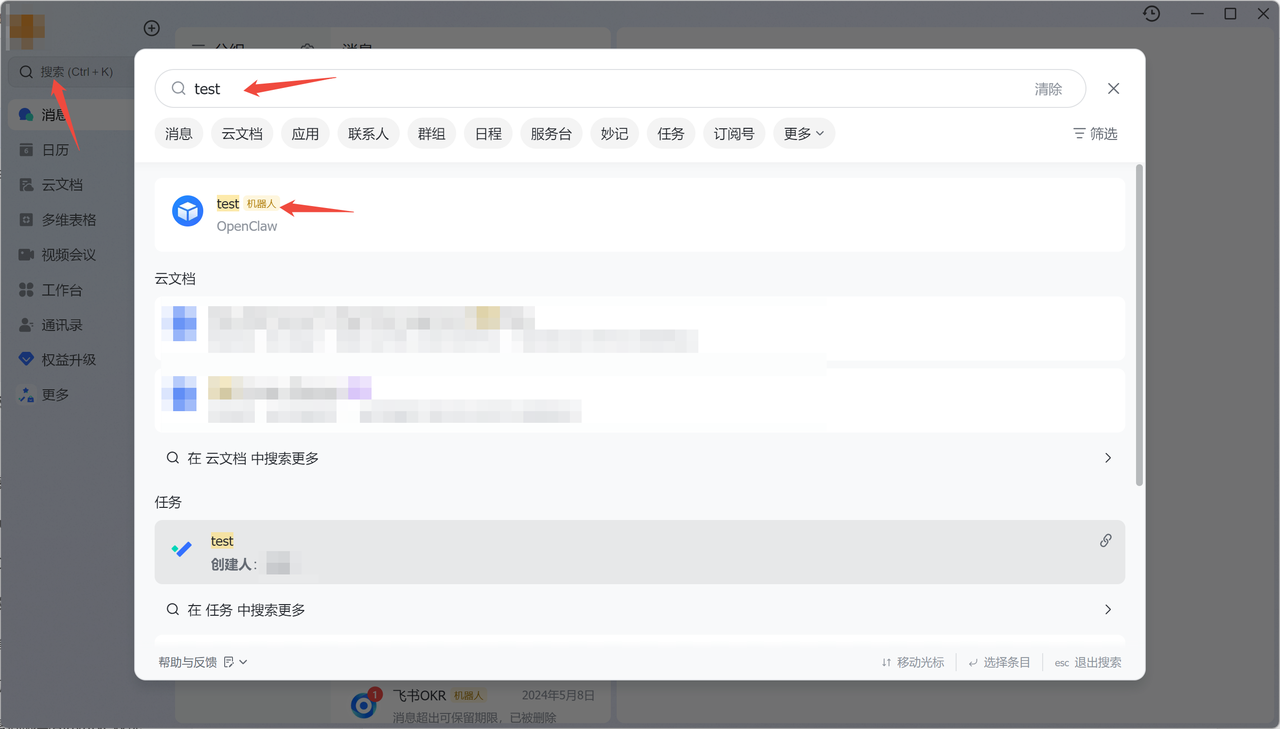
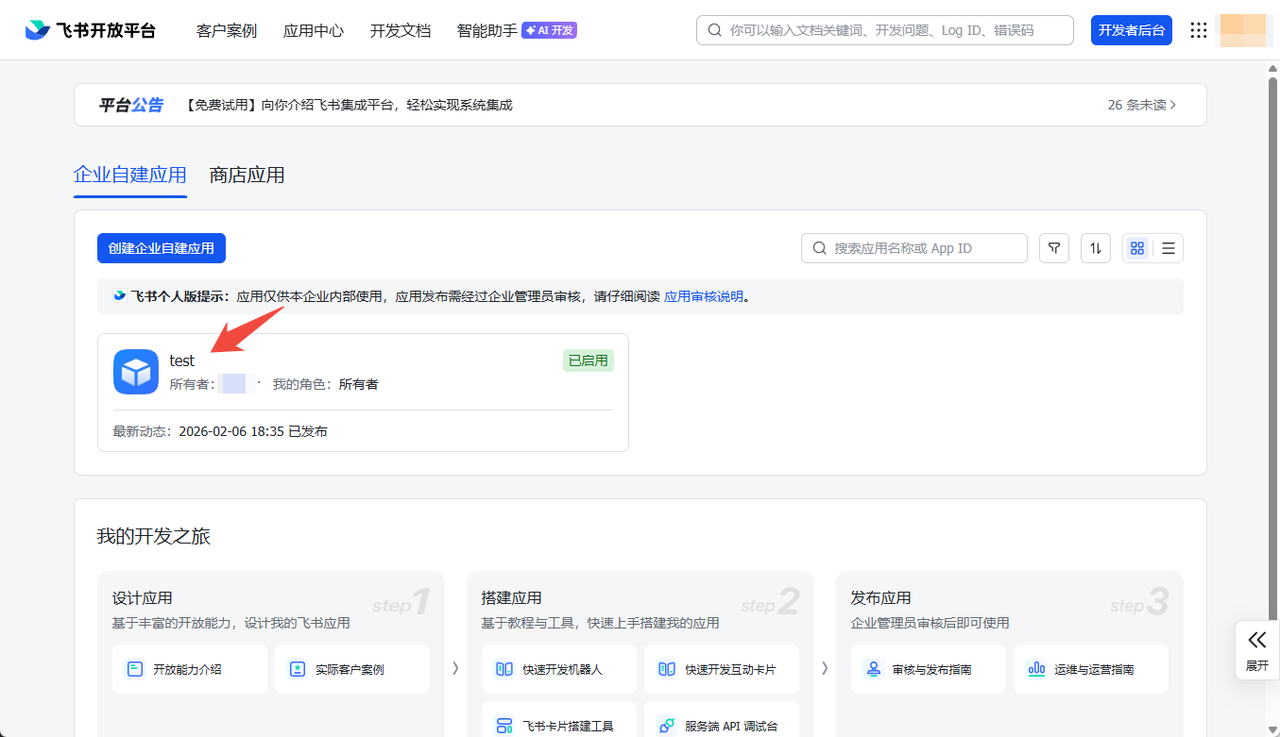
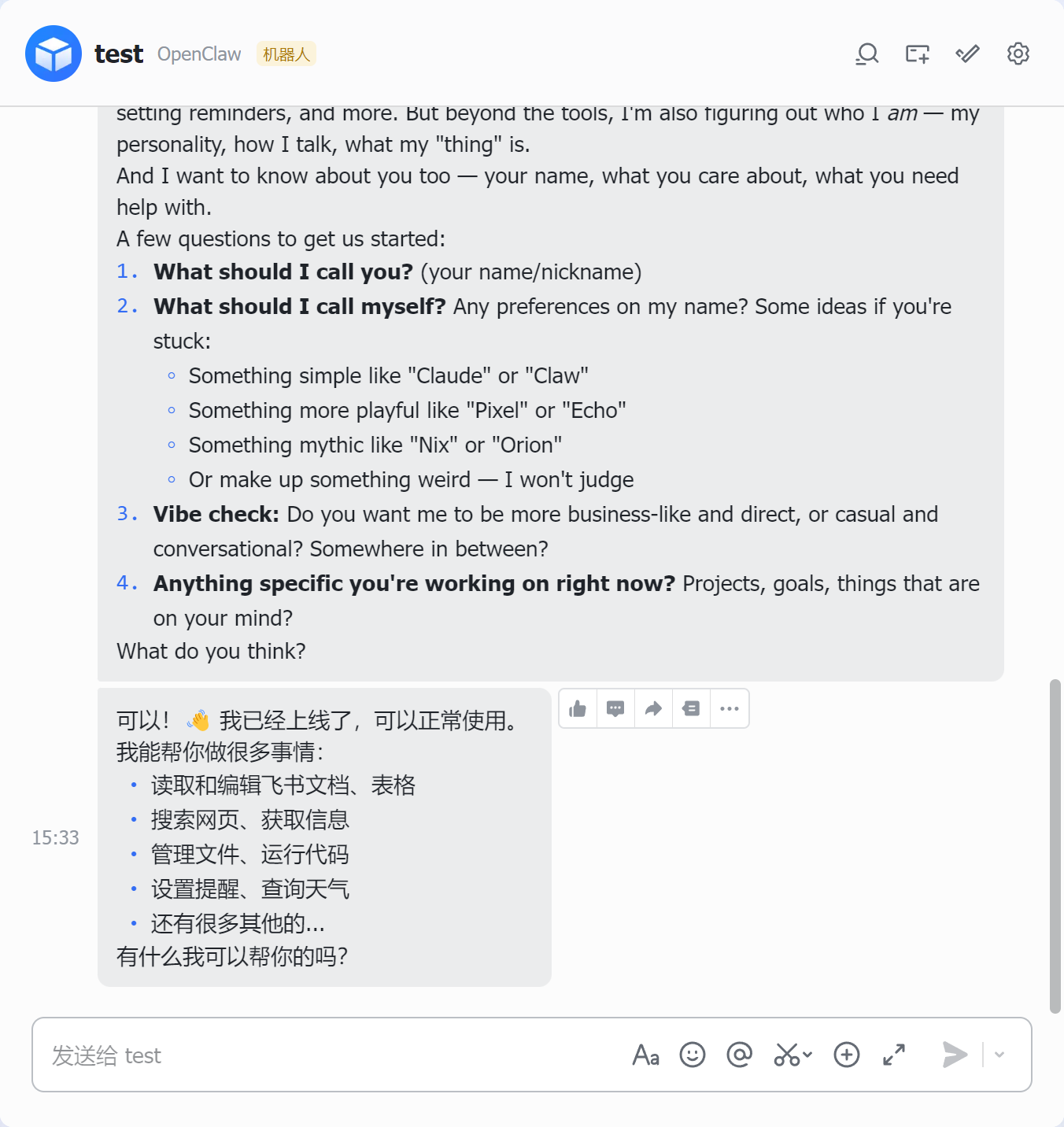
You can now chat with your OpenClaw assistant inside Lark / Feishu.
FAQ
Q. After the Lark / Feishu integration succeeds, why do I see 401 invalid token?
Sample error:
401 invalid token (request id: 2026022611471xxxxxxxx)
A. First confirm that your Lark / Feishu bot has a one-to-one mapping with the OpenClaw application. Do not configure the same bot under multiple OpenClaw applications, as this will trigger API call conflicts and produce errors.
A Lark / Feishu bot can only bind to one OpenClaw application. Configuring the same bot under multiple applications will cause conflict errors.
Last updated on