
Install kubectl on macOS / Linux x86-64 / Windows PowerShell — covers both the official Kubernetes endpoint and the Rancher China mirror
To use Virtual Kubernetes Service (VKS) by configuring environment variables, you first need to install kubectl. The steps below are organized by operating system.
- For more
kubectlinstallation details, see the official Install Tools guide. - The interface may differ slightly across operating systems and versions; defer to what you actually see on screen.
macOS
-
Download the latest stable
kubectlbinary, download its checksum file, and verify the binary against the checksum. A successful verification printskubectl: OK(highlighted in green below).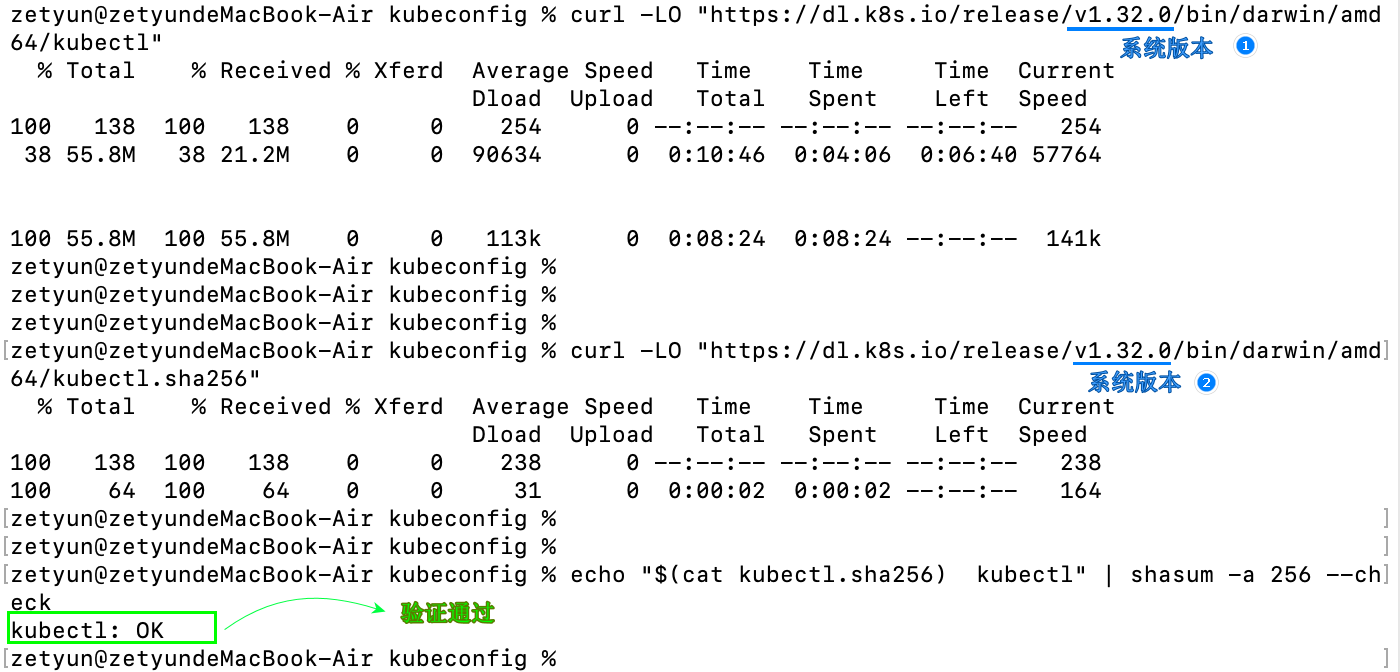
curl -LO "https://dl.k8s.io/release/$(curl -L -s https://dl.k8s.io/release/stable.txt)/bin/darwin/amd64/kubectl"
curl -LO "https://dl.k8s.io/release/$(curl -L -s https://dl.k8s.io/release/stable.txt)/bin/darwin/amd64/kubectl.sha256"
echo "$(cat kubectl.sha256)  kubectl" | shasum -a 256 --check
Replace
$(curl -L -s https://dl.k8s.io/release/stable.txt)with the version you want, for example1.32.0. -
(If the directory does not exist locally) create
/usr/local/binand set its permissions, then movekubectlinto/usr/local/bin/kubectl.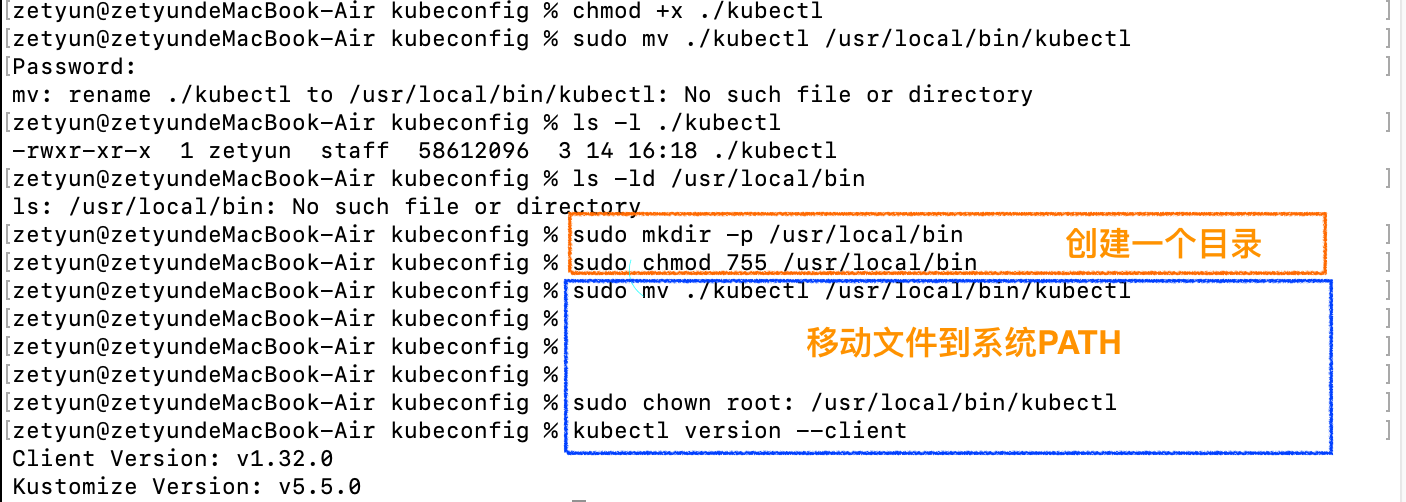
sudo mkdir -p /usr/local/bin sudo chmod 755 /usr/local/bin sudo mv ./kubectl /usr/local/bin/kubectl sudo chown root: /usr/local/bin/kubectl -
Test the installed
kubectland confirm you have the latest version:kubectl version --client -
Remove the checksum file:
rm kubectl.sha256
If your network is restricted or downloads are too slow, grab the appropriate package from the Rancher China community downloads (this example picks darwin-amd64-v1.32.3-kubectl):
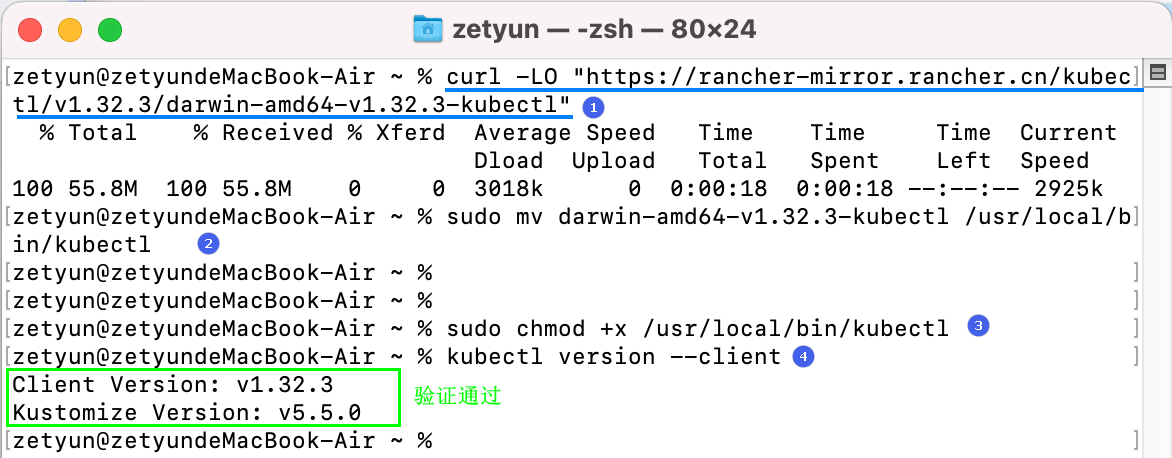
# Right-click the file to copy the download URL, then replace "rancher-path"
curl -LO "rancher-path"

# Move and grant execute permission
sudo mv darwin-amd64-v1.32.3-kubectl /usr/local/bin/kubectl
sudo chmod +x /usr/local/bin/kubectl
kubectl version --client
Linux x86-64
-
Open a terminal and download the latest stable
kubectlfor Linux x86-64.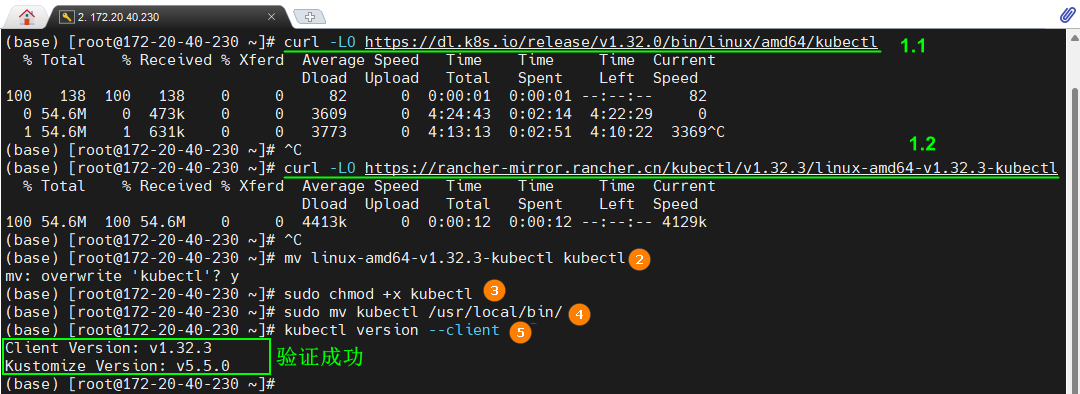
# Download from the official Kubernetes site curl -LO "https://dl.k8s.io/release/v1.32.0/bin/linux/amd64/kubectl" # Or use the Rancher China mirror curl -LO "https://rancher-mirror.rancher.cn/kubectl/v1.32.3/linux-amd64-v1.32.3-kubectl" -
Use
mvto rename the downloaded file tokubectl(skip this step if you used the official Kubernetes URL):mv downloadfilename kubectl -
Add execute permission and move it onto the system path:
chmod +x kubectl mv kubectl /usr/local/bin -
Verify the installation:
kubectl version --client
Windows PowerShell
The example below installs kubectl on Windows 11.
-
Create a new
kubectlfolder locally, open it, right-click an empty area, and choose "Open in Terminal" to launch PowerShell. -
In the terminal, download the latest stable
kubectl(pick one):# Official Kubernetes site curl.exe -LO "https://dl.k8s.io/release/v1.32.0/bin/windows/amd64/kubectl.exe" # Or Rancher China mirror curl.exe -LO "https://rancher-mirror.rancher.cn/kubectl/v1.32.3/windows-amd64-v1.32.3-kubectl.exe"Replace
v1.32.0/v1.32.3with thekubectlversion you need. -
Rename the file to
kubectl.exe: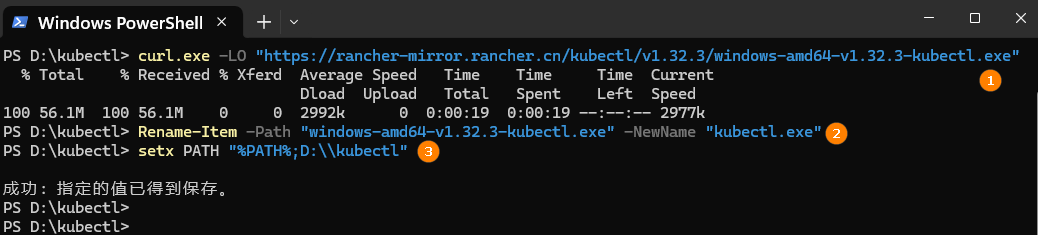
Rename-Item -Path "my file.exe" -NewName "kubectl.exe" -
Set the environment variable:
setx PATH "%PATH%;D:\kubectl" -
Verify the installation:
kubectl version --clientAfter updating the environment variable, you may need to open a new CMD / PowerShell window for it to take effect.
No curl? Configure PATH manually
-
Download the latest
kubectl, for examplewindows-amd64-v1.32.3-kubectl.exe, and rename it tokubectl.exe. -
Right-click [This PC → Properties] → [System → System Information] → "Advanced system settings".
-
On the [System Properties] page, click [Environment Variables].
-
Under "System variables", double-click
Pathto edit the environment variable, and add a new entry pointing to the directory that containskubectl.exe(for exampleD:\kubectl).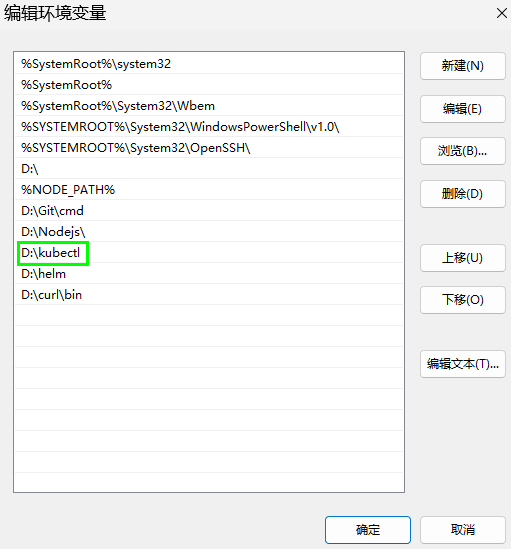
D:\kubectlis the directory containingkubectl.exe. Adjust it to match your setup.
Last updated on