
View basic information, resources, optional configuration, authorization, consumption rules and parallelism for a VKS cluster
Once a VKS cluster is provisioned, the primary account and authorized users can view its details.
Prerequisites
- The user has provisioned a VKS cluster and it is in a usable state. If not, follow the cluster provisioning guide first.
- The user has been authorized for this VKS. The primary account can authorize additional users following the Authorize VKS guide.
Important: The primary account can view every cluster in the company and assign access to members regardless of who created the cluster.
Overview
-
Sign in to the Alaya NeW platform with your registered company account, then go to Products / Virtual Kubernetes Service.
-
On the overview page click Cluster Management to enter the cluster list, find the target cluster, and click its name link to open the detail page (highlighted below).
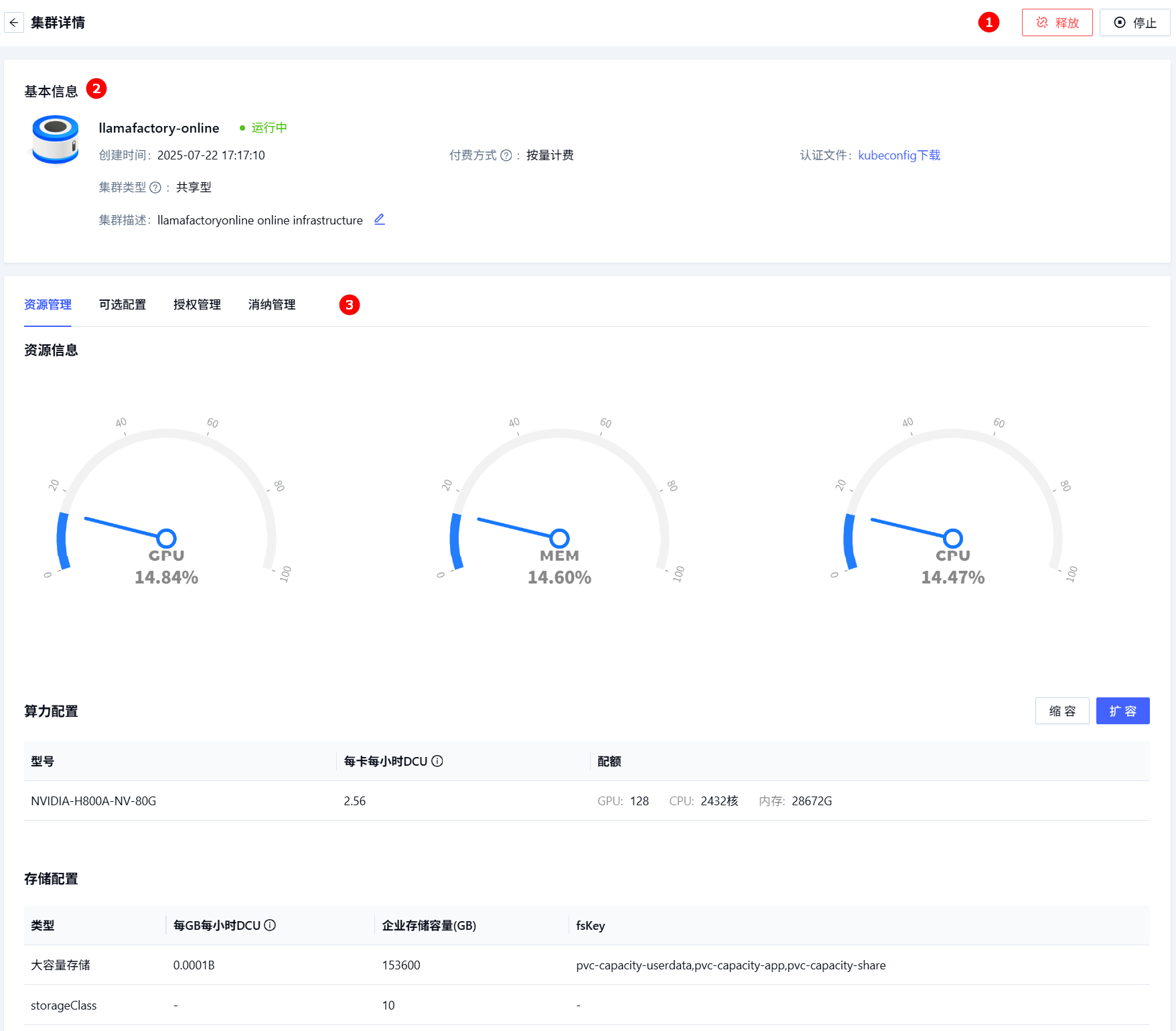
The detail page consists of basic information and a Cluster Information tab, described as:
| # | Module | Description | Notes |
|---|---|---|---|
| ① | Action area | Quickly stop or release cluster resources. | - |
| ② | Basic info | Aggregated cluster info such as type, credential file, status. | The kubeconfig file does not need to be unzipped. |
| ③ | Resource info | Statistics by resource and per-resource ops management. | - |
Operations
Resource management
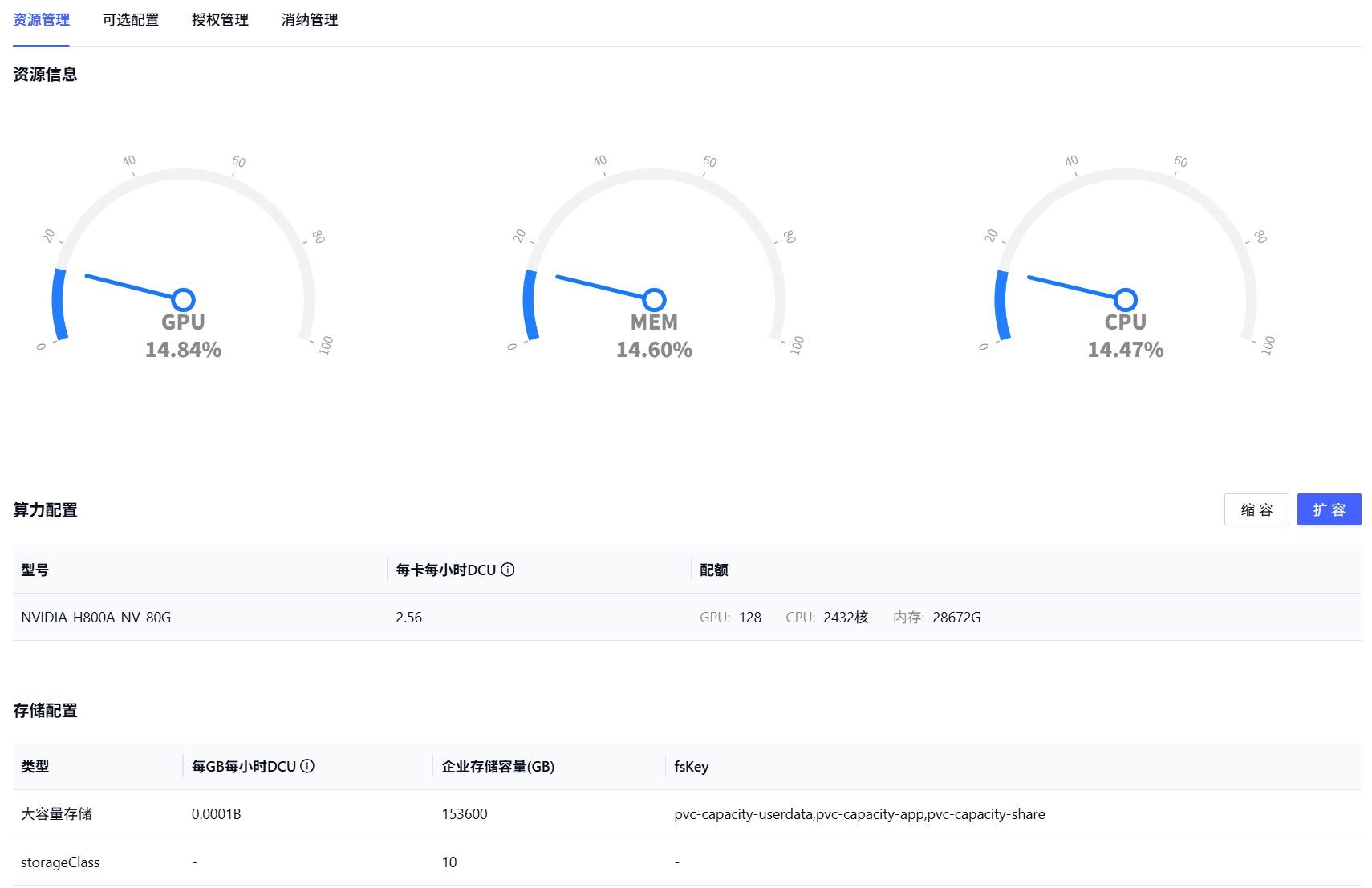
The Resource Management page shows the following:
| # | Module | Function |
|---|---|---|
| 1 | Resource detail | View GPU / MEM / CPU utilization. |
| 2 | Compute config | Detailed compute configuration including GPU model, billing rates, available quota. Scale up or down on demand. |
| 3 | Storage config | Storage configuration: type, billing rate, total storage and fsKey detail — quick access to storage info. |
Scale down
-
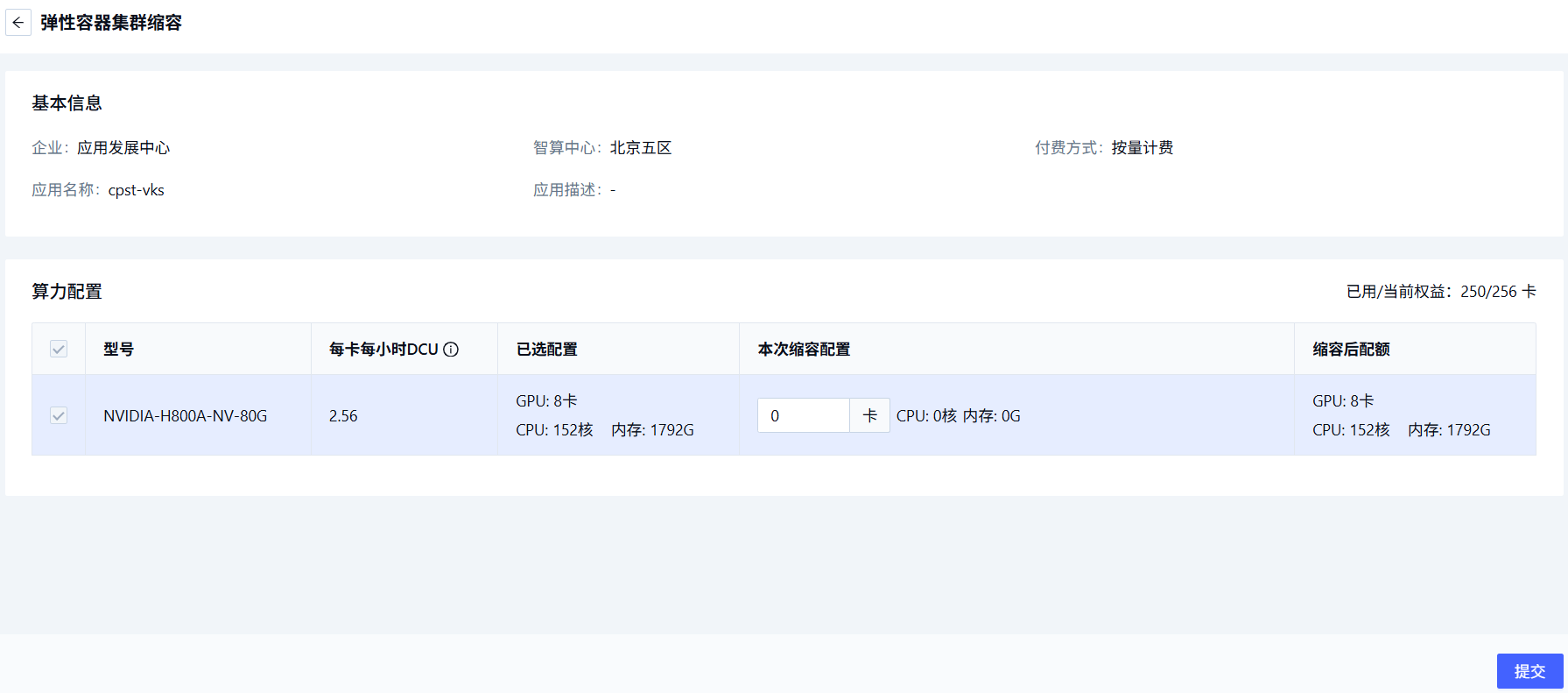
Click Scale Down to open the resource configuration page and set the new quota for the relevant compute config.
-
Submit. The scale-down completes.
Tip: The actual parallelism limit in effect is the lower of the user-set parallelism limit and the current VKS resource cap.
Scale up
-
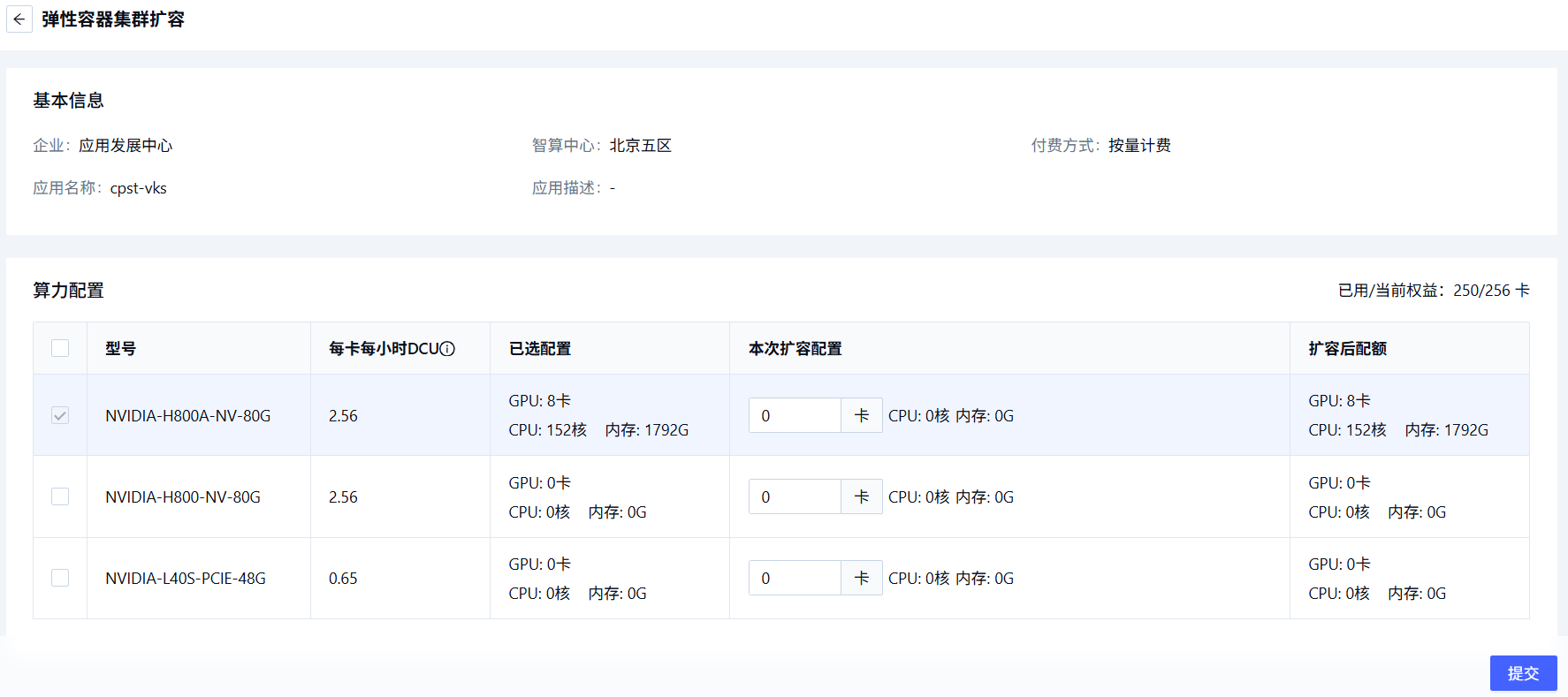
Click Scale Up and set the increased quota for the relevant compute config.
-
Submit. The scale-up completes.
Optional configuration
You can optionally enable external service exposure for the cluster.
Authorization management
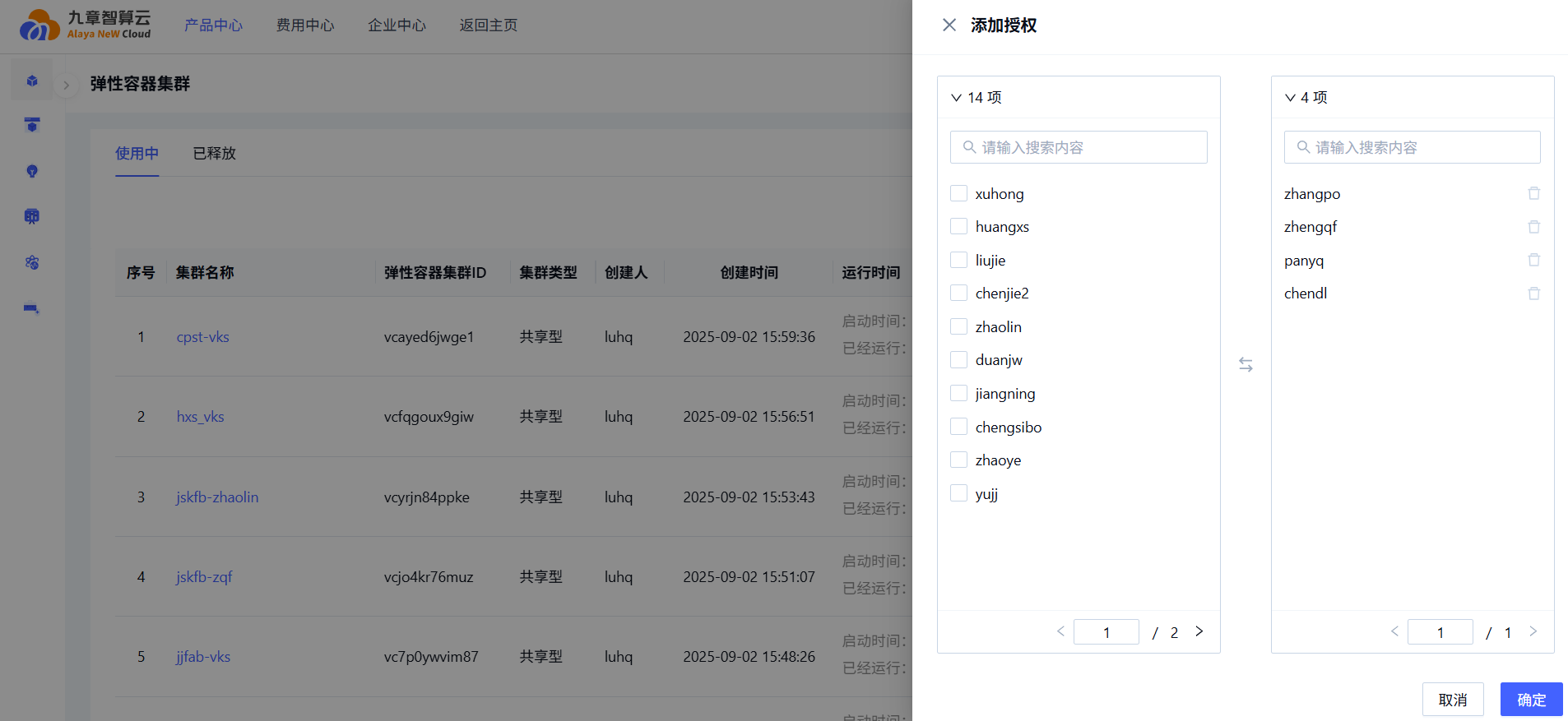
Manages authorization records for the cluster: subject, subject type, authorization time. You can revoke existing authorizations and add new ones:
-
Click Add Authorization to enter the user-selection page and select target user(s).
-
Click Confirm. Authorization complete.
Consumption management
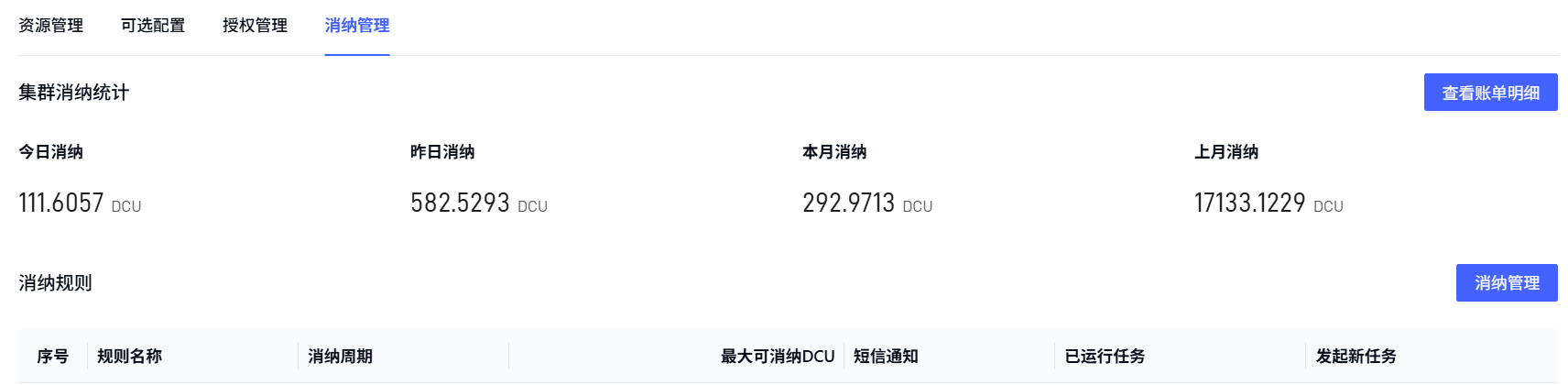
Aggregates DCU (Data Computing Unit) usage by time window (today, yesterday, this month, last month). The primary account can click Consumption Management to set VKS-level and user-level rules on dedicated VKS clusters.
Info: Shared VKS clusters pool resources across users, so user-level consumption rules are not supported on shared clusters.
Parallelism management
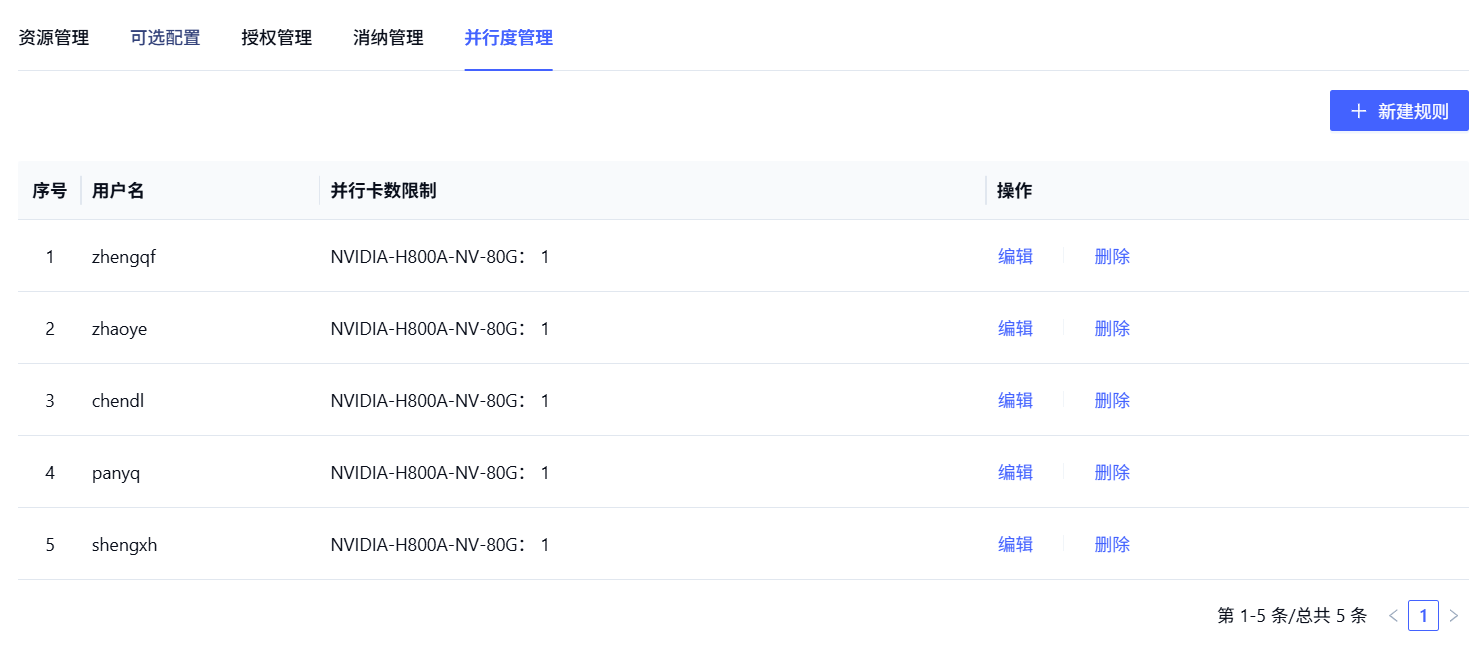
Manages GPU resource usage. The primary account can create, edit, delete, and view parallelism rules on dedicated VKS clusters; sub-accounts can view rules for the clusters they belong to.
To create a new parallelism rule:
-
On the cluster detail page, click Parallelism Management to switch to that tab.
-
Click New Rule to open the parameter form.
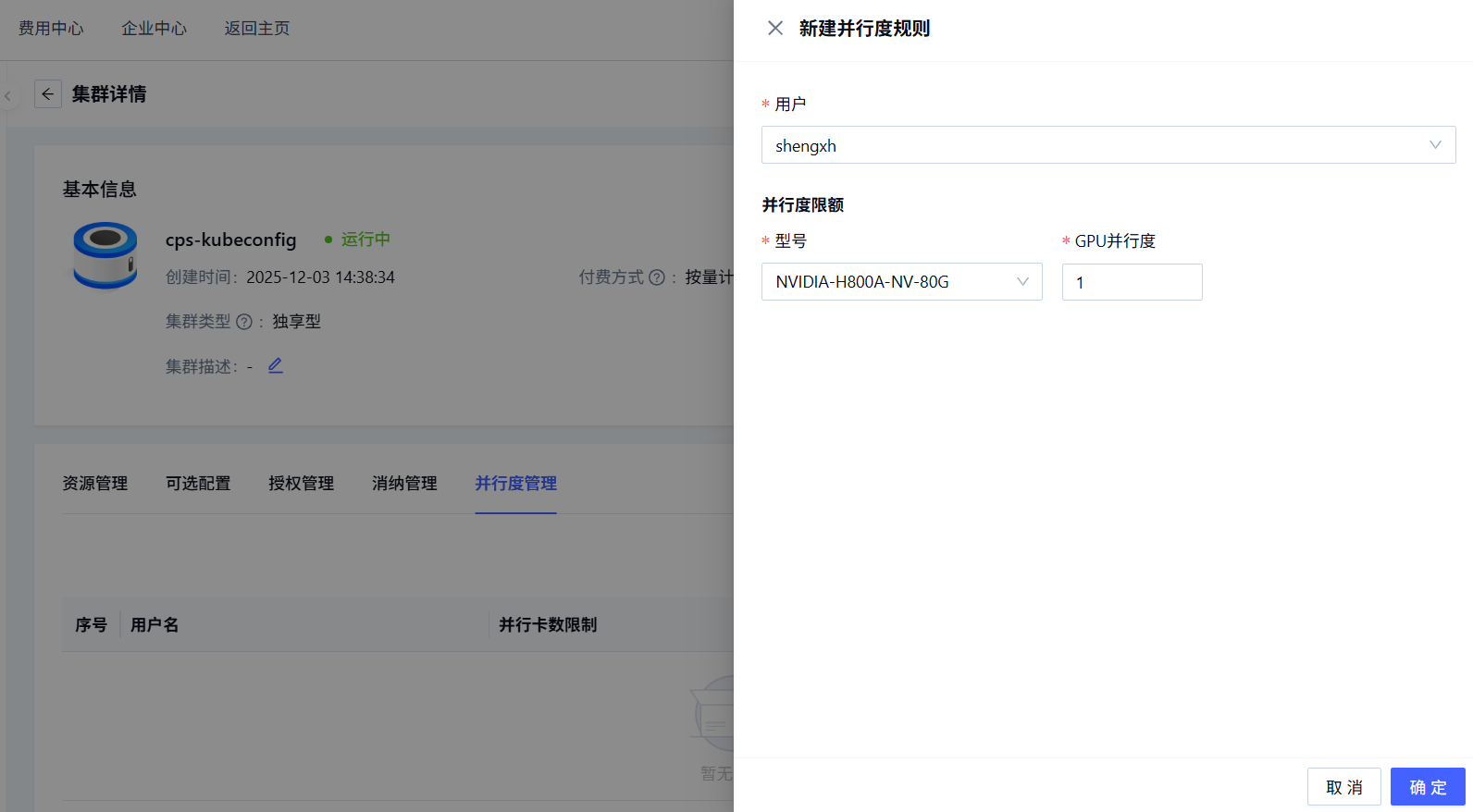
- User: a user authorized for this dedicated cluster — the primary account can configure parallelism for them.
- Quota: number of resources in the dedicated cluster — configured GPU count cannot exceed the cluster's total GPU count.
-
Submit. The parallelism rule is now active.
Last updated on