Create a Kubernetes image-pull Secret on VKS — via kubectl one-liner or YAML manifest — and reference it from your Pod with imagePullSecrets
When deploying a container on VKS, push the image to the registry that comes provisioned alongside the cluster. The cluster pulls images using a Secret that carries the registry credentials. This page covers both ways to create the Secret and how to reference it from a Pod.
Prerequisites
- VKS provisioned
- Container registry provisioned (credentials are sent by SMS at provisioning time)
Get registry credentials
Registry endpoint
In the Alaya NeW console, go to Products → Storage → Container Registry, switch to the right region, and open the Private images tab:
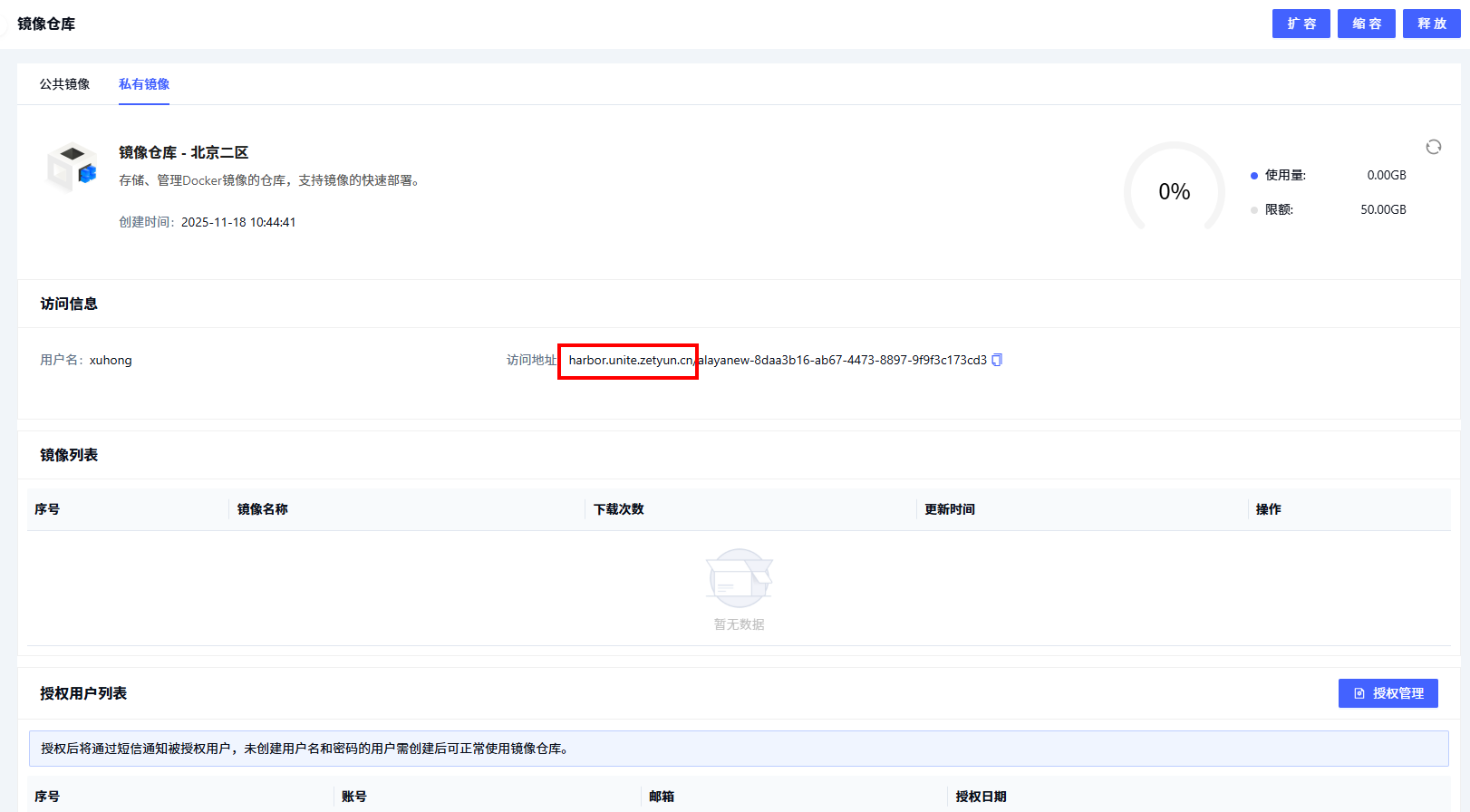
The "Access URL" on this page is the registry endpoint (used as --docker-server or as the auths key). The trailing project name is not needed.
Username and password
Two ways to get them:
-
Option 1 — Credentials are sent by SMS at provisioning time.
-
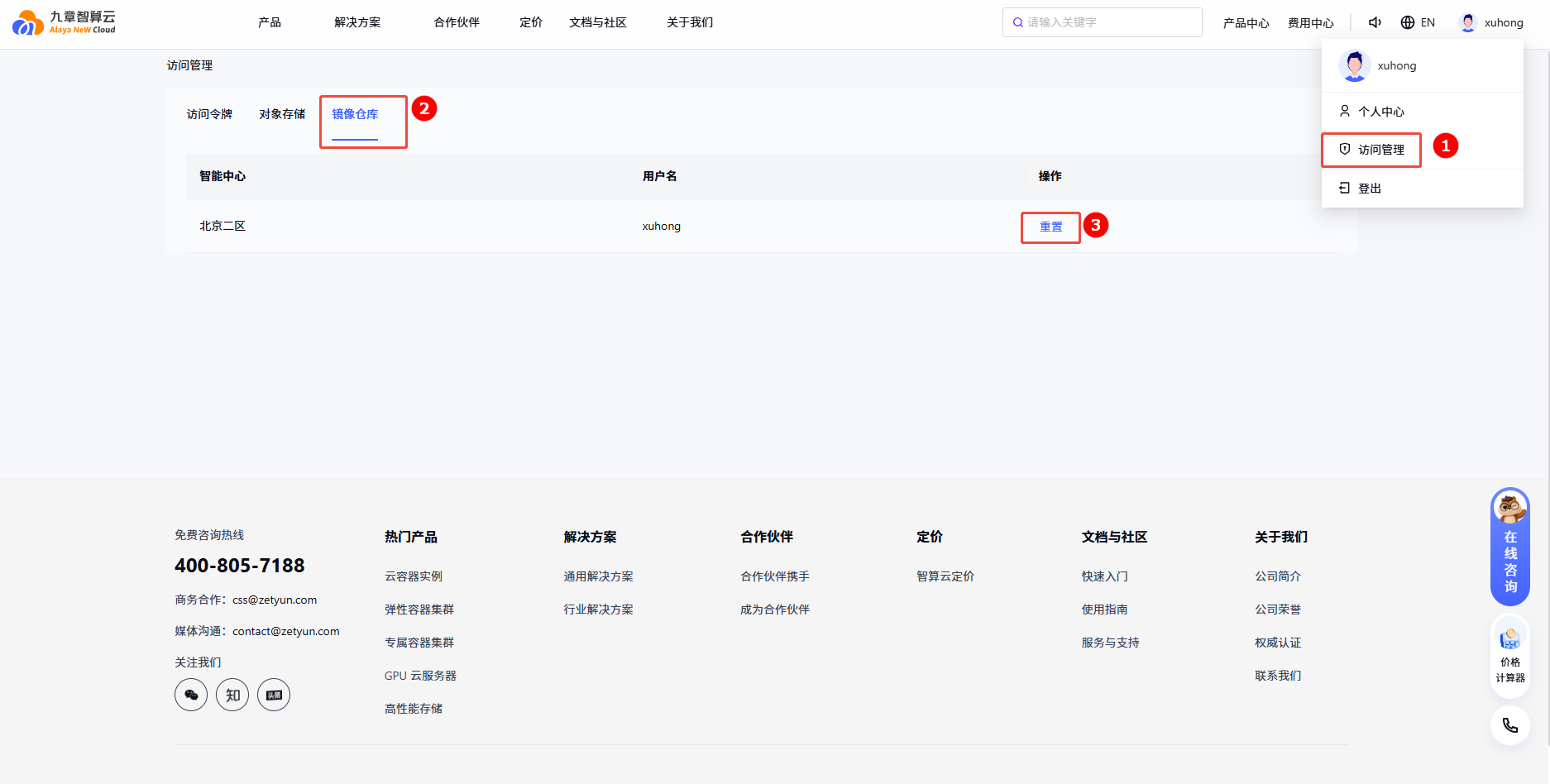
Option 2 — If you lost the SMS, reset them: go to the avatar menu in the top-right → Access Management → Container Registry tab → click Reset on the target region:
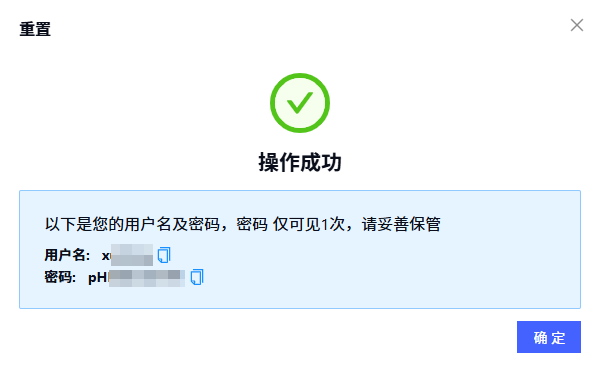
Reset result:
Option A: Create the Secret via kubectl
One-liner — the simplest path:
kubectl create secret docker-registry your-secret-name \
  --docker-username=your-username \
  --docker-password='your-password' \
  --docker-server=your-harbor-domain \
  --namespace=your-namespace
Replace the placeholders:
| Placeholder | Meaning |
|---|---|
your-secret-name | Name of the Secret (referenced from the Pod's imagePullSecrets) |
your-username | Registry username |
your-password | Registry password (single-quote it if it contains special chars) |
your-harbor-domain | Registry endpoint |
your-namespace | Namespace where the Secret lives — must match the Pod that uses it |
Option B: Create the Secret via YAML
Better suited if your config lives in Git.
Step 1: write config.json
{
  "auths": {
    "<registry-endpoint>": {
      "username": "your-username",
      "password": "your-harbor-password",
      "email": "your-email"
    }
  }
}
Step 2: base64-encode
base64 config.json > encode-config.jsoncertutil -encode config.json encode-config.jsonStep 3: write the Secret manifest
Paste the encoded content into .dockerconfigjson:
apiVersion: v1
kind: Secret
metadata:
  name: ydyd-harbor-secret
  namespace: your-namespace
type: kubernetes.io/dockerconfigjson
data:
  .dockerconfigjson: ewogICAgImF***********************************Cn0K
kubectl apply -f harbor-secret.yamlReference the Secret from a Pod
In the Pod / Deployment spec, list the Secret name under imagePullSecrets:
apiVersion: v1
kind: Pod
metadata:
  name: your-pod-name
  namespace: your-namespace
spec:
  imagePullSecrets:
    - name: your-harbor-secret
  containers:
    - name: your-container-name
      image: your-image
      imagePullPolicy: IfNotPresent
      volumeMounts:
        - mountPath: /mnt/test
          name: your-volume-name
      command: ['/bin/bash', '-c', 'while true; do sleep 30; done']
  volumes:
    - name: your-volume-name
      persistentVolumeClaim:
        claimName: your-pvc-name
The Secret must live in the same namespace as the Pod that uses it — Secrets are not visible across namespaces.
Last updated on