User Registration
This section describes how to register and activate an Alaya New enterprise account.
1. Open the registration page
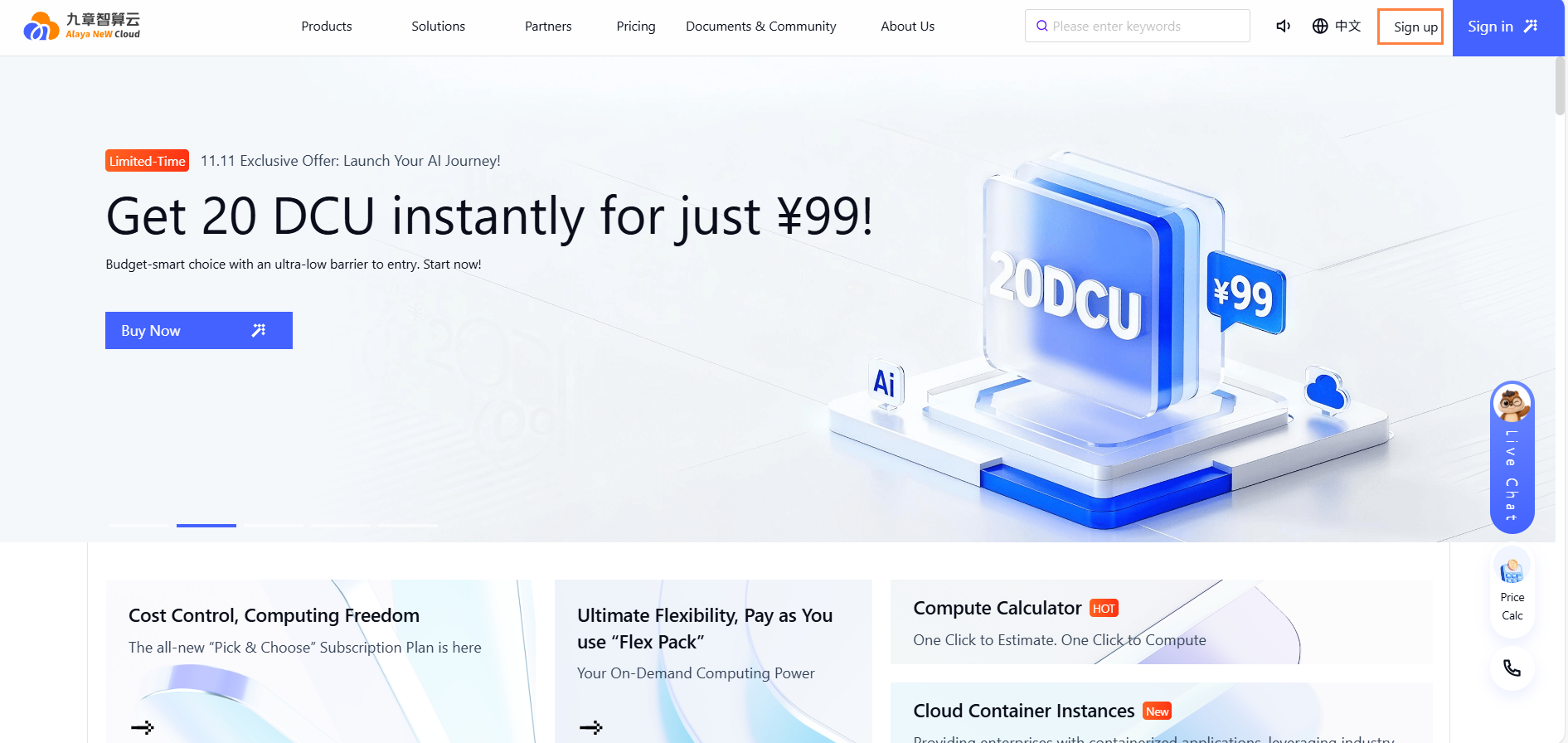
Go to the Alaya New website and choose "Sign up" in the upper-right corner of the page.
2. Complete the Enterprise Registration form
On the the [Enterprise Registration] page, provide the required information as prompted, including username, email, mobile number, and SMS verification code.
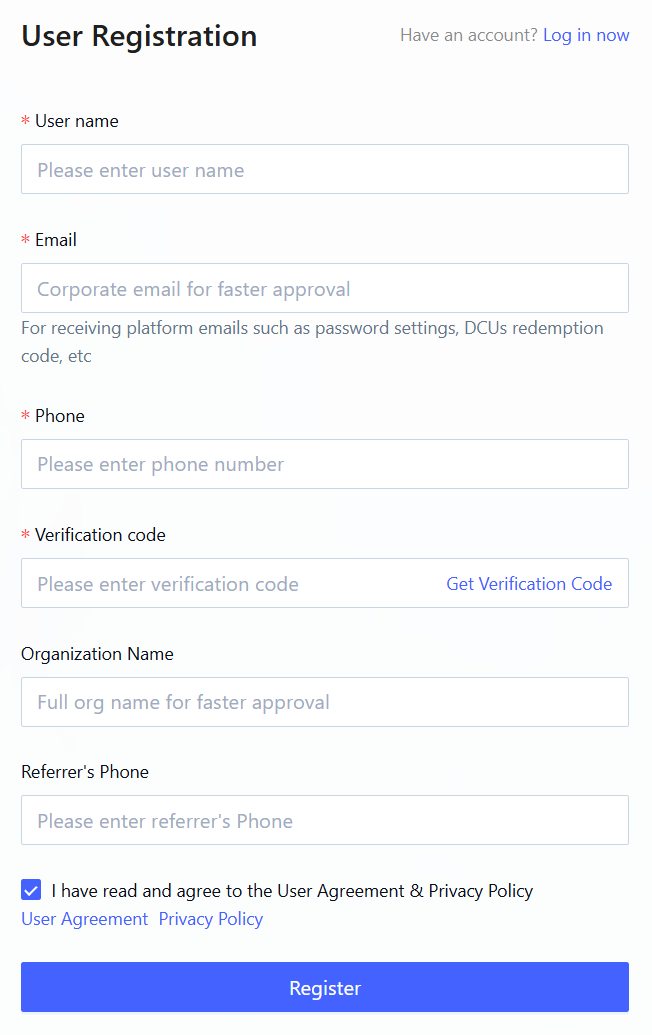
Select the "I have read and agree to the User Agreement & Privacy Policy" checkbox.
| Registration Parameter | Description | Configuration Requirements | Example | Required |
|---|---|---|---|---|
| User name | The name used in the system for user login and identification. | Must start with a lowercase letter and be 4~20 characters in length. Only lowercase letters and digits are allowed. | admin | Yes |
| The email address associated with the username. Used for account verification, password recovery, notifications, and hash package redemption codes. | Must be a valid, existing email address in the format "Local part@Second-Level Domain.Top-Level Domain". | - | Yes | |
| Phone | The user's mobile phone number, primarily used to receive SMS verification codes or other types of notifications or services. | Must be a valid, active mobile phone number. | - | Yes |
| Verification Code | A one-time code sent to the user’s mobile phone for identity verification or to perform specific operations (for example, registration or password reset). | Enter the SMS verification code that you received. | - | Yes |
| Organization Name | The name of the organization the user belongs to. | None. | Alaya NeW | No |
| Referrer's Phone | The referrer's Phone phone number. | - | - | No |
3. Submit the registration request
After providing all required information, choose Register to submit the registration form.
4. Start the initial password setup
Sign in to the email account that was provided during registration, open the Alaya New User Invitation email and click the Click the link to set your initial password hyperlink. The system will display a Set Password window.
The initial password setup link is only valid for 60 minutes. You must complete the password setup process within this time window.
In case the link expires, choose "Forgot Password" on the login page to request a new password setup email.
5. Complete registration and account activation
In the Set Password dialog box, configure the login password. After entering and confirm the password, choose OK to complete registration and activate the enterprise account.
You can then sign in to the Alaya New enterprise account with your username and the password that you configured.
The login password must be 8~18 characters in length and must include at least one uppercase letter, one lowercase letter, one number, and one symbol.