Create Cloud Container Instance (CCI)
If the user already has an Alaya NeW company account and sufficient account balance, they can follow the steps below to quickly create the Cloud Container Instance (CCI) service.
Prerequisites
- The user has already obtained an Alaya NeW company account and password. If assistance is needed or the account has not yet been registered, please refer to the User Registration to complete the registration process.
- The current company account balance is sufficient to support the user’s consumption of the Cloud Container Instance service. For the latest promotion details and pricing information, please Contact US.
Procedure
Users can quickly create a Cloud Container Instance in the official website. The steps are as follows.
-
Sign in to the Alaya NeW platform using your registered company account. Choose "Product" > "Computing" > "Cloud Container Instance" to enter the Cloud Container Instance page.
-
Click “New Cloud Container” to enter the Cloud Container Instance creation page, and configure the basic information such as instance name, instance description, AIDC name, and other parameters. For detailed parameter settings, please refer to the table below.
Configuration Parameter Description Configuration Requirements Example Required Cloud Container Instance Name Specifies the identifier of the cloud container instance, used as the unique ID within the system. Must start with a letter; supports letters, digits, hyphens (-), and underscores (_); length must be 4–20 characters. Jrqsl-01 Yes Instance Description A brief text describing the instance’s purpose and configuration. None. - No AIDC The data center used to support cloud container instance service. Select an available data center (for example, Beijing Region 3 or Beijing Region 5). Beijing Region 3 Yes Payment Method The method used to charge for data center resources. Select the supported payment method. Currently, Pay-As-You-Go is used. Pay-as-you-go Yes Resource Configuration Detailed configuration of data center resources, including resource type, GPU model, computing resources, and disk resources. Select the required resources. - Yes Storage Configuration Optional NAS storage mounted to the container instance. Select NAS storage if needed. - No Image You can choose from public images (including base images and application images) or private images, depending on your needs. - Public image Yes Other Configurations Supports configuring environment variable keys and values, and also allows enabling automatic shutdown and automatic release of the Cloud Container Instance. - - No tipPrivate images require the master account to enable the image service, and sub-accounts must be granted access by the master account.
-
After entering the CCI configuration parameter, click “Activate Now” In the pop-up dialog box, review the configuration parameters. Once you have confirmed the parameters are correct, click “Confirm” to complete the Cloud Container Instance creation process.
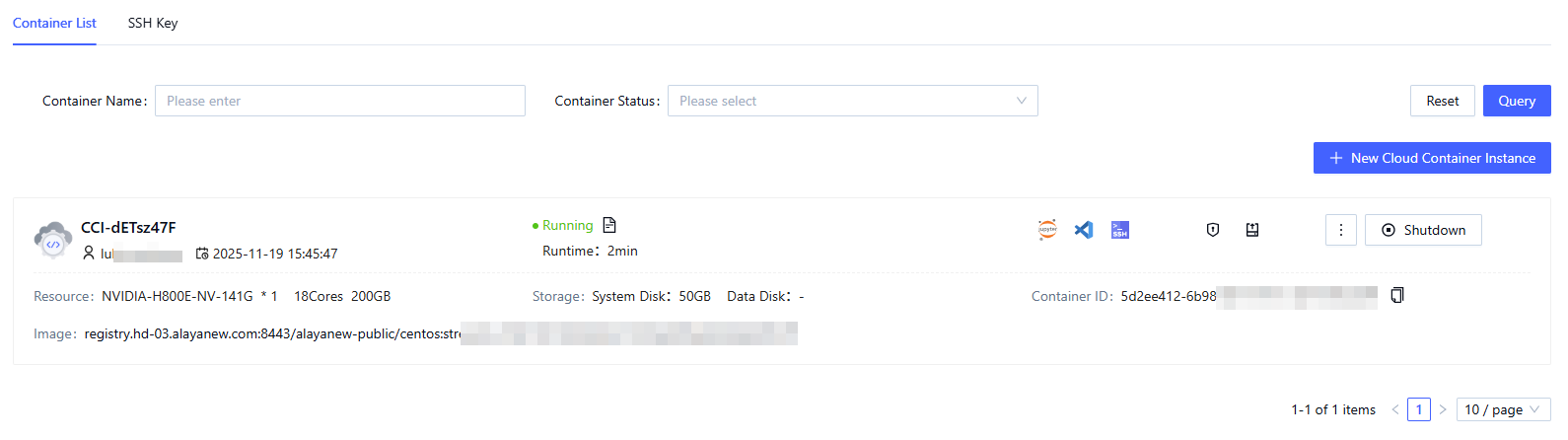
You can view the created Cloud Container Instances on the "Compute / Cloud Container Instance" page. When the instance status is “Running,” it indicates that the Cloud Container Instance has been successfully activated and is ready for use.