Create Storage Services
This guide explains how customers with an active Alaya New enterprise account and sufficient account balance can create Large-Capacity Storage.
Prerequisites
- You have an Alaya New enterprise account and password. If you do not have an account or need assistance, follow the User Registration guide to complete the sign-up process.
- Your enterprise account has sufficient balance to cover storage usage charges. Click here to review pricing information or Contact US for more details.
Procedure
Create File Storage
- Sign in to the Alaya New console using your enterprise account. You can start the File Storage creation process from multiple entry points based on your product requirements and usage preferences:
-
From [Products/Storage], choose Large-Capacity Storage to open the product overview page, then choose Create Now to open the configuration page.
-
From [Product Center/Storage Management], choose Create New Storage to open the configuration page.
-
Configure the corresponding storage parameters as required. The parameter description is as follows:
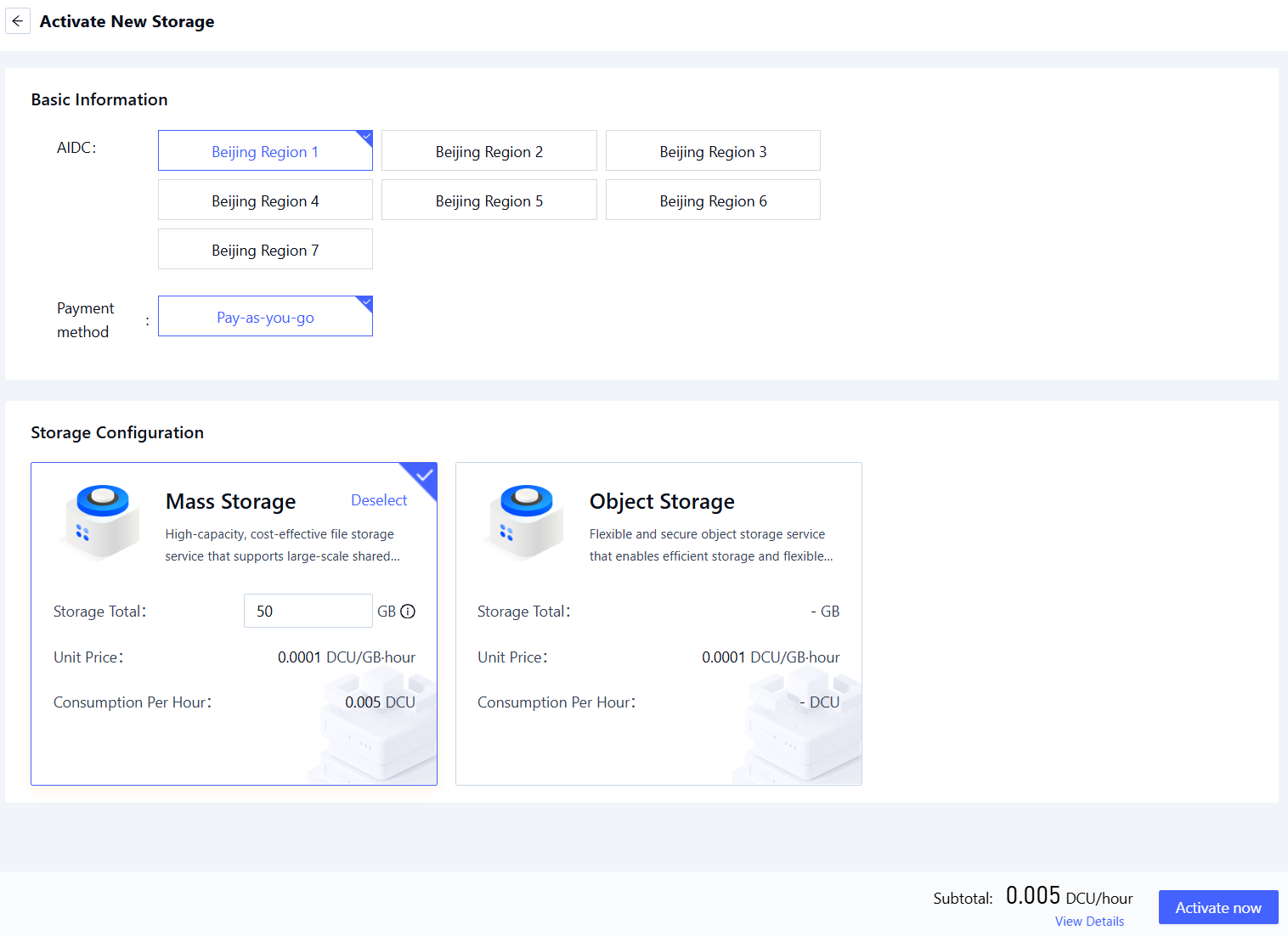
Parameter Description Requirements Required AI Data Center The data center that hosts the File Storage service. Select an available data center (e.g., Beijing-Region-1, Beijing-Region-2, Beijing-Region-3). Yes Billing Method How resources in the selected data center are charged. Select a supported billing method (e.g., Pay-as-you-go). Yes Storage Configuration Select File Storage of the corresponding data center and configure the total storage capacity. File storage capacity range: 200GB ~ 200,000GB. Yes -
Review your settings and choose Create Now to complete the File Storage setup.
Create Object Storage
- Log in to the Alaya New platform using your registered enterprise account. The platform offers multiple entry points to create Object Storage. Users can choose the create method based on product requirements and usage habits (see details below).
-
Select the [Products/Storage] menu, click the "Object Storage" to enter the product overview page, then click the "Create Now" button to navigate to the Object Storage configuration page (as shown in the figure below).
-
Click the [Product Center/Storage Management] menu item, then click the "Create New Storage" button to enter the Object Storage activation configuration page (as shown in the figure below).
-
Configure the corresponding storage parameters as required. The parameter description is as follows:
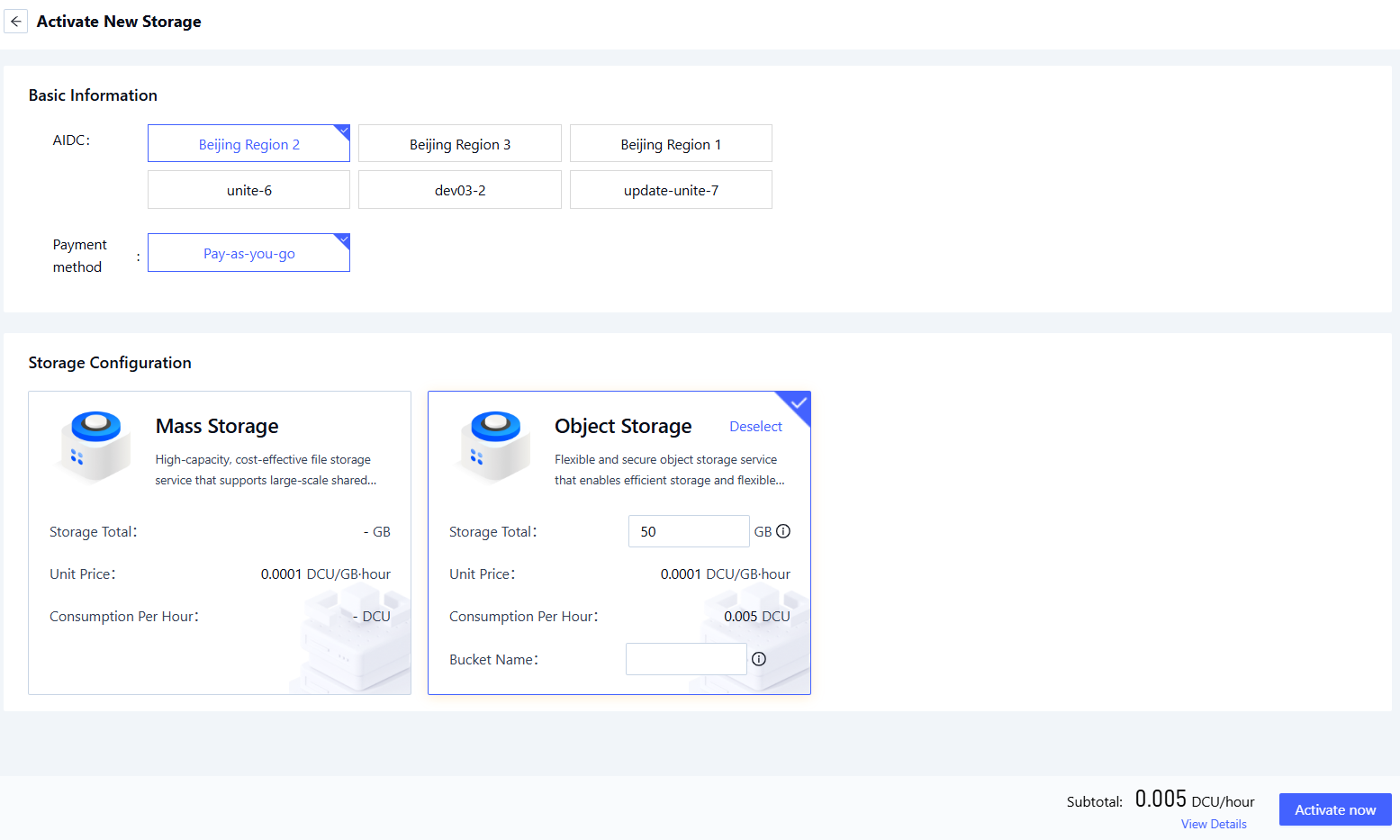
Parameter Description Requirements Required AI Data Center The data center that hosts the Object Storage service. Select an available data center (e.g., Beijing-Region-1, Beijing-Region-2, Beijing-Region-3). Yes Billing Method How resources in the selected data center are charged. Select a supported billing method (e.g., Pay-as-you-go). Yes Storage Configuration Select Object Storage of the corresponding data center and configure the total storage capacity. Storage capacity range: 50GB ~ 4,096GB. Yes
- Review your settings and choose Create Now to complete the Object Storage setup.