Create Virtual Kubernetes Services
Users who already have an Alaya New enterprise account and sufficient account balance can use the following procedure to quickly create Virtual Kubernetes Services (VKS).
Prerequisites
-
Before you begin, make sure that you have an Alaya New enterprise account and password. If you need help or have not yet registered, see the User Registration guide to complete the registration process.
-
Your enterprise account has enough balance to pay for computing services. For the latest offers and pricing information, please Contact US。
Procedure
You can create a VKS from the Alaya New console by following these steps:
-
Open the VKS overview page Sign in to the Alaya New platform using your enterprise account. In the console, choose [Products/VKS] to open the VKS Overview page.
-
Configure basic VKS settings On the VKS Overview page, choose “Add Cluster” to open the VKS configuration page. Configure basic information including the cluster name, cluster description, and AI Data Center (AIDC).
Configuration Parameter Parameter Description Configuration Requirements Parameter Example Required Kubernetes Name A unique identifier for the kubernetes in the system. Must start with a letter; supports letters, numbers, hyphens (-), and underscores (_); 4-20 characters in length. jskfb-zqf Yes Kubernetes Description A brief text description of the kubernetes' functions, purposes, and configurations. None. - Yes AIDC The data center supporting large model services. Select an available data center (e.g., Region-Beijing-1, Region-Beijing-2, Region-Beijing-3). - Yes Kubernetes Type Shared: All authorized users share one VKS workspace with no isolation between users (suitable for team collaboration).
Exclusive: Each authorized user has an isolated workspace implemented by Namespace in VKS, with configurable resource limits.Choose a type based on your Kubernetes usage and business requirements. - Yes Billing Method The billing model used for consuming data center resources. Select a supported billing method (e.g., Pay-as-you-go). - Yes Computional Configuration Hardware specifications of the data center, including GPU model, DCU per card per hour, and quotas. - Yes Storage Configuration Storage specifications, including storage type (for example, Large-Capacity Storage), status, capacity, and storage service allocation. You can select Complimentary 10GB if available. Select storage configurations that meet data persistence requirements. - Yes Optional Configuration Additional features based on specific service requirements (e.g., Enable External Services). None. - No
-
When configuring computing power, you only need to choose the GPU model and the required number of GPU cards. Make sure that the requested number of GPU cards does not exceed the maximum allowed by your current permissions.
-
You can expand enterprise storage as needed. Large-capacity storage must be allocated to a specific service type (File Storage, Object Storage, or Image Repository) before it can be used.
-
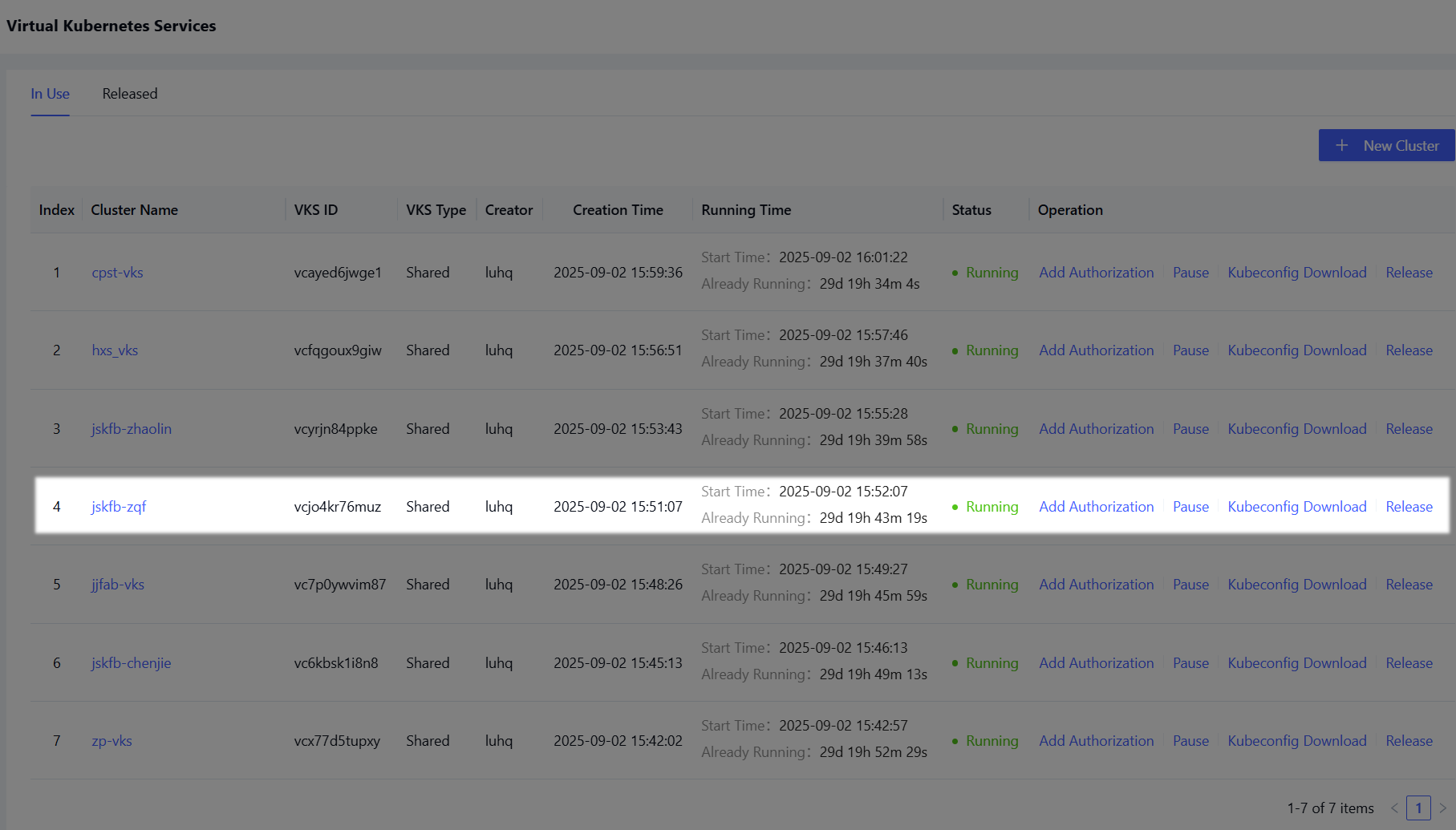
Create the VKS cluster After configuring all parameters , choose “Activate Now” to activate the cluster resources. You can view the created Kubernetes clusters on the [Product Center/VKS] page. When the cluster status is “Running” (as shown in the following figure), the Kubernetes cluster is ready to use.
-
After a VKS cluster is created, only authorized users can access it. Make sure that you configure and add authorized users in a timely manner. For detailed steps, see Authorize VKS.
-
For instructions on using VKS, refer to Use VKS.