Connect to Cloud Container Instance via SSH in Local VS Code
Visual Studio Code (VS Code) is a free, open-source code editor from Microsoft. It includes an integrated terminal and a rich extension ecosystem. This section explains how to connect to a Cloud Container Instance (CCI) via SSH from your local VS Code environment for development and debugging.
Prerequisites
- A CCI has been created and is in the “Running” state. For detailed steps, see Create Cloud Container Instance.
- VS Code is installed on your local machine.
Operation Steps
Step 1: Copy the SSH Connection Command and Password
-
Sign in to the Console and Choose "Product" > "Computing" > "Cloud Container Instance" to enter the CCI page.
-
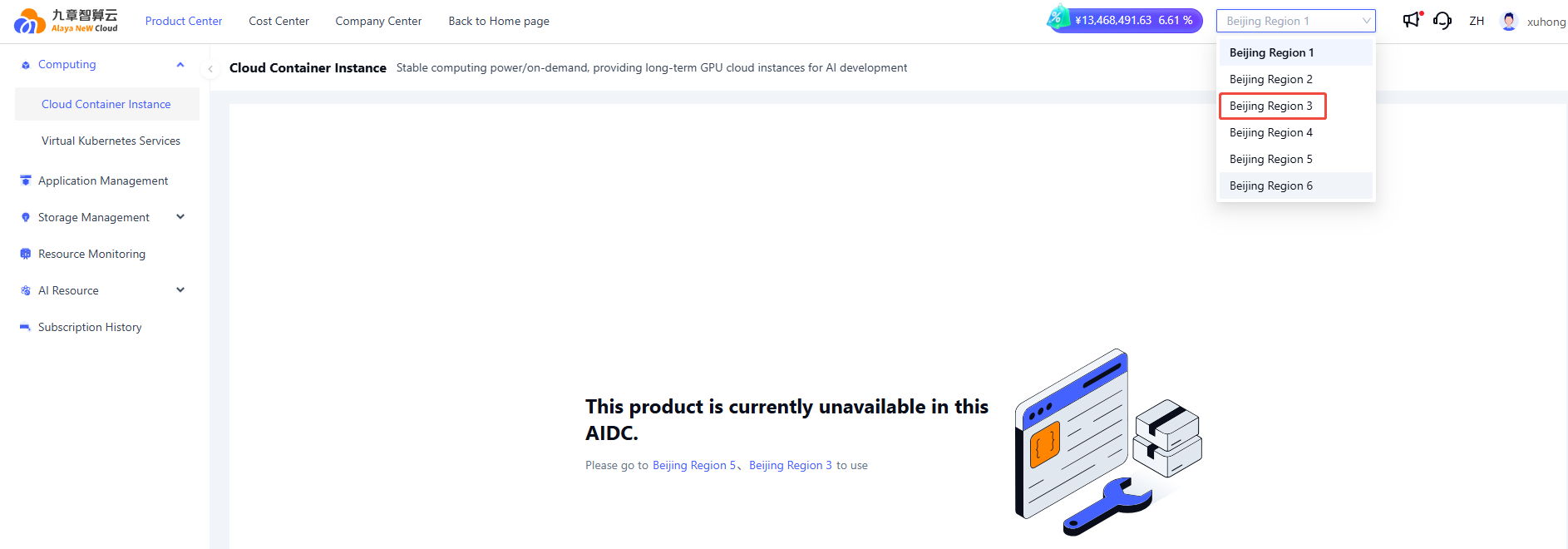
Click "Cloud Container Management" to open the CCI list, and select the AI Data Center in the upper-right corner.
-
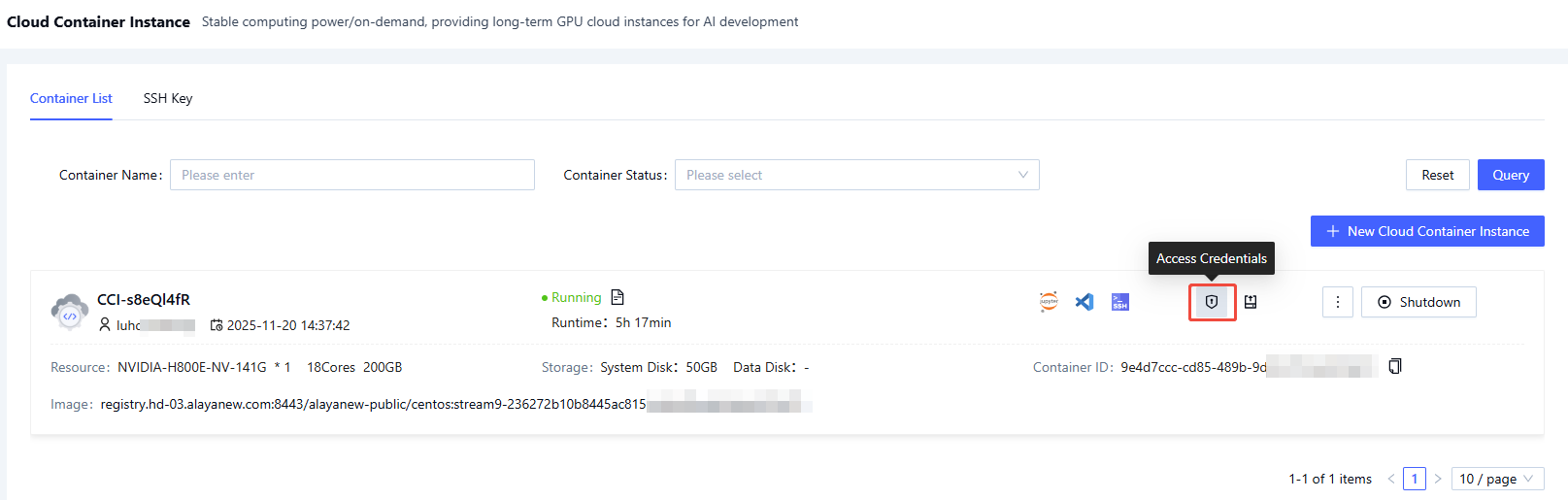
Under the Container List tab, locate the target CCI and click the "Access Credentials" icon.
-
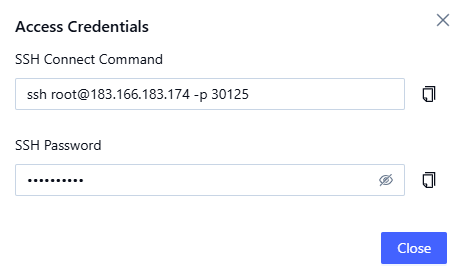
In the dialog box, copy the SSH connection command and password.
Step 2: Connect from Local VS Code
-
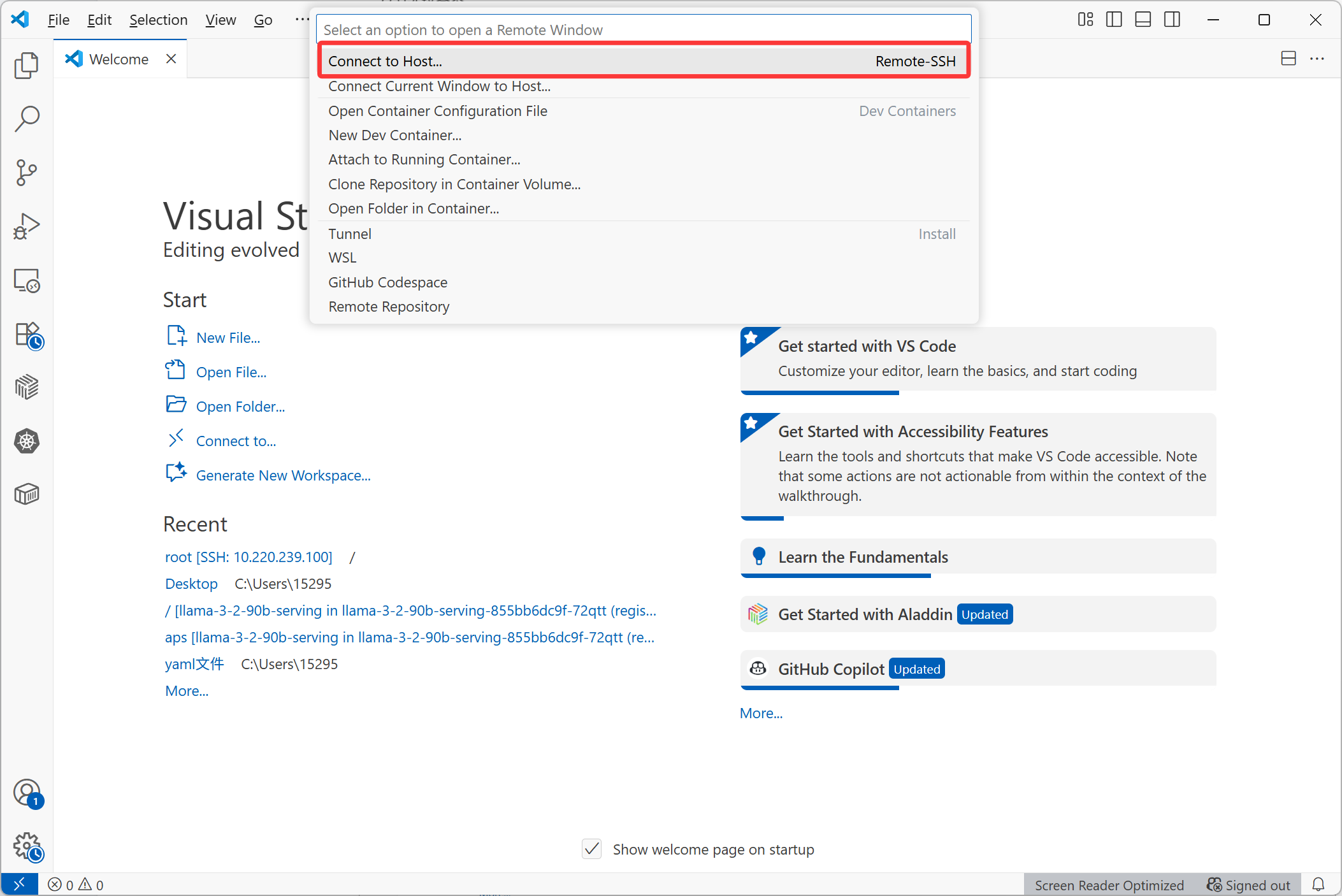
Open VS Code. On the Welcome page, select ""Connect to…"", then choose ""Connect to Host… Remote-SSH"" from the command palette.
-
If prompted, "install the Remote - SSH extension".
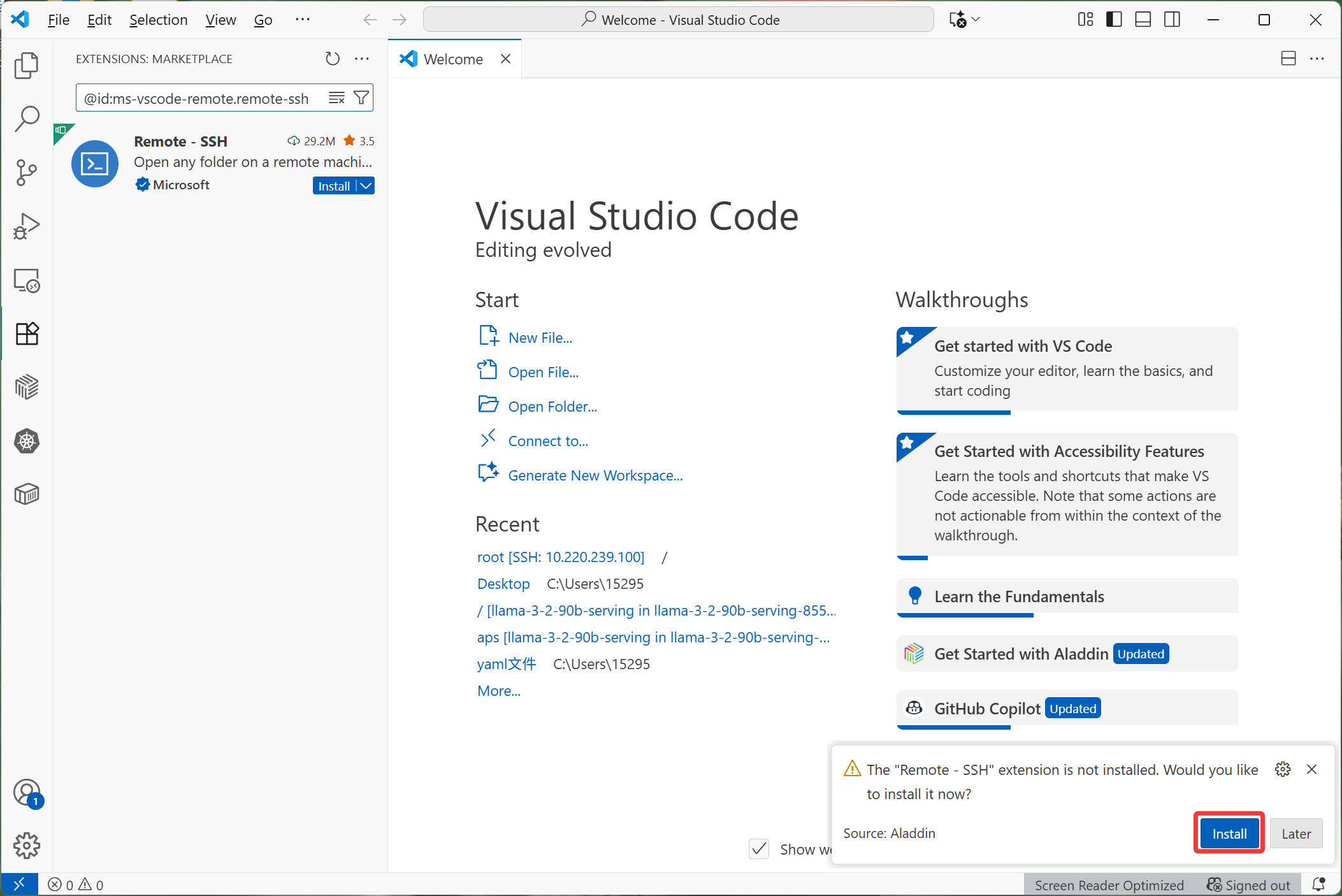
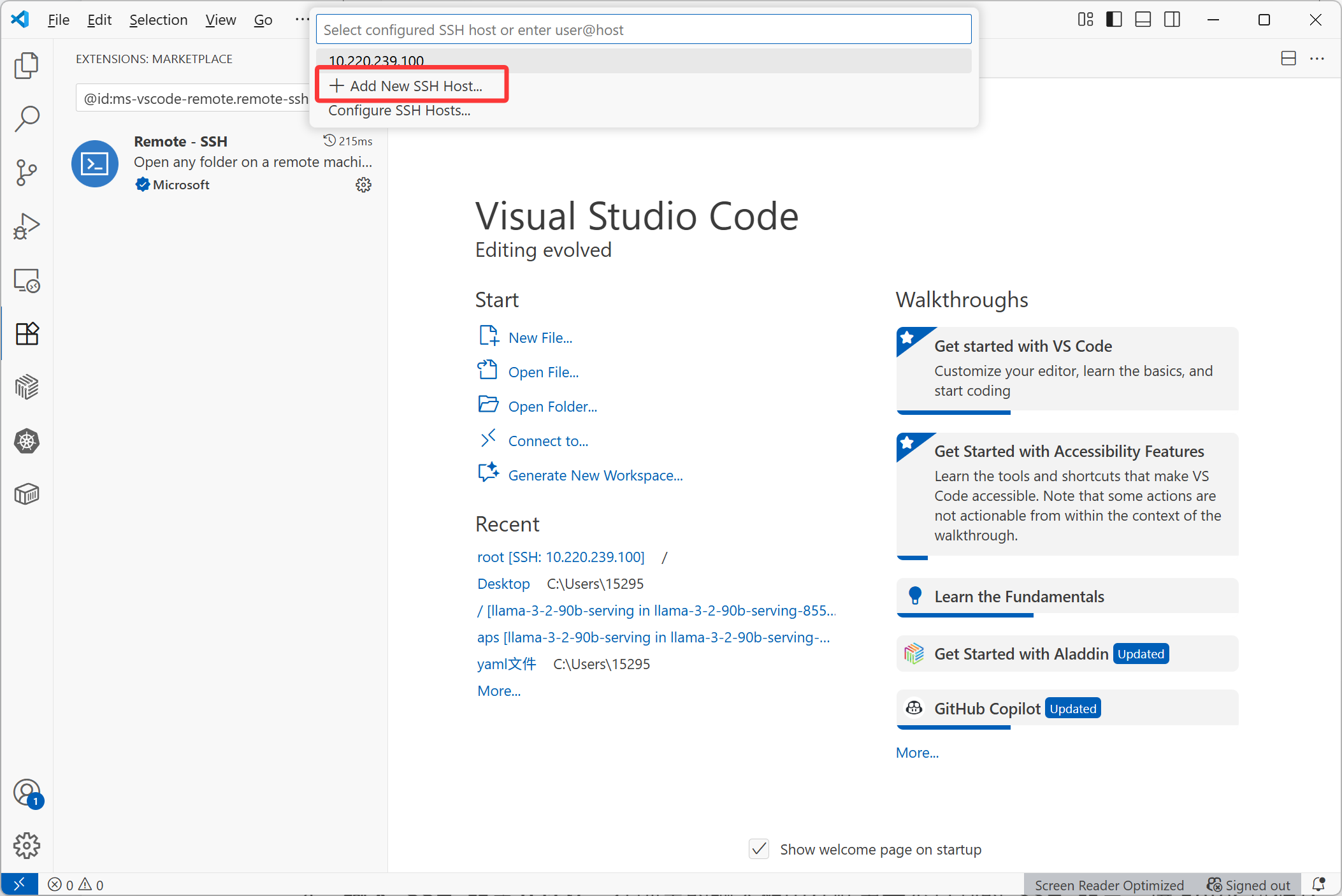
After installation, click "Add New SSH Host".
-
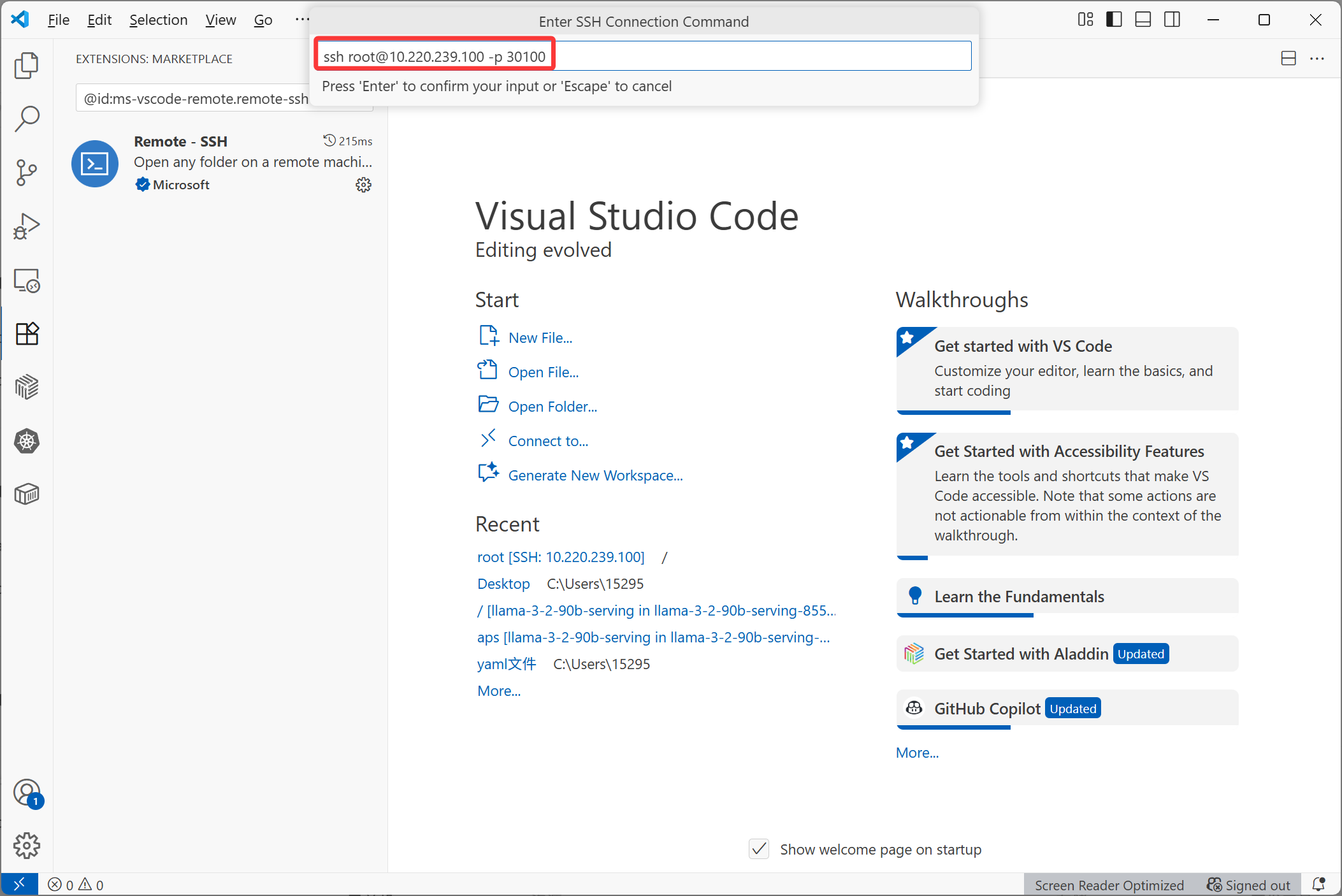
Enter the SSH command to connect.
Paste the SSH command copied in Step 1 into the input field, press "Enter", and select an SSH configuration file. VS Code will start the remote connection process and display a connection notification in the lower right corner.
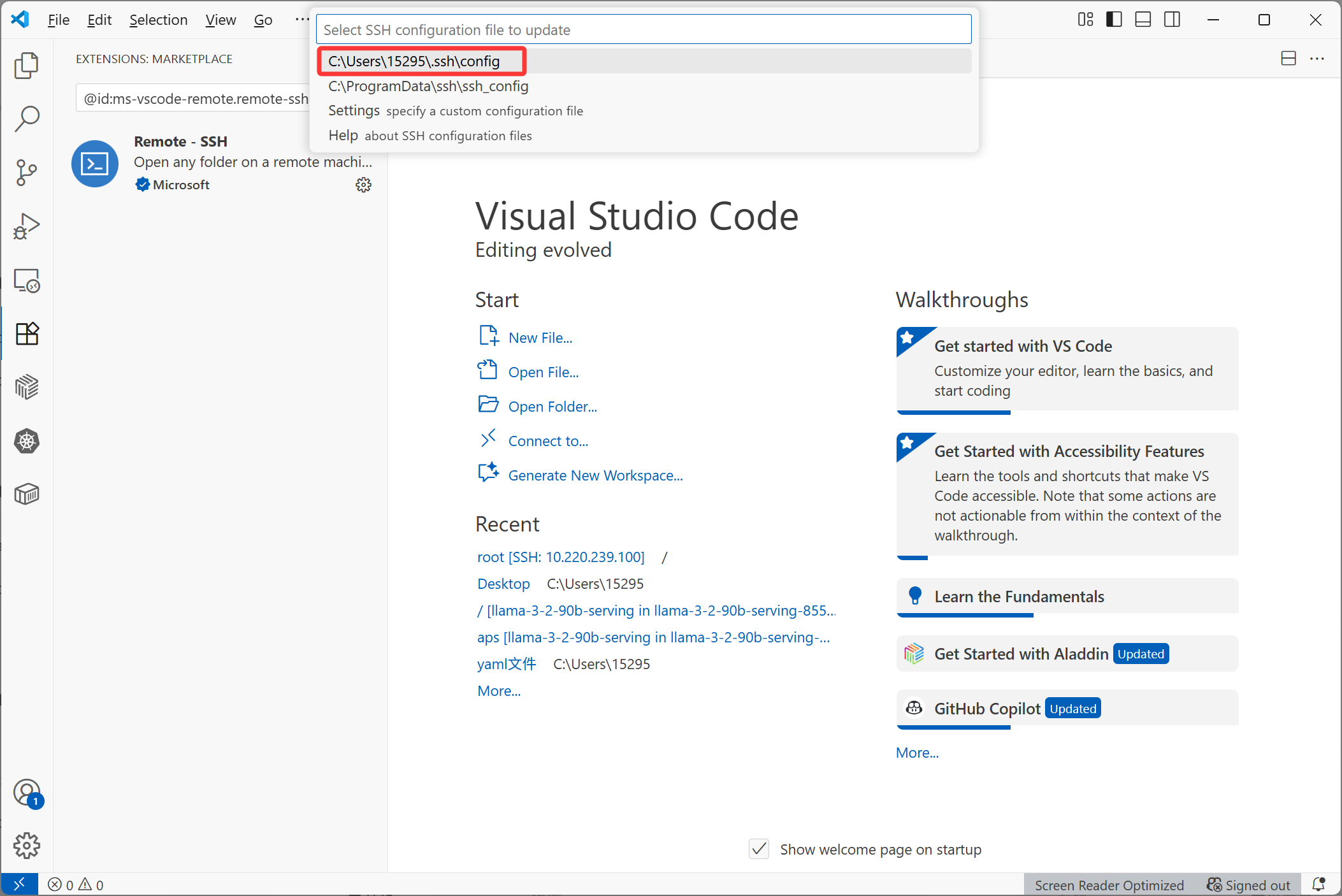
-
Establish the connection.
In the connection prompt, click Connect, then enter the SSH password copied in Step 1.

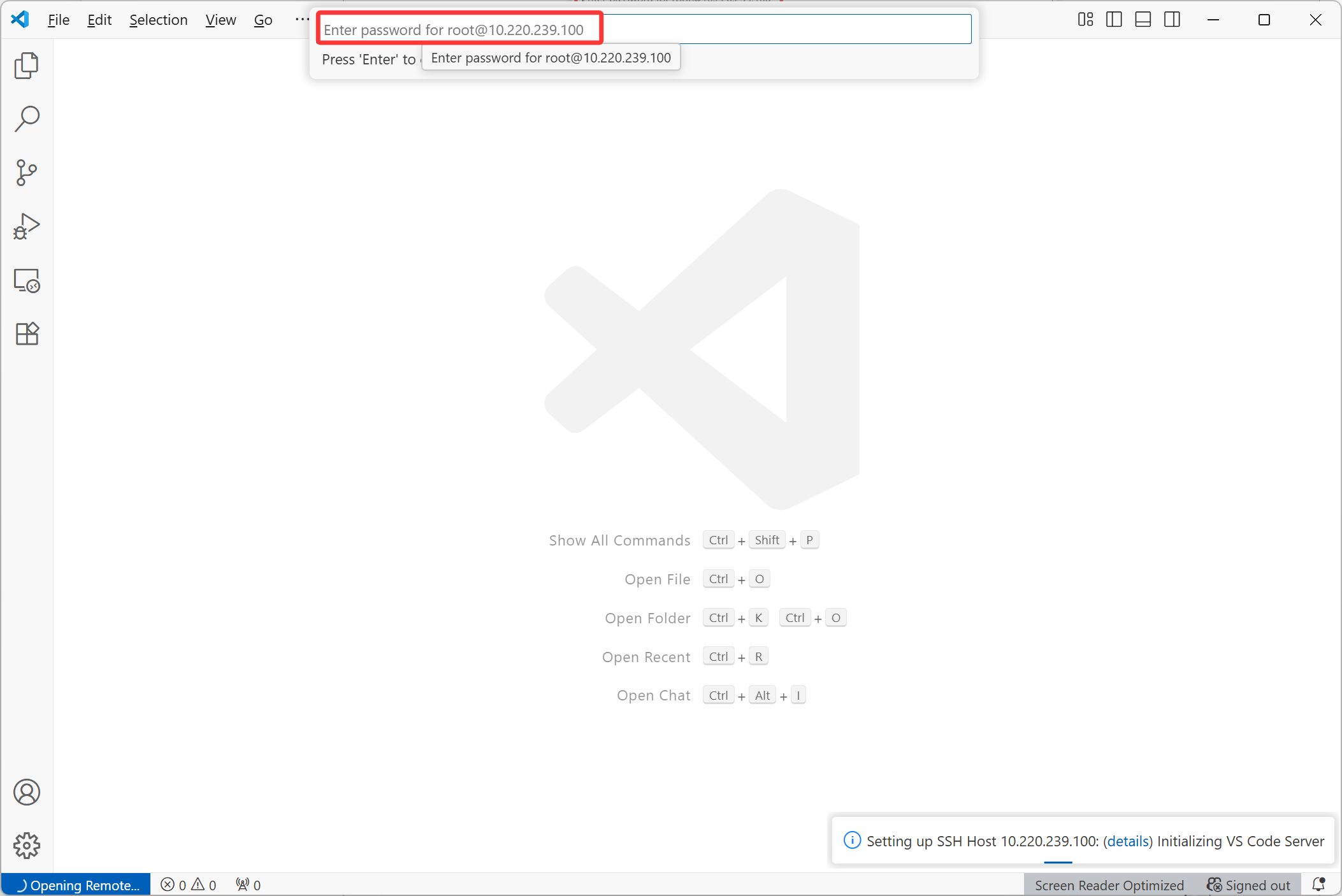
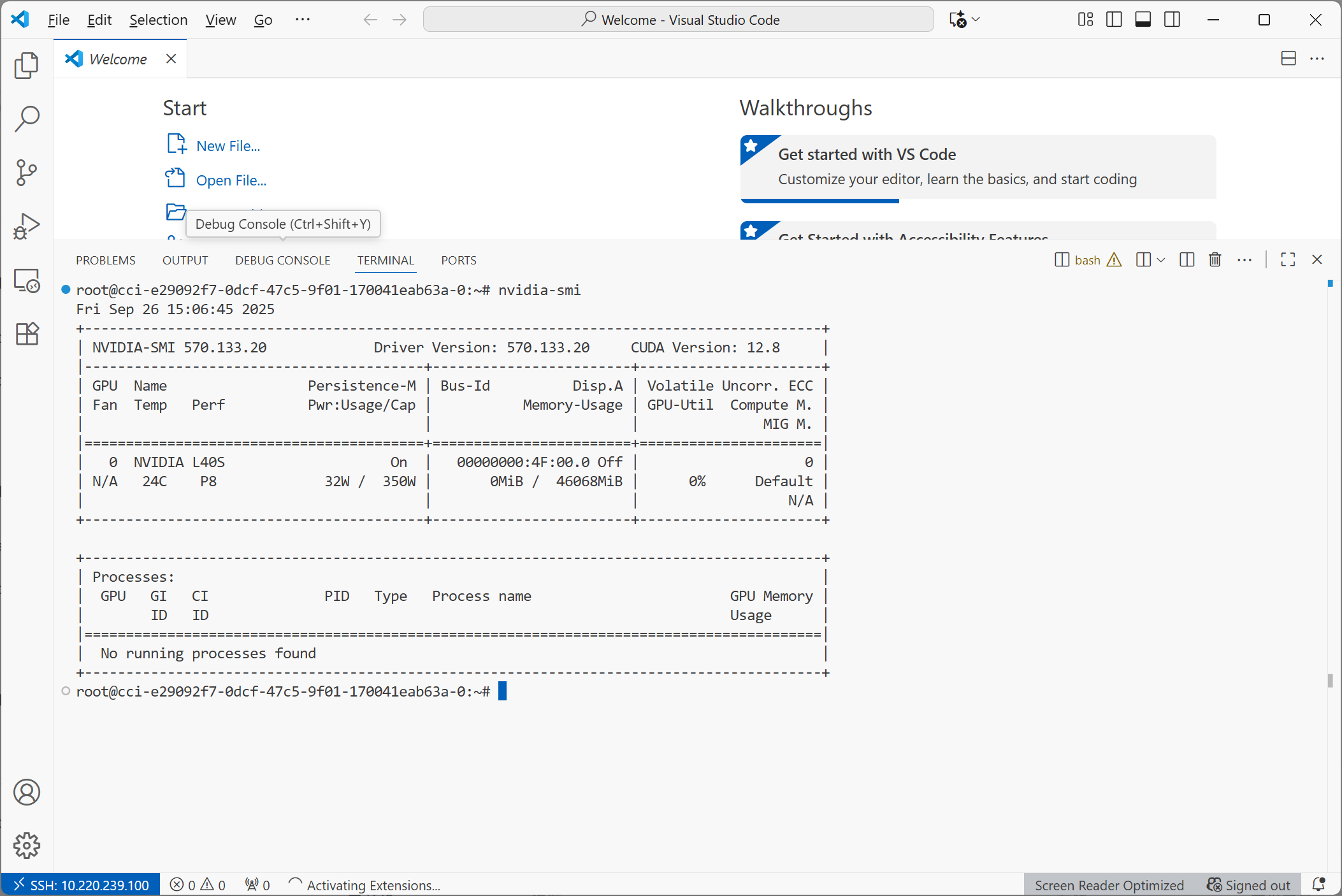
After authentication, VS Code establishes an SSH connection to the CCI and automatically opens its working directory.