Configuring Ports on Cloud Container Instances
When you deploy an application (such as a web service or model inference service) in a Cloud Container Instance and want to access it from an external network, you must open the corresponding ports on the Cloud Container Instance. This section describes how to configure ports on a Cloud Container Instance so that applications deployed on the instance can be accessed externally.
Prerequisites
- A Cloud Container Instance has been created and is in the “Running” state. For detailed steps, see Create Cloud Container Instance.
- The application is already running inside the instance and is listening on the required ports (for example, 9001 or 9002).
Procedure
-
Sign in to the console and Choose "Product" > "Computing" > "Cloud Container Instance" to enter the CCI page.
-
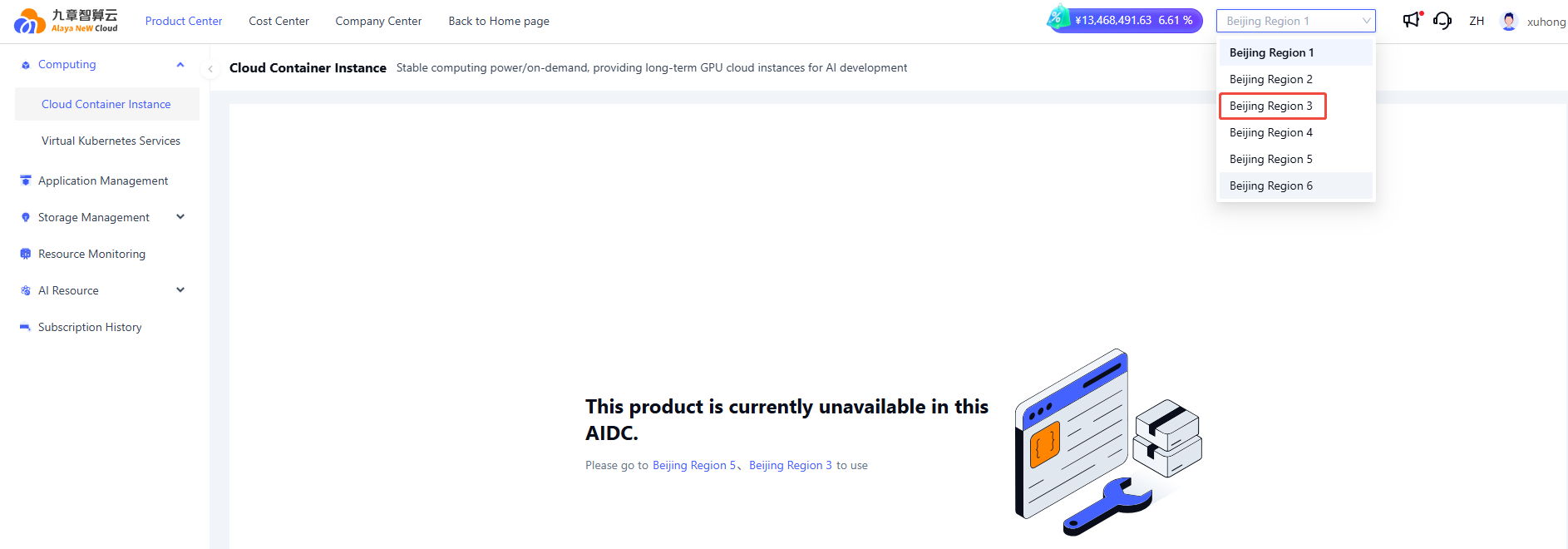
Click "Cloud Container Management" to open the CCI CCI list, In the upper-right corner, select the AIDC where your instance is located.
-
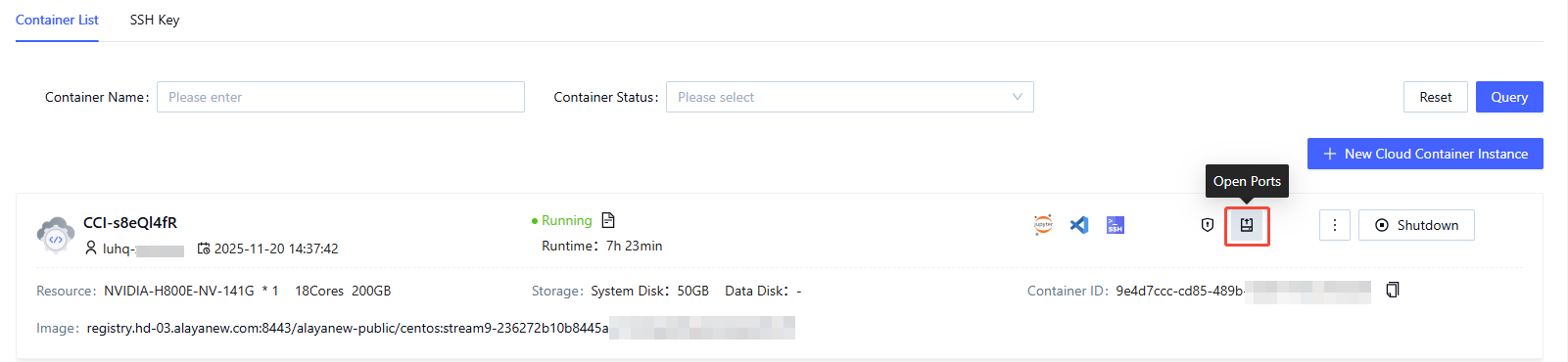
On the Container List tab, find the target Cloud Container Instance and choose the Open Port icon.
-
In the dialog box, review the ports that are already open by default.
Ports 9001 / 9002: Default system-provided ports used to expose applications externally.

-
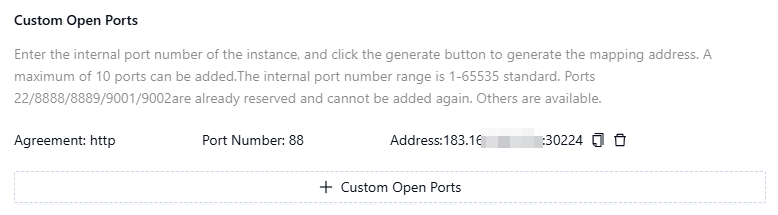
If your application's port is falls outside the default range, you can add a custom port under Custom Open Ports.
a. Choose + Custom Open Port.
b. Select an agreement and enter a port number (range: 1–65535). Then select Generate. The system automatically assigns a public access address.
tip- You can add up to 10 ports for each instance.
- Ports including 22, 8888, 9001, and 9002 are reserved by the system and cannot be configured again.
-
Copy the generated public access address and open it from a browser or client to access your application from the public network.
-
Execute the following command in the instance’s web-based CLI:
python -m http.server 9001Then open the Public Access Address for port 9001 in a browser. You should see a result similar to the following:
