Virtual Kubernetes Services Overview
After Virtual Kubernetes Services (VKS) is created, the administrator and any authorized users can view the corresponding cluster details.
Prerequsites
- VKS has been created and is available. If it has not been created yet, you can refer to Activate Virtual Kurbernets Services to complete the activation.
- The user has been granted access by the administrator to the corresponding VKS. The enterprise administrator can grant access by referring to Authorize Virtual Kubernetes Services.
The administrator account can monitor all cluster resources within the enterprise and assign usage permissions to enterprise members, regardless of whether the account has created clusters.
Overview
-
Sign in to the Alaya NeW platform using your registered enterprise account. Click the [Product/Virtual Kubernets Services] menu item to enter the product overview page.
-
On the product overview page, click Cluster Management to enter the cluster list page. Locate the target cluster and click its name to open the cluster details page, as highlighted in the figure below.
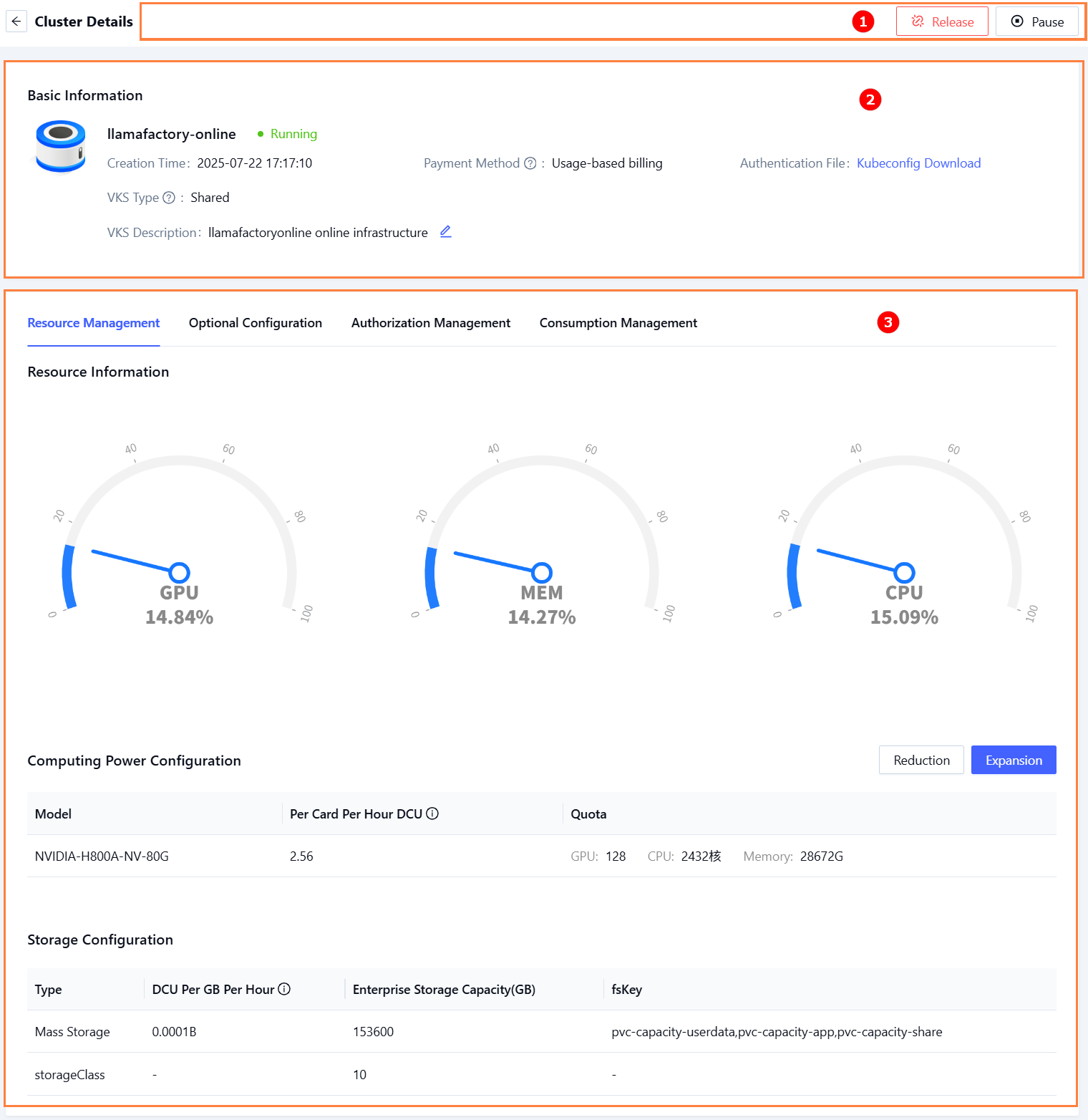
The cluster details page consists of "Basic Information" (highlighted as ② above) and "Resource Information" in five tabs (highlighted as ③), as described in the table below. Of these five, parallelism management is applicable only to VKS of shared type. In other word, users of VKS of shared type will only see four tabs.
| No. | Module Name | Description | Notes |
|---|---|---|---|
| ① | Operation Panel | Allows users to quickly stop or release cluster resources. | - |
| ② | Basic Information | Displays key cluster information such as cluster type, authentication files, cluster status. | |
| ③ | Resource Information | Provides cluster detail statistics and supports O&M management for resources. |
Operational Procedure
The cluster details and available operations are described below.
Resource Management
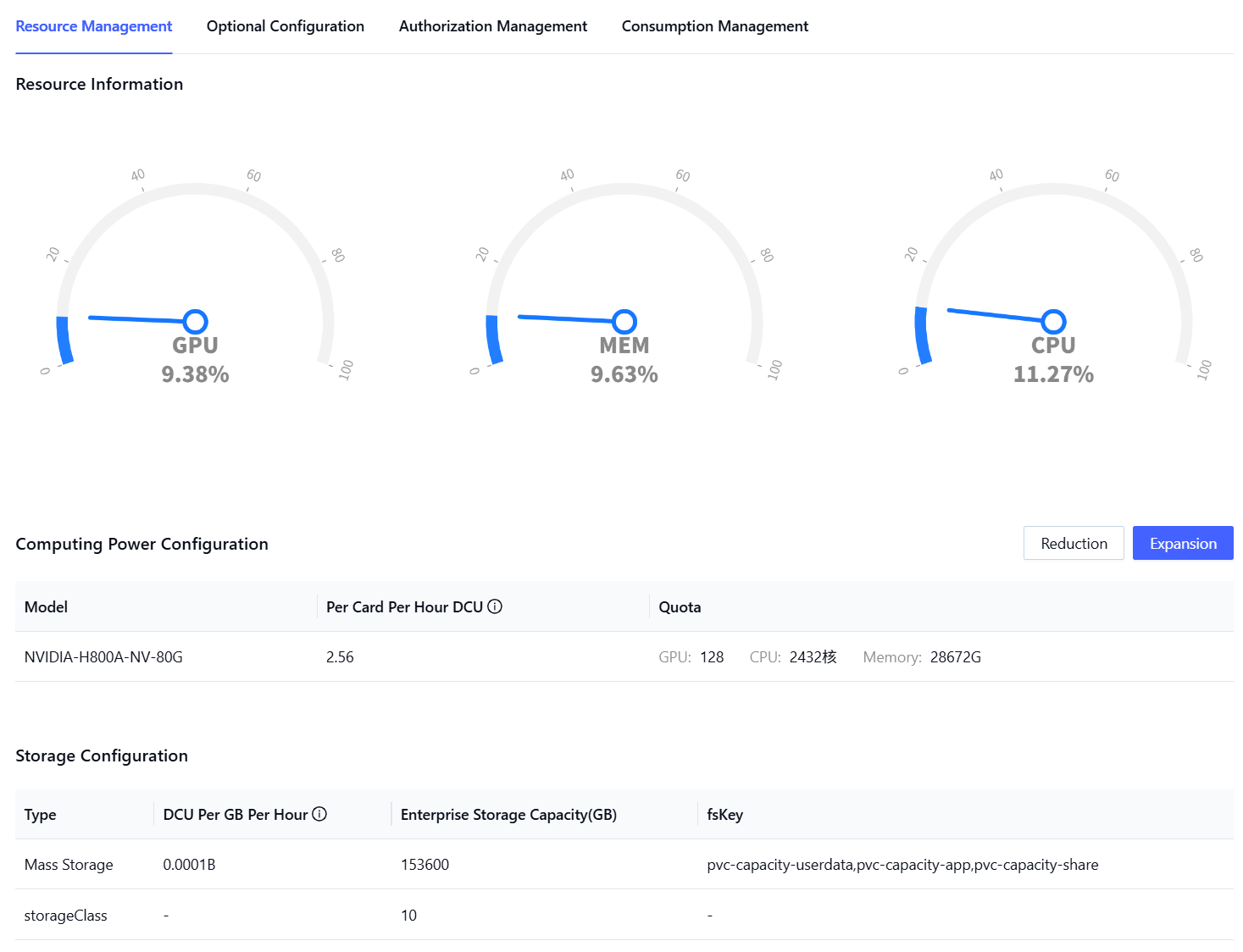
On the Resource Management page, users can view the following information. An example is shown below:
| No. | Module Name | Description |
|---|---|---|
| 1 | Resource Details | Displays GPU, memory, and CPU utilization rate. |
| 2 | Compute Configuration | Provides detailed compute resource configurations, including GPU models, pricing rules, and available quotas. Users may scale resources up or down based on business needs. |
| 3 | Storage Configuration | Displays storage configuration details, such as storage type, pricing rules, total enterprise storage capacity, and fsKey details, helping users quickly obtain storage information. |
Reduction
-
Click "Reduction" to enter the resource configuration page, then adjust the post-reduction quota for the compute resources.

-
After configuring the resource quota, click Submit to complete the reduction operation.
The effective parallelism limit applied to the user is determined by the lower value between the user-configured parallelism and the current VKS resource limit.
Expansion
-
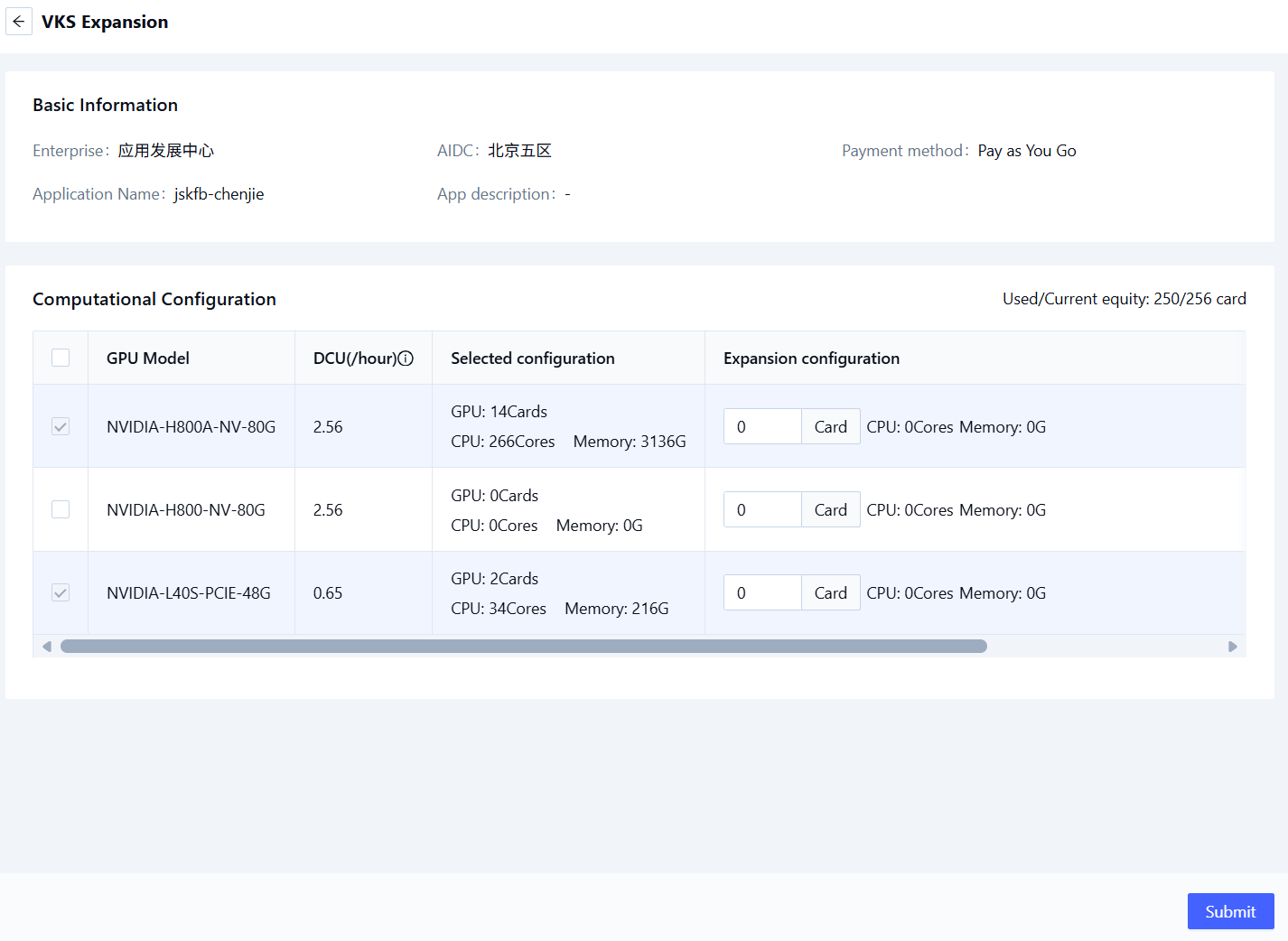
Click "Expansion" to enter the resource configuration page, then adjust the post-Expansion quota for the compute resources.
-
After configuring the resource quota, click Submit to complete the expansion operation.
Optional Configuration
Users may enable external service access for the current cluster.
Authorization Management
This function manages authorization information in a cluster, including authorized users, subject types, and authorization time. It supports revoking existing user authorizations and adding new authorizations. The following describes how to add a new authorization:
-
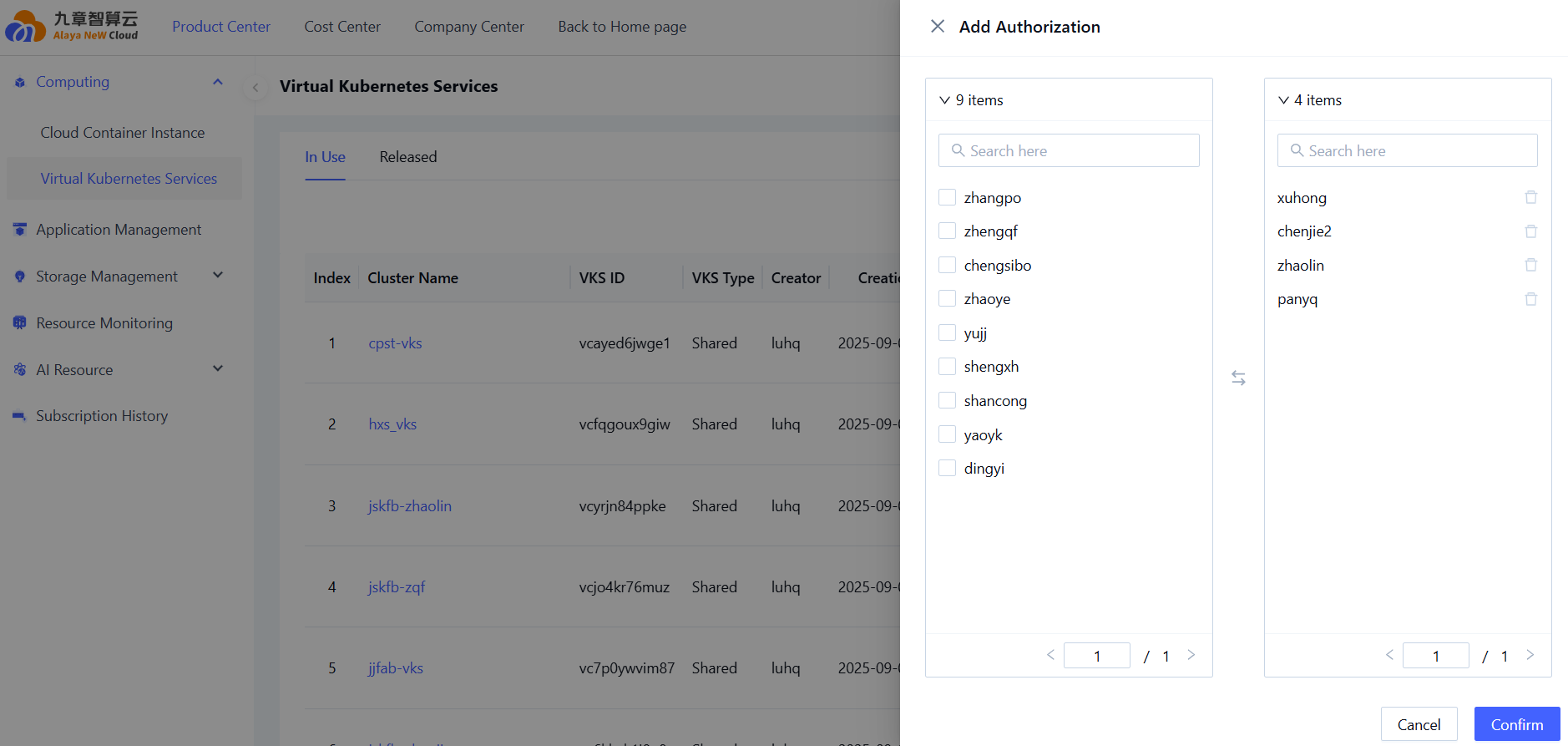
Click Authrization Management > Add Authorization . In the dialog page that appears, select one or more users in the left panel, then click the double-arrow button in the middle to move them to the right panel and add them to the authorization list, as shown in the figure below.
-
After completing the selection, click Confirm to finish the authorization process.
Consumption Management
This function provides usage statistics in terms of computing resource consumption across diverse time periods including today, yesterday, this month, and last month. The enterprise administrator can configure consumption rules for VKS of exclusive type at both the VKS level and the user level by selecting "Consumption Management". An example of such a case is shown below.
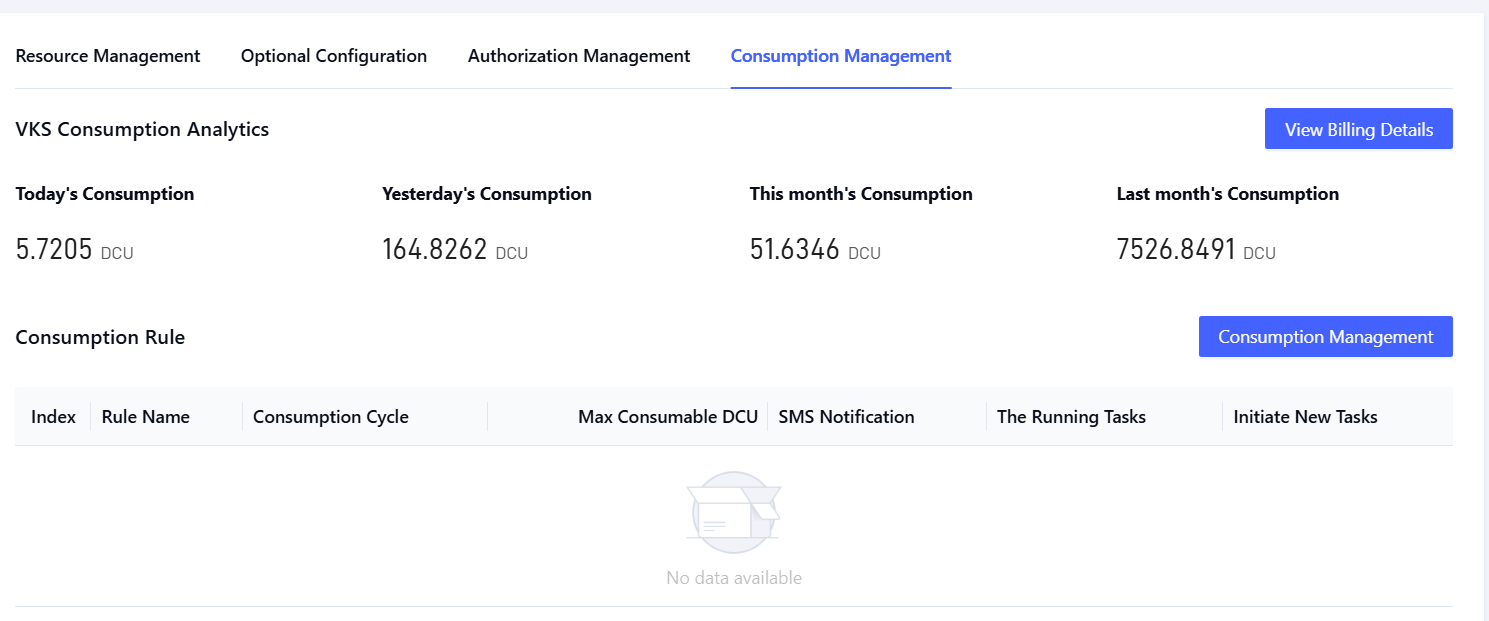
For VKS of shared type, since resources are shared among all users, consumption rules at user-level are not supported.
Parallelism Management
This function is applicable only to VKS of shared type and manages GPU resource usage, specifically, the maximal number of GPU card allowed for any given task. The enterprise administrator can create, edit, delete, and view parallelism rules. Enterprise users can view parallelism rules for clusters they are authorized to use, as shown in the figure below.
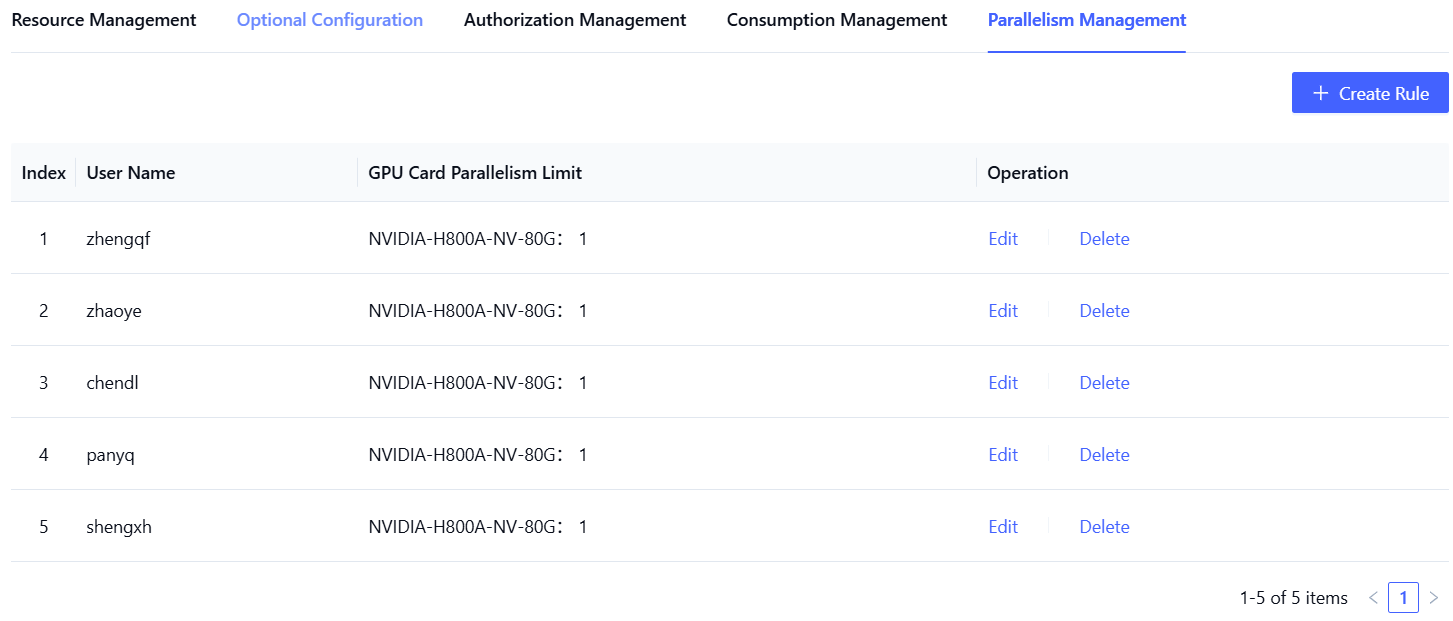
Steps to create a new parallelism rule:
-
On the Cluster Details page, click Parallelism Management to enter the corresponding tab.
-
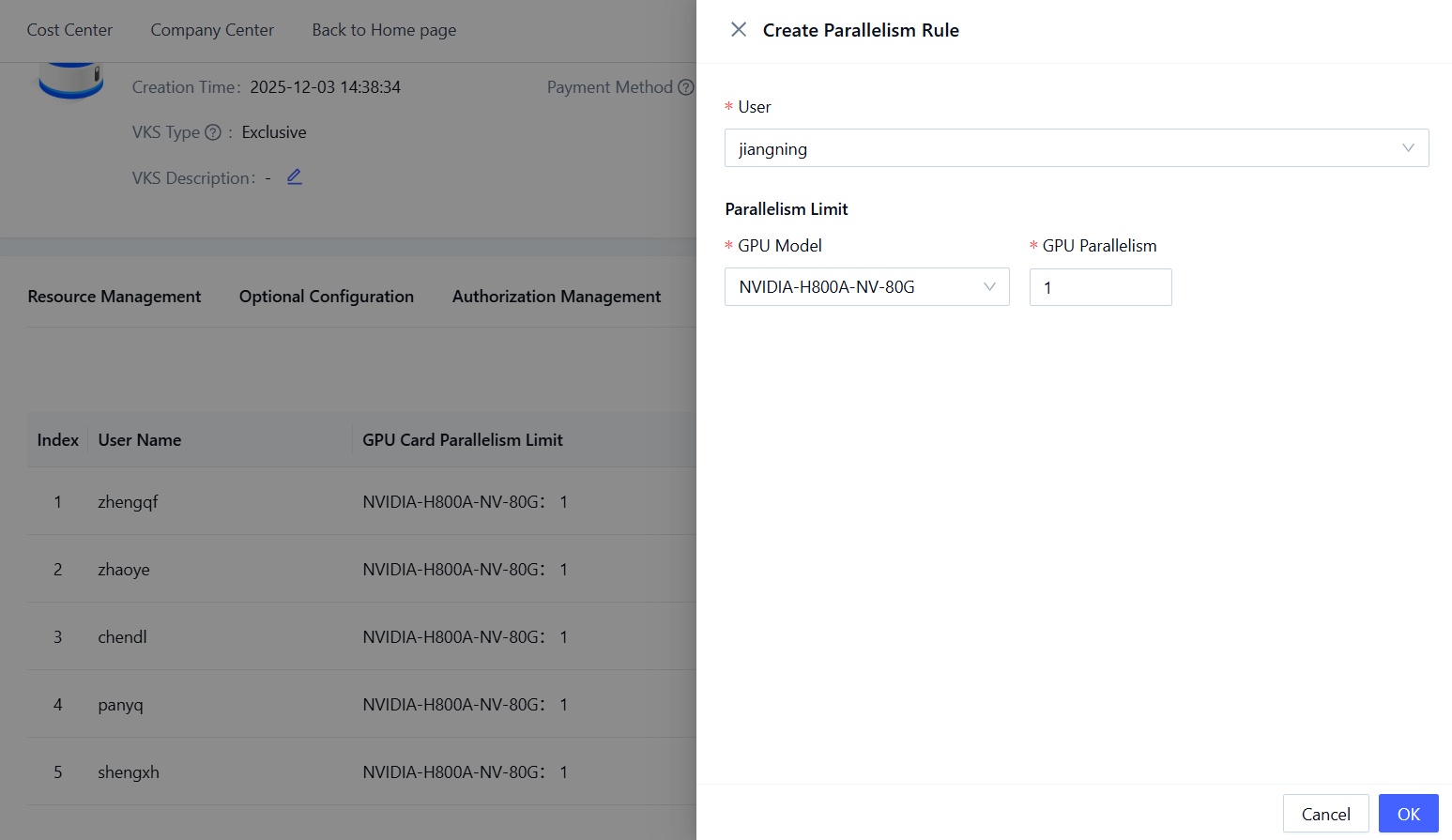
Click "Create Rule" to open the parallelism parameter configuration page and complete the required fields, as shown below:
-
User: Refers to users who are authorized to use the VKS cluster. The administrator may configure parallelism rules for these users.
-
GPU Card parallelism Limit: Represents the number of available GPU cards in the current cluster. The GPU parallelism value to be entered in the field in the dialog window may not exceed GPU Card parallelism Limit.
- After completing the configuration, click OK to apply the parallelism rule.