Create Image Pull Secrets
When deploying a container on Virtual Kubernetes Services (VKS) , you must first upload your image to the image registry that is provisioned together with the VKS Cluster. This section describes how to manage image registry credentials (secrets) in VKS and how to use these secrets in containers.
Prerequisites
*The VKS cluster has been created and is functioning properly. If VKS has not been created, refer to Create Virtual Kubernetes Services to complete the activation. *The image registry service has been enabled. For details, refer to Create Image Registry.
Retrieve the Image Registry Endpoint
-
Sign in to the Alaya New website, navigate to
Products Center→AI Resource→Image Registryto access the registry page. -
In the upper-right corner, select the AIDC where both the VKS Cluster and the registry service are enabled. Then open the Private Images tab to view registry details.

The Access Address displayed on the page is the registry endpoint. Do not include the project name that appears after the address.
Retrieve Username and Password
-
Method 1: After the registry is enabled, the platform automatically sends the username and password via SMS.
-
Method 2: If you did not receive the SMS or accidentally deleted it, you can reset the credentials.
-
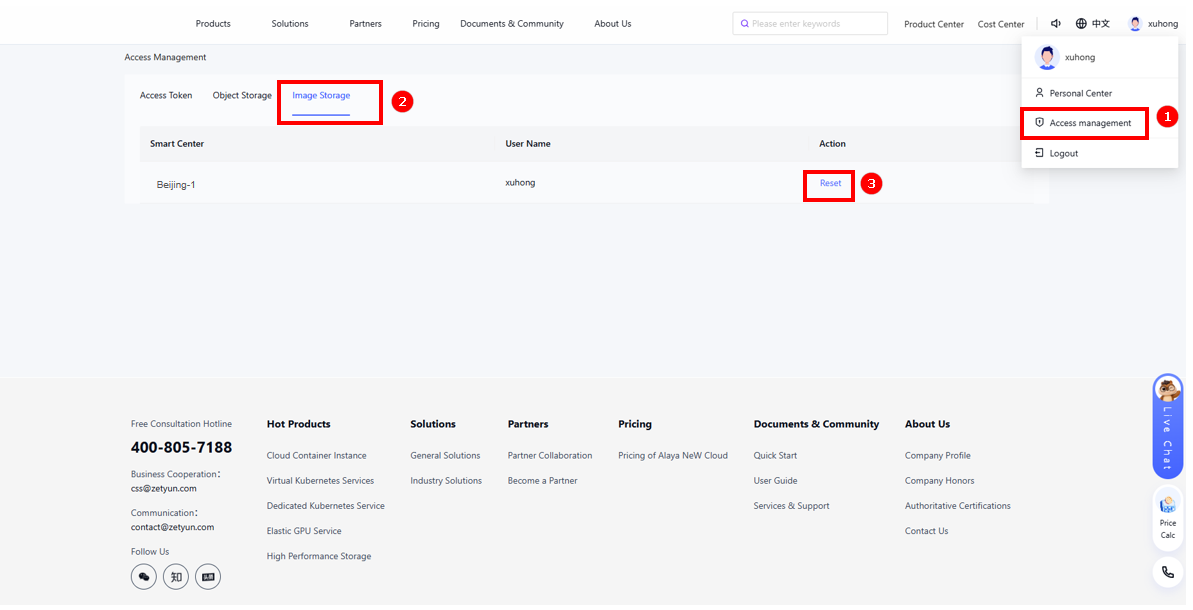
In the upper-right corner, click your profile avatar and choose Access Management, as shown in Figure ①.
-
On the "Access Management" page, select the "Image Storage" tab (as shown in Figure ②), then click "Reset" in the "Actions" column for the target AIDC (Figure ③) to reset the registry username and password.
-
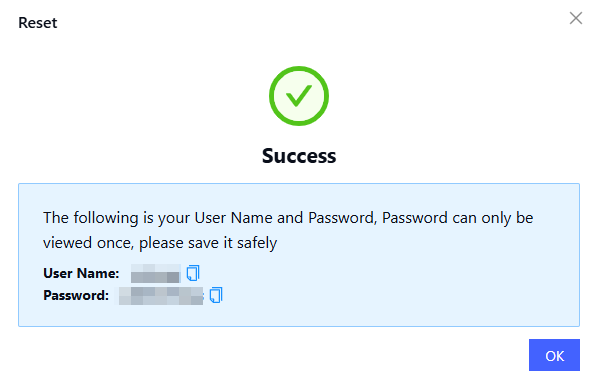
The new credentials are displayed as shown below.
-
Create a Secret Using the Command Line
Use the following command to create a secret. Replace each placeholder accordingly:
- your-secret-name: Replace with your custom secret name
- your-username: Replace with your image registry username
- your-password: Replace with your image registry password (wrap in single quotes if it contains special characters)
- your-harbor-domain: Replace with your image registry domain name
- your-namespace: Replace with the namespace where this secret will be used
kubectl create secret docker-registry your-secret-name \
  --docker-username=your-username \
  --docker-password='your-password' \
  --docker-server=your-harbor-domain \
  --namespace=your-namespace
Create a Secret Using Kubernetes Resources
Generate the configuration JSON
Example:
{
    "auths": {
       "your-registry-endpoint": {
        "username": "your-username",
        "password": "your-harbor-password",
        "email": "your-email"
    }
  }
}
Base64-encode the JSON file
- linux
- windows
- Online Encoding
base64 config.json > encode-config.json
certutil -encode config.json encode-config.json
You can also use an online Base64 encoding tool, for example:
https://www.bejson.com/enc/base64/
Create the Kubernetes Secret
The value of .dockerconfigjson should be the Base64-encoded content generated in the previous step.
Example:
apiVersion: v1
kind: Secret
metadata:
  name: ydyd-harbor-secret
  namespace: your-namespace
type: kubernetes.io/dockerconfigjson
data:
  .dockerconfigjson: ewogICAgImF***********************************zd29yZCI6ICJZQVNETmhiZGFzIT8jMTJRIiwKICAgICAgICAgICAgImVtYWlsIjogInpoYW5ncG9AemV0eXVuLmNvbSIKICAgICAgICB9CiAgICB9Cn0K
Use the Secret
When deploying a container, reference the configured secret to pull images.
Example:
apiVersion: v1
kind: Pod
metadata:
  name: your-pod-name
  namespace: your-namespace
spec:
  imagePullSecrets:
    - name: your-harbor-secret
  containers:
    - name: your-contain-name
      image: your-image
      imagePullPolicy: IfNotPresent
      volumeMounts:
        - mountPath: /mnt/test
          name: your-volume-name
      command: ['/bin/bash', '-c', 'while true; do sleep 30; done']
  volumes:
    - name: your-volume-name
      persistentVolumeClaim:
        claimName: your-pvc-name