
Use the VS Code Dev Containers + Kubernetes extensions to attach directly to a Pod in VKS — no SSH required
Overview
The VS Code Dev Containers extension lets developers work inside a container. Combined with the Kubernetes extension, you can attach directly to Pods in VKS for development and debugging — no SSH plumbing.
Prerequisites
- Dev Containers and Kubernetes extensions installed
- The cluster is reachable
Install the extensions
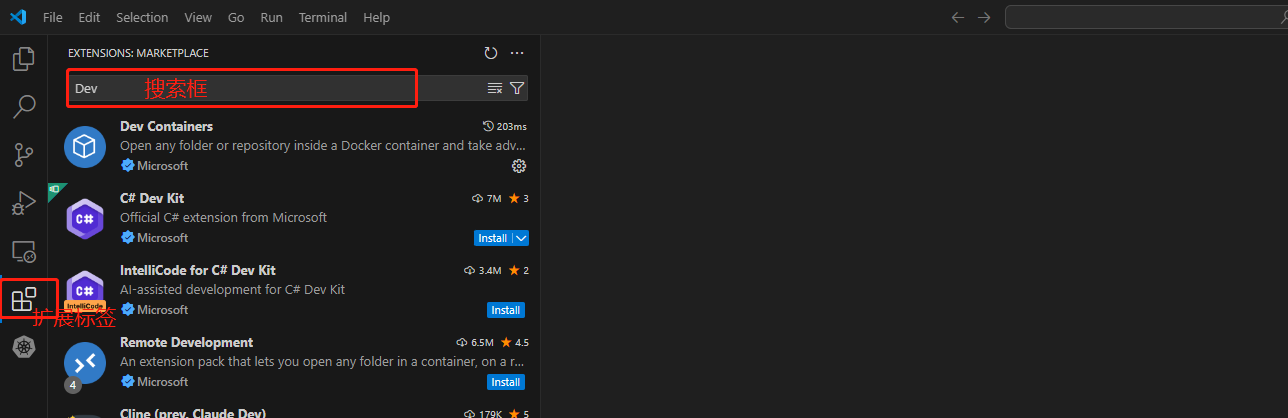
Open VS Code, go to Extensions, search and install Dev Containers and Kubernetes:
Connect to the cluster
Create a container in VKS first. Once the Kubernetes extension is installed, a Kubernetes tab appears in the left sidebar; clicking it lists configured clusters and their resources:
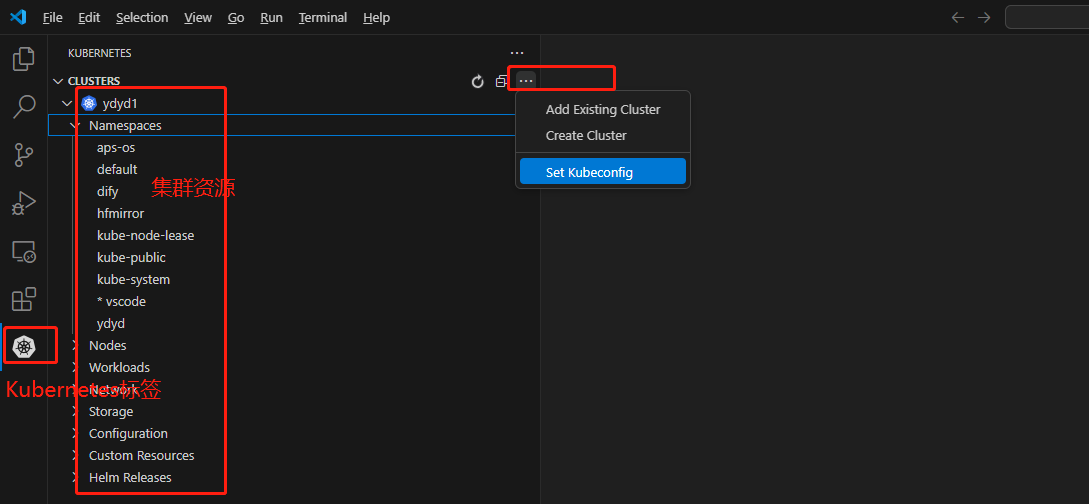
If nothing shows up, click the ... next to CLUSTERS and pick "Set kubeConfig" to reconfigure:

Attach to a container in the cluster
-
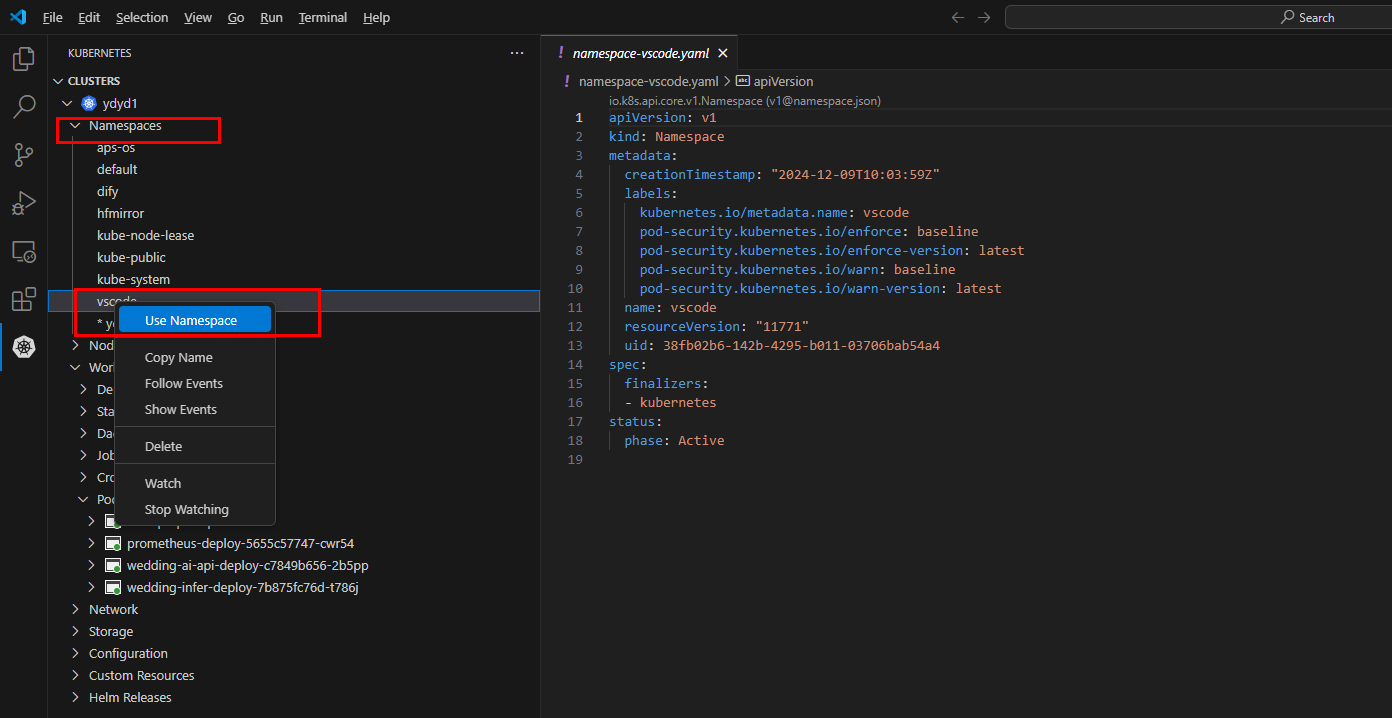
Expand the namespace list, pick the target namespace, right-click → "Use Namespace".
-
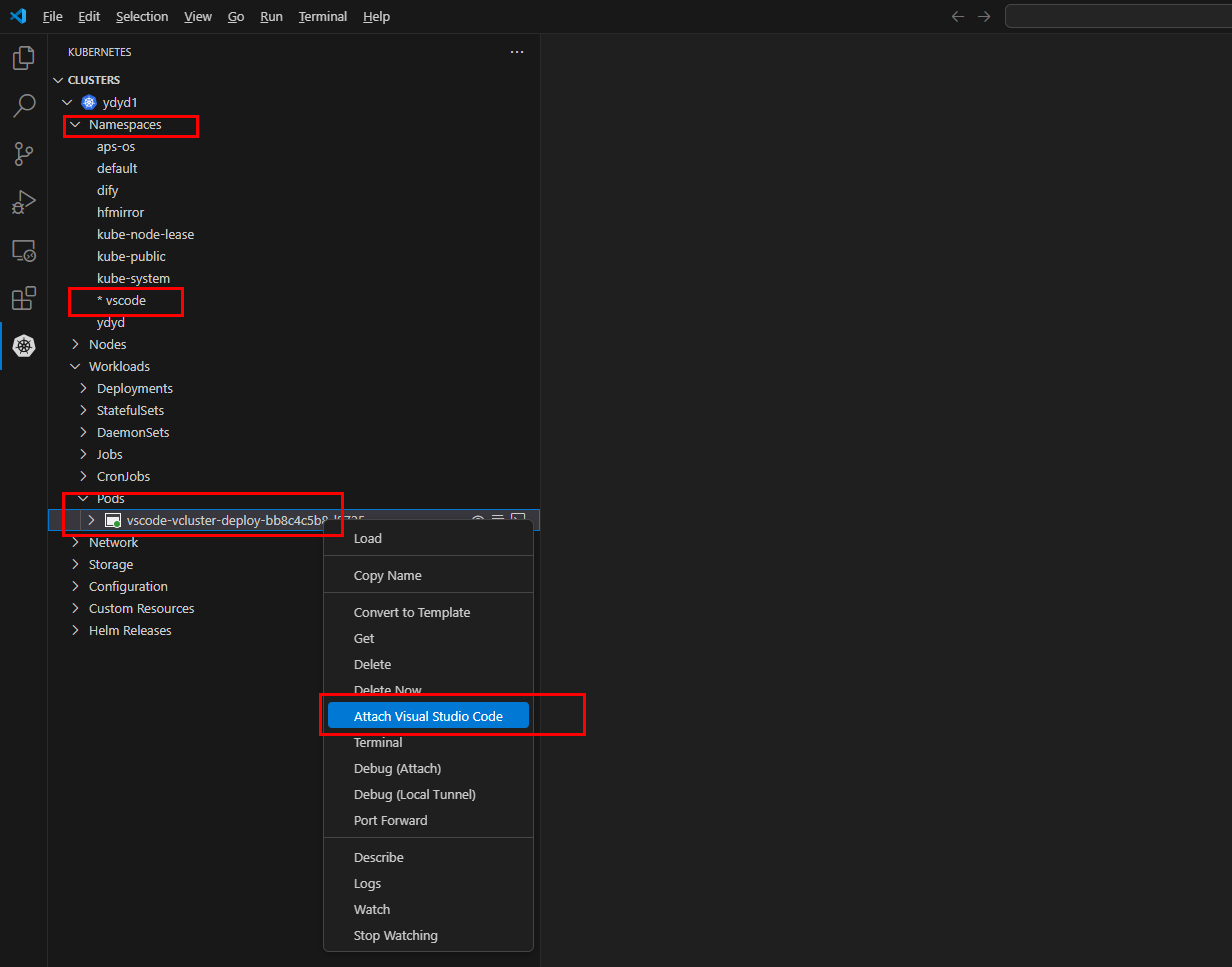
Expand Pods under Workloads, pick the target Pod, right-click → "Attach Visual Studio Code", wait for the connection.
-
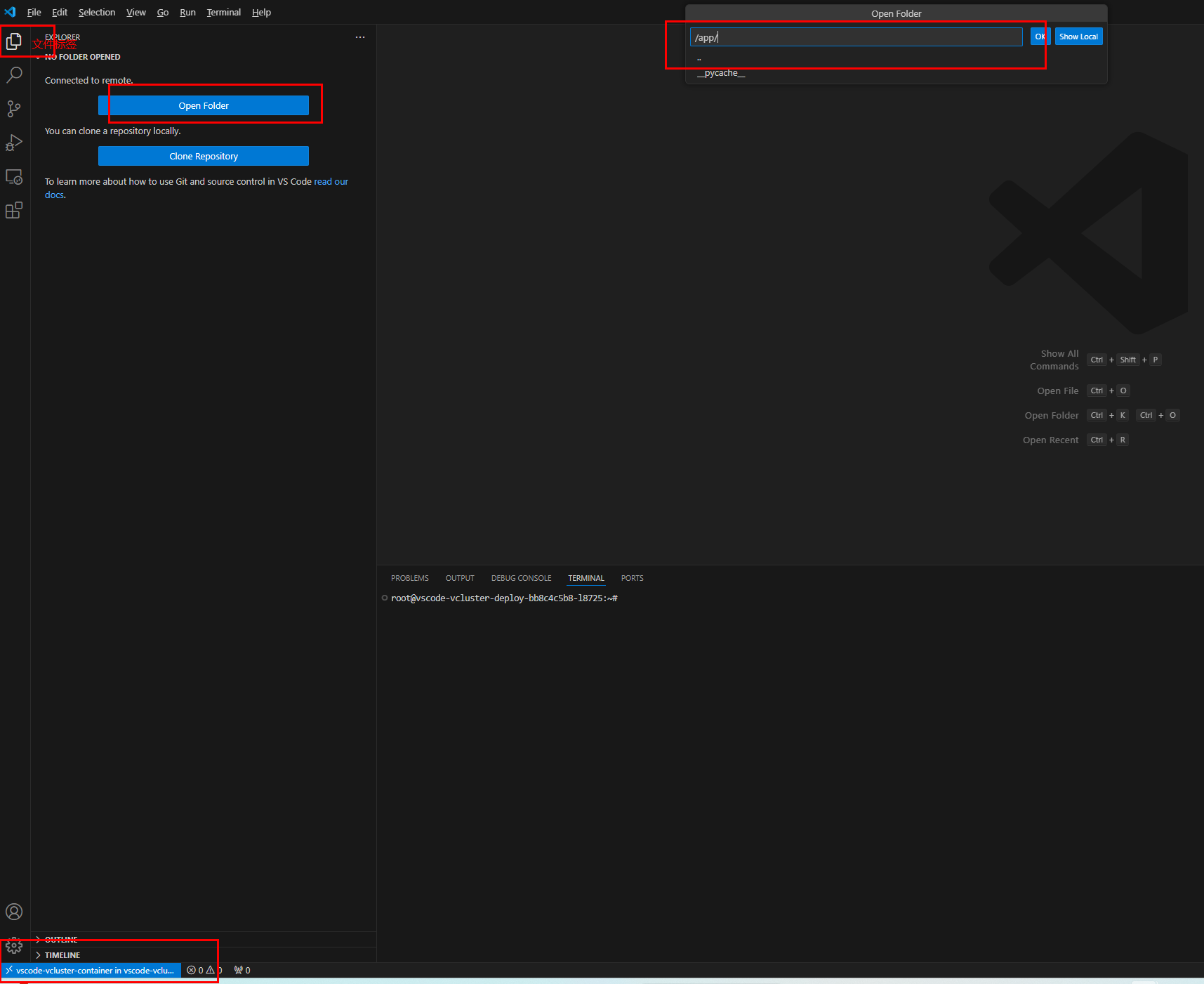
On success, VS Code shows a remote-container badge in the lower-left corner. Click "Open Folder" in the upper-right to pick a directory inside the container.
-
The new window loads the container's code — start developing.
Caveats
Important: The container in this example does not declare persistent storage. Any change inside the container is lost on redeploy. If you need to keep changes, declare a PVC and mount it. Some services (like Flask) won't pick up code changes automatically — you'll need to redeploy.
Last updated on